
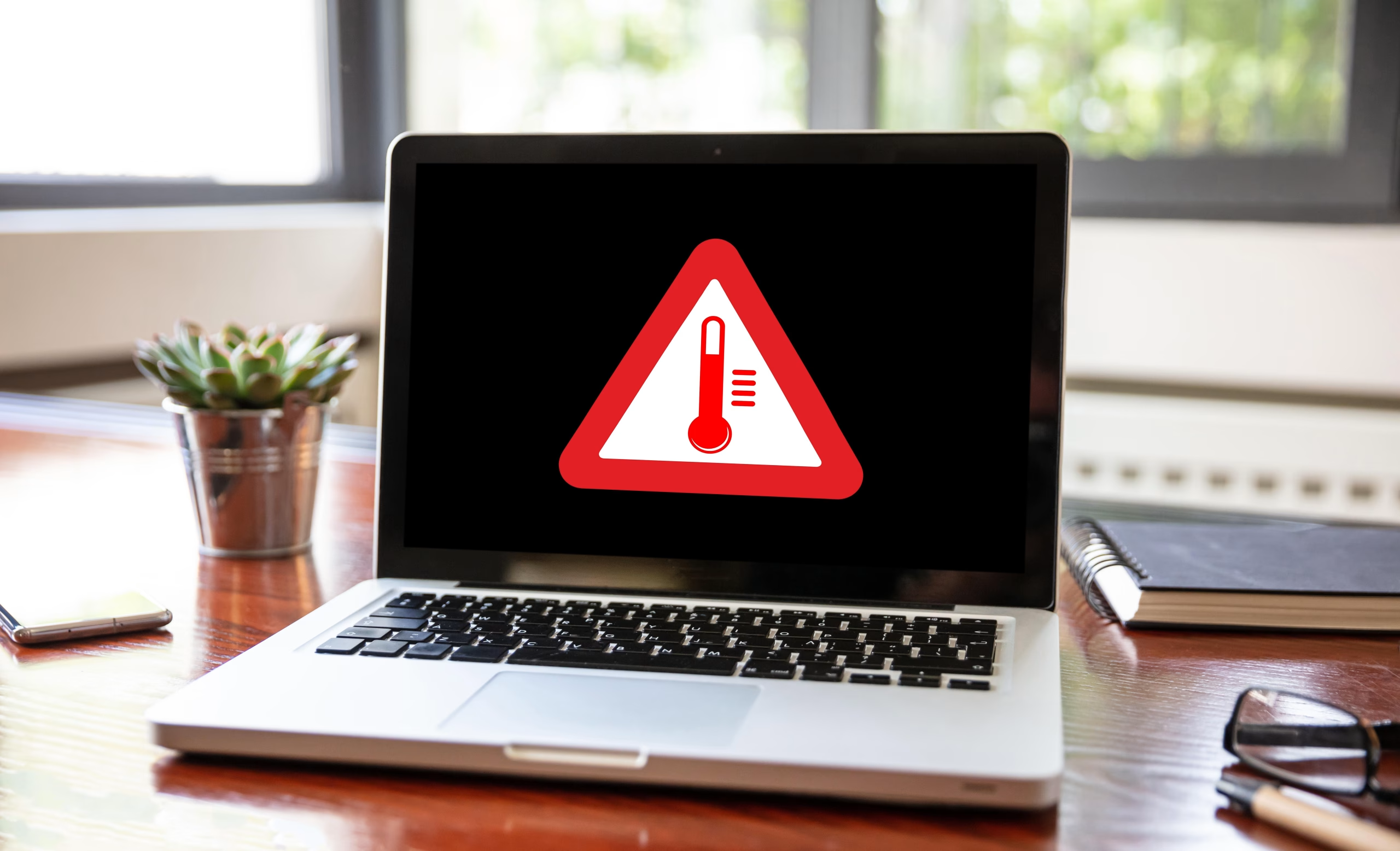
Common causes of laptop overheating are often ignored until performance problems begin. Many users assume that high temperatures are normal for compact devices, but sustained overheating is not a normal operating condition. Modern laptops combine powerful processors, GPUs, and storage systems into thin chassis designs, making thermal management critical for long-term stability.
If your laptop feels unusually hot, the fan runs constantly, the system slows down during simple tasks, or it randomly shuts off, overheating may be the root cause. At Trueonefix Computer Repair Shop, thermal-related issues are among the most frequent diagnostic cases we handle, especially in high-performance and gaming systems.
Understanding the common causes of laptop overheating helps you protect your device and avoid unnecessary motherboard-level damage.
1. Dust Accumulation Inside the Cooling System
One of the most common causes of laptop overheating is internal dust buildup. Dust gradually accumulates inside cooling fans, heat sinks, and ventilation channels. Even a small layer of debris can block airflow and trap heat near the CPU and GPU.
Laptops rely on heat sinks to dissipate thermal energy away from processors. You can read more about how heat sinks function here. When airflow becomes restricted, cooling efficiency drops dramatically.
Regular internal cleaning significantly reduces thermal stress. Professional cleaning is often safer than compressed-air surface cleaning because full disassembly allows proper debris removal.
2. Dried or Degraded Thermal Paste
Thermal paste transfers heat between the processor and heat sink. Over time, thermal compound can dry out or lose conductivity. When heat transfer efficiency drops, temperatures spike quickly under load.
Improper thermal paste application during previous repairs can also contribute to overheating. Too much paste creates insulation. Too little paste creates air gaps.
At Trueonefix, we frequently see gaming laptops with thermal compound that has hardened after years of use, causing thermal throttling during even moderate workloads.
3. Blocked Air Intake Vents
Using a laptop on beds, couches, or carpets can block bottom ventilation areas. Many modern laptops draw air from underneath the chassis. Restricting airflow leads to rapid temperature increases.
Even when internal components are clean, blocked vents create inefficient cooling cycles.
4. Failing Cooling Fans
Cooling fans are mechanical components subject to wear. Over time, bearings weaken or dust causes imbalance. A fan may spin, but not at its full designed RPM.
Unusual clicking sounds, inconsistent airflow, or constant high-speed fan noise are indicators of potential failure.
5. High CPU Utilization and Background Processes
Another of the common causes of laptop overheating is sustained processor load. Malware, background updates, or poorly optimized software can push CPU usage near 100% even when the system appears idle.
Modern processors dynamically adjust speed through a process known as Turbo Boost technology. While performance increases, heat output also rises.
Monitoring system activity helps identify abnormal workload patterns.
6. Gaming and High-Performance Workloads
Gaming laptops and workstation systems generate higher thermal output by design. Dedicated GPUs, VRM systems, and high-wattage CPUs require efficient cooling under stress.
If you use a gaming system regularly, understanding proper cooling maintenance becomes critical. For advanced diagnostics and repair, see our Gaming PC Repair services.
7. Aging or Swollen Batteries
Lithium-ion batteries degrade over time. A failing battery may generate excess heat during charging cycles. In some cases, swelling can occur, creating internal pressure that affects airflow and component alignment.
Learn more about how lithium-ion batteries work.
8. Outdated BIOS or Firmware Configuration
Firmware controls fan curves, voltage delivery, and thermal response. In some cases, BIOS updates improve cooling performance. In other cases, improper firmware flashing can create instability.
Professional evaluation is recommended before performing firmware updates on critical systems.
9. Environmental Factors
Ambient room temperature directly impacts cooling efficiency. Operating a laptop in hot environments reduces heat dissipation capacity.
Poor desk ventilation, enclosed workspaces, and direct sunlight exposure increase internal thermal stress.
Warning Signs of Laptop Overheating
- Fan constantly running at high speed
- System slowdown during light tasks
- Unexpected shutdowns
- Blue screen or kernel panic errors
- Surface temperature unusually hot
- Game performance drops
If these symptoms persist, a structured evaluation may be necessary. Our professional diagnostic process includes load testing and temperature monitoring.
Long-Term Risks of Ignoring Overheating
Persistent overheating accelerates hardware degradation. Motherboard solder joints weaken under repeated thermal cycles. SSD lifespan can shorten due to elevated internal temperature.
Thermal throttling may temporarily protect hardware, but repeated high-heat cycles can eventually lead to motherboard failure.
Prevention Strategies
- Schedule periodic internal cleaning
- Replace degraded thermal paste
- Avoid soft surfaces during use
- Monitor CPU temperature with diagnostic tools
- Keep firmware updated when appropriate
- Use cooling pads for extended gaming sessions
When Professional Help Is Recommended
If overheating continues despite airflow improvements and cleaning, advanced diagnostics may be required. At Trueonefix Computer Repair Shop, thermal testing includes stress benchmarking, fan curve analysis, and hardware-level inspection.
For users located in Tampa and surrounding areas, professional evaluation ensures the root cause is identified accurately rather than replaced through guesswork.
Understanding the common causes of laptop overheating allows early intervention. Proper maintenance extends hardware lifespan, preserves performance, and prevents costly board-level repairs.
Need Professional Help for an Overheating Laptop?
If your laptop continues overheating despite cleaning or airflow improvements, a structured thermal diagnostic may be necessary. At Trueonefix Computer Repair Shop, we perform professional temperature monitoring, stress testing, fan inspection, and internal hardware evaluation.
For customers in Tampa and surrounding areas, our repair process includes detailed diagnostics and warranty-backed service. Whether you use a business laptop, gaming system, or high-performance workstation, accurate temperature control is critical for long-term stability.
Early diagnosis prevents motherboard damage and reduces long-term repair costs.
Frequently Asked Questions
What temperature is considered overheating for a laptop?
Most laptops operate safely between 40°C and 85°C under load. Sustained temperatures above 90°C may indicate cooling problems or thermal inefficiency.
Can dust alone cause a laptop to overheat?
Yes. Dust accumulation blocks airflow and reduces heat dissipation, which can significantly increase internal temperatures.
Does replacing thermal paste fix overheating?
If degraded thermal compound is the root cause, replacing it can improve heat transfer and reduce temperatures.
Can overheating permanently damage a laptop?
Prolonged overheating can weaken motherboard solder joints, degrade battery life, and shorten component lifespan.
How often should a laptop be cleaned internally?
For average users, internal cleaning every 12–18 months is recommended. Gaming systems may require more frequent maintenance.