
Why Is My Laptop Not Charging? Common Causes and What You Should Do Next
Few computer problems are more frustrating than plugging in your laptop and realizing the battery percentage isn’t moving.
Maybe the charging light doesn’t come on. Perhaps Windows says “Plugged In, Not Charging.” In some cases, the battery drains even while the charger is connected.
As a computer repair technician, charging problems are one of the most common laptop issues I diagnose. The good news is that not every charging problem requires an expensive repair. Sometimes the solution is simple. Other times, the issue involves the charging port, battery, motherboard, or power adapter.
The key is identifying the actual cause before spending money on replacement parts.
In this guide, I’ll explain the most common reasons laptops stop charging, what you can safely check yourself, and when it’s time to seek professional help.
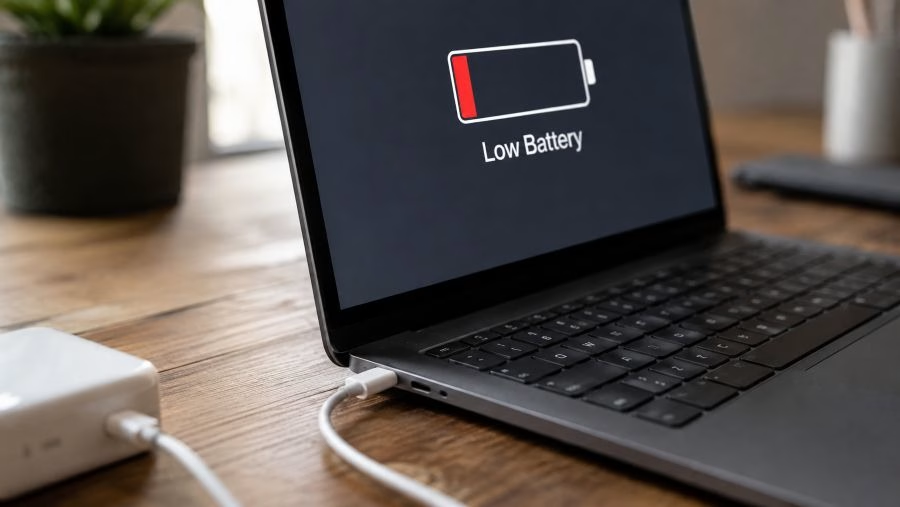
How Laptop Charging Actually Works
Before discussing failures, it helps to understand the basics.
When you connect a charger, power travels through the charging port, charging circuitry, battery management system, and motherboard before reaching the battery.
If any part of that chain fails, charging problems can occur.
That’s why two laptops with identical symptoms can require completely different repairs.
The Charger May Be the Problem
Before assuming the laptop itself is damaged, start with the charger. Why Is My Laptop Not Charging?
Power adapters fail more often than most people realize.
Common Charger Problems
- Broken charging cable
- Damaged connector tip
- Internal wire damage
- Failed power brick
- Incorrect voltage output
A charger may look perfectly normal externally while failing internally.
I’ve seen many customers replace batteries when the actual problem was a defective charger.
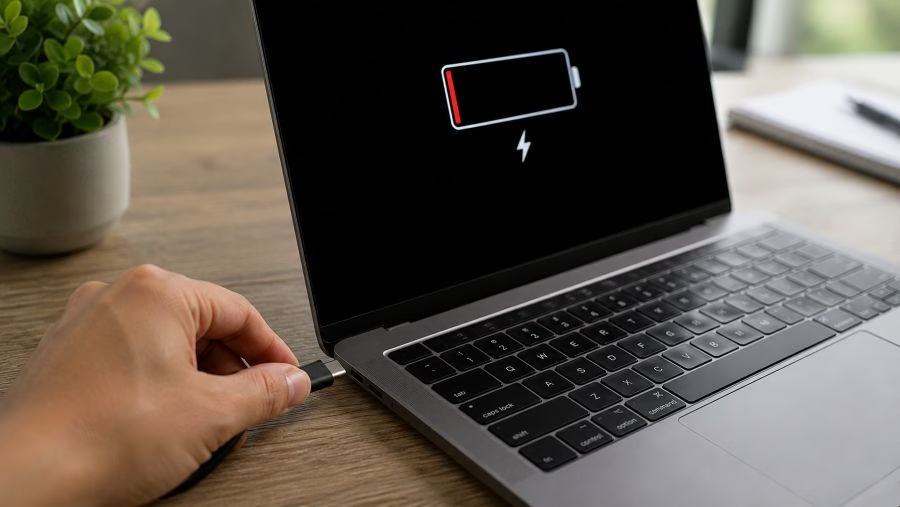
Inspect the Charging Port
The charging port is another common failure point.
Every time a charger is plugged in or removed, the port experiences mechanical stress.
Over time, that wear can cause problems.
Signs of a Damaged Charging Port
- Loose charger connection
- Charging only at certain angles
- Intermittent charging
- Visible physical damage
- Sparking or overheating
If you must hold the charger in a specific position to charge the laptop, the charging port may require repair.
The Battery May Have Reached the End of Its Life
Laptop batteries do not last forever.
Every battery has a limited number of charge cycles.
Over time, capacity decreases and performance declines.
Common Battery Failure Symptoms
- Battery percentage drops rapidly
- Laptop shuts off unexpectedly
- Battery refuses to charge fully
- Extremely short battery life
- Battery not detected
Depending on age and usage patterns, battery replacement may be necessary.
Warning Sign: Swollen Battery
A swollen battery should never be ignored.
Lithium-ion batteries can expand as they age or fail.
Signs of Battery Swelling
- Bulging bottom cover
- Raised keyboard
- Trackpad clicking issues
- Case separation
- Uneven surfaces
If you suspect battery swelling, stop using the laptop and have it inspected as soon as possible.
Software and Battery Management Issues
Not all charging problems are hardware related.
Modern laptops contain battery management systems that communicate with Windows and the motherboard.
Occasionally software issues can interfere with charging behavior.
Possible Software Causes
- Corrupted drivers
- Power management issues
- Firmware problems
- BIOS glitches
- Operating system conflicts
Sometimes updating drivers or firmware resolves the issue.
“Plugged In, Not Charging” Message
This is one of the most common complaints I hear.
The laptop recognizes the charger but refuses to charge the battery.
This symptom can be caused by:
- Battery failure
- Battery calibration issues
- Faulty charger
- Charging circuit problems
- Manufacturer charging settings
Some laptops intentionally stop charging at 80% to preserve battery health.
Users often mistake this behavior for a malfunction.
Overheating Can Affect Charging
Modern laptops closely monitor temperature.
If the system becomes too hot, charging may slow down or stop temporarily to protect components.
Common Causes of Overheating
- Dust buildup
- Blocked air vents
- Failed cooling fan
- Dried thermal paste
- High ambient temperatures
Cooling problems can indirectly create charging issues.
Liquid Damage and Charging Failures
Liquid damage is one of the most serious causes of charging problems.
Even small spills can damage charging circuits, ports, and motherboard components.
In many cases, customers forget about a spill that happened weeks or months earlier.
Corrosion continues developing long after the original incident.
Possible Liquid Damage Symptoms
- No charging
- Intermittent charging
- Battery detection failures
- Overheating
- No power conditions
USB-C Charging Problems
Many modern laptops charge through USB-C ports.
While convenient, USB-C systems introduce additional complexity.
Potential USB-C Charging Issues
- Damaged USB-C port
- Incorrect charger wattage
- Damaged cable
- Power delivery negotiation failures
- Motherboard charging circuit problems
Not every USB-C charger provides enough power for every laptop.
Motherboard Charging Circuit Failure
When the charger, battery, and charging port are functioning properly, attention often turns to the motherboard.
The charging circuit manages power flow throughout the system.
If components within this circuit fail, charging may stop completely.
Possible Symptoms
- No charging despite known-good charger
- Battery not detected
- Power light behaves abnormally
- System powers on but won’t charge
Diagnosing motherboard charging faults usually requires specialized equipment and experience.
Can You Continue Using the Laptop?
That depends on the situation.
If the laptop still powers on and operates normally while connected to the charger, you may be able to continue using it temporarily.
However, if charging is intermittent, the port feels loose, or overheating is occurring, continued use could potentially worsen the problem.
It’s generally best to diagnose the issue before it becomes more expensive.
What You Can Safely Check Yourself
Try Another Charger
If possible, test with a known-good compatible charger.
Inspect the Charging Port
Look for visible damage, bent pins, debris, or looseness.
Check Battery Health
Windows and manufacturer tools often provide battery health information.
Restart the Laptop
Occasionally software-related charging issues resolve after a reboot.
Check Manufacturer Charging Settings
Some systems intentionally limit charging to preserve battery longevity.
When Should You Seek Professional Help?
You should consider professional diagnostics if:
- The laptop won’t charge at all
- The charging port feels loose
- You suspect battery swelling
- The laptop overheats while charging
- Multiple chargers have been tested
- Charging problems continue returning
Accurate diagnosis prevents unnecessary replacement of expensive components.
How Professionals Diagnose Charging Problems
A proper charging system evaluation may include:
- Charger testing
- Battery testing
- Charging port inspection
- Motherboard diagnostics
- Voltage measurements
- Thermal analysis
- Power rail testing
The goal is identifying the actual failure point rather than guessing.
Final Thoughts
A laptop that won’t charge doesn’t automatically need a new battery.
The problem could be the charger, charging port, battery, software, cooling system, motherboard, or several other components.
The most important step is identifying the root cause before purchasing parts or replacing the entire laptop.
Many charging problems are repairable, and early diagnosis often prevents larger and more expensive failures later.
Need Help? Bring It in for a Free Diagnostic
If your laptop isn’t charging properly, bring it to Trueonefix Computer Repair Shop for a free diagnostic evaluation.
We’ll inspect the charging system, identify the cause of the problem, and explain your repair options before any work begins.
Whether the issue involves the battery, charging port, charger, motherboard, or charging circuitry, we’ll help you understand exactly what’s wrong and how to fix it.
No pressure. No hidden fees. Just honest advice from experienced technicians.
We proudly serve customers throughout Tampa, Temple Terrace, USF, Carrollwood, Lutz, Wesley Chapel, Brandon, Riverview, and surrounding communities.
Free Diagnostic. Honest Advice. Professional Repair.