
1. Temporary operating-system or app problem
A frozen display process, incompatible app or temporary graphics state can cause flashing that clears after a normal restart.
Repair Advice
Learn why a laptop screen flickers, which checks are safe, and how to separate display-panel, cable, driver, graphics and power problems.
Start With the Pattern
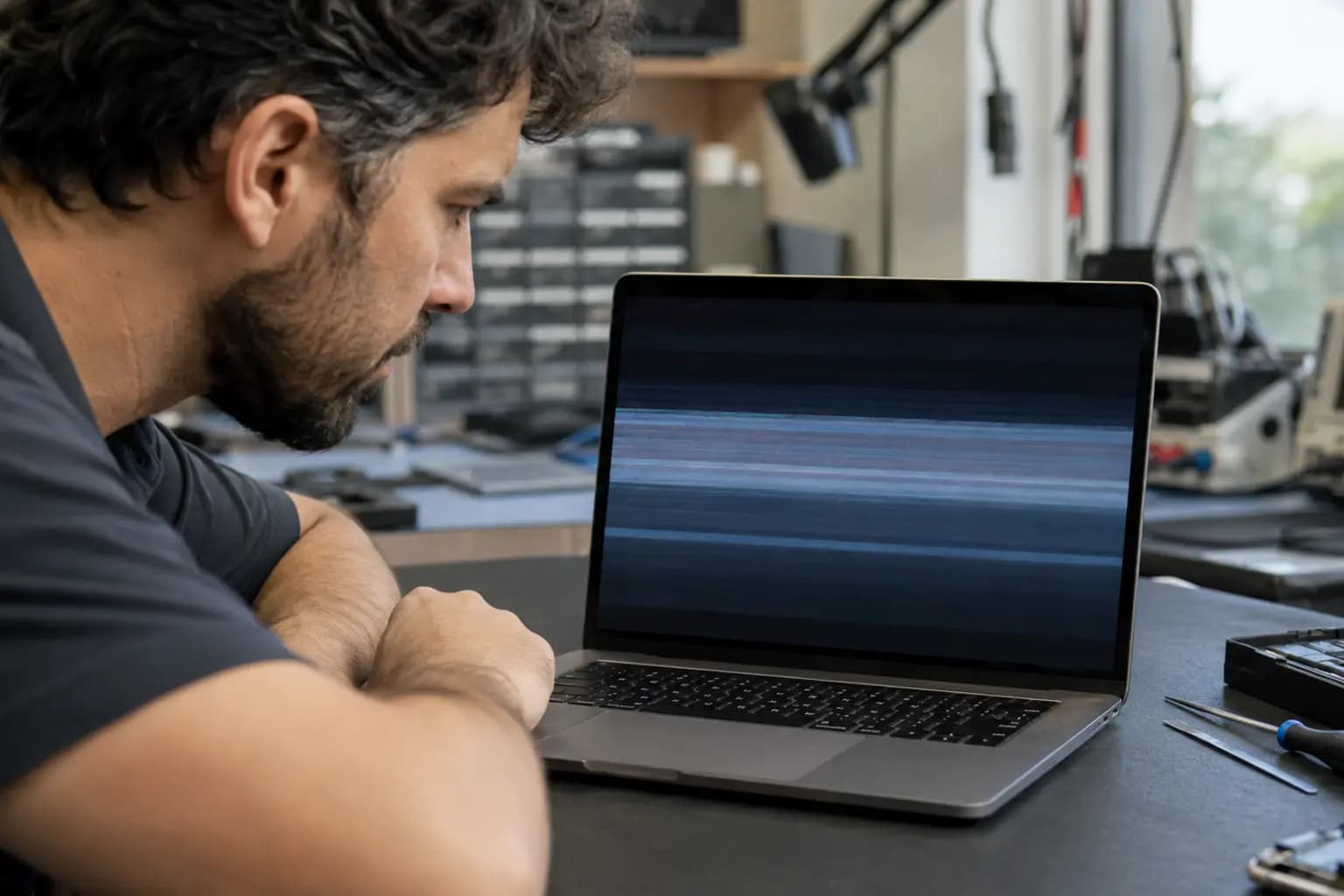
A laptop display may flash, dim, show horizontal lines, lose its image or change color because of software, the internal display cable, the LCD or OLED panel, graphics hardware, power delivery or physical damage. The symptom alone does not prove that the screen assembly must be replaced.
Before changing settings, note whether the flicker appears before Windows starts, changes when the lid moves, affects an external monitor or begins only after a driver update. A short phone video can preserve an intermittent symptom for diagnosis.
Eight Common Causes
A frozen display process, incompatible app or temporary graphics state can cause flashing that clears after a normal restart.
A corrupted, incorrect or recently updated graphics driver may cause flickering after Windows loads.
An unsupported refresh rate, resolution or variable-refresh configuration can make the image unstable.
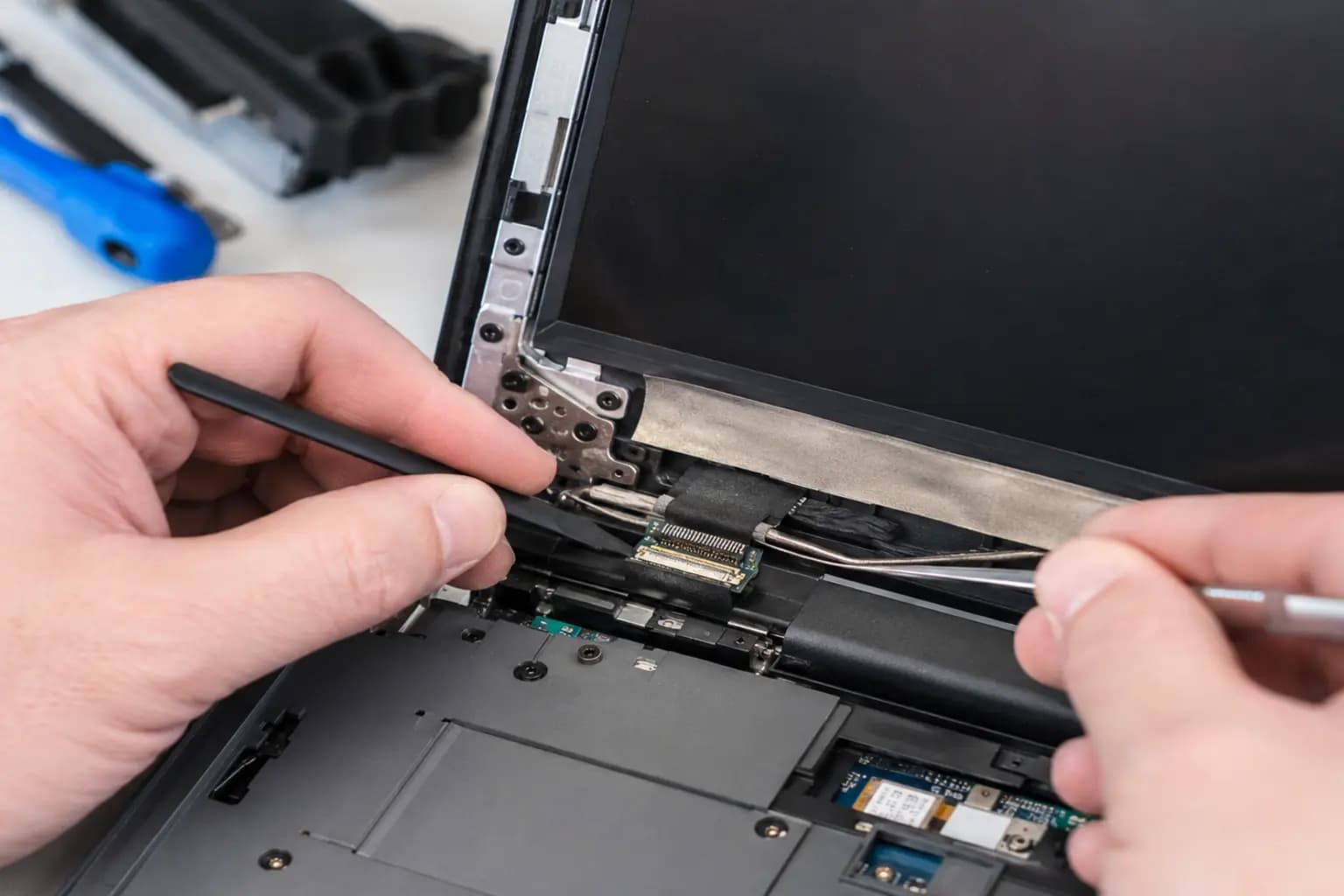
The cable passing through the hinge can loosen, wear or become pinched, especially when flickering changes with lid angle.
Panel electronics, backlight components or internal bonds can create lines, brightness pulsing, color changes or image loss.
A drop, cracked housing or stiff hinge can stress the panel and cable even when the glass is not visibly broken.
GPU, video-memory, connector or board-level faults may affect both the internal screen and external displays.
Flickering that starts only on AC power or only on battery may point to an adapter, grounding, battery or power-circuit problem.
Clues From Lid Movement
Slowly move the lid only through its normal range. If the image cuts out, changes color or flickers at a particular angle, stop repeatedly flexing it. Continued movement can worsen a worn cable or damaged connector.
Do not pry open the bezel or hinge area while the battery is connected. Modern display cables and panel connectors are delicate, and a short during disassembly can damage the backlight or motherboard.
Safe First Checks
Save your work and perform one normal restart to clear a temporary display or graphics state.
Check whether flickering appears on the manufacturer logo, in BIOS, at the sign-in screen or only inside one application.
Temporarily remove external docks, hubs and monitors to simplify the display path.
Note whether the symptom changes when using the correct charger versus battery power; do not test an incompatible adapter.
Use the recommended resolution and a refresh rate supported by the built-in panel.
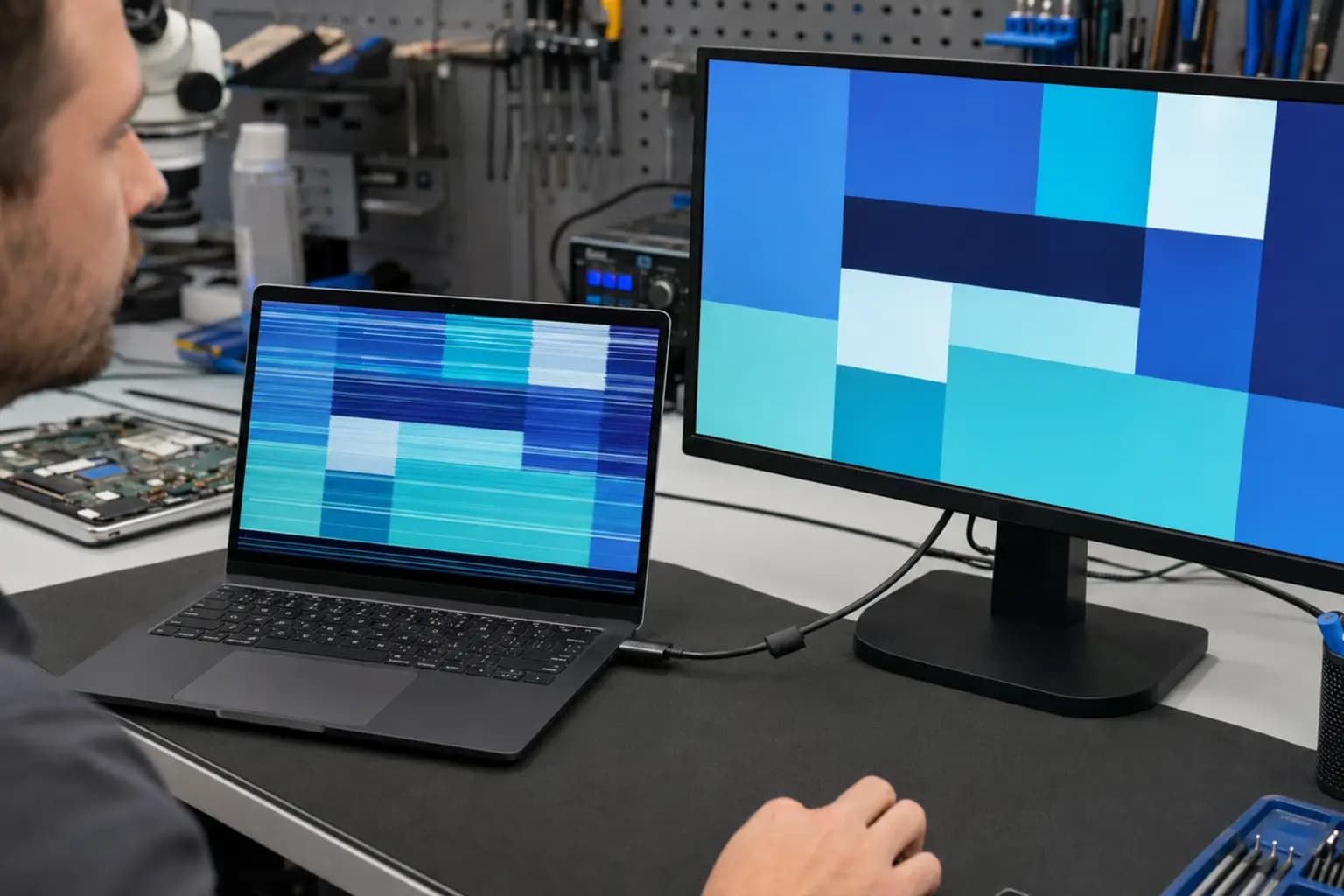
If available, connect a monitor or TV with a known-good cable and compare the two images.
Separate the Display From Graphics
If the external display remains stable while the internal screen flickers, the internal panel, display cable or connector becomes more likely. If both displays show the same artifacts or instability, the graphics driver, GPU, memory, motherboard or power system needs closer attention.
Some laptops use different graphics paths for internal and external outputs, so the result is evidence rather than a final diagnosis. Testing before Windows loads is also important when separating software from hardware.
Protect the Computer and Your Data
Shut the laptop down and disconnect power if the issue began after a drop or spill, the hinge is separating, the screen or connector area becomes hot, or you notice an electrical smell. Avoid repeatedly opening the lid or forcing a damaged hinge.
Back up important files while the computer is stable enough to do so. Display instability can be an early warning of a cable, panel, GPU or power fault that may become permanent.
Related Services
Diagnosis and replacement for cracked, flickering, lined or failed laptop displays.
Learn moreComplete diagnosis when screen, cable, driver, graphics and power symptoms overlap.
Learn moreCircuit-level evaluation when graphics, connector or board faults affect the display.
Learn moreData-first assistance when display failure or instability prevents normal file access.
Learn moreFrequently Asked Questions
No. The cause may be a driver, setting, cable, connector, power source or graphics fault. Testing should identify the failing path before a panel is ordered.
Movement-related flickering commonly points to a worn or loose display cable, damaged connector, stressed hinge area or panel connection.
Yes. If the symptom begins only after Windows loads or after an update, the driver or an application may be involved. Flickering in BIOS is stronger evidence of hardware.
It makes the internal panel, cable and connector more likely, but some laptops use different output paths. The result should be combined with pre-boot and movement tests.
Yes. An incorrect, failing or poorly grounded adapter and an unstable power circuit can cause symptoms that change between AC and battery operation.
Occasional software flicker may be minor, but stop using it after a spill, impact, hinge separation, overheating, burning smell or rapidly worsening image. Back up important files when possible.
Need a Clear Diagnosis?
Bring the laptop, its normal charger and any dock or external display involved in the symptom. Trueonefix can reproduce the flicker, isolate the cause and explain the practical repair options.
One local Tampa storefront
104 E Fletcher Ave, Tampa, FL 33612 · Walk-ins welcome during business hours.