
A smooth rush only under load
Higher airflow during gaming, rendering or updates may be normal if temperatures and performance remain controlled.
Repair Advice
Learn why a laptop fan runs loudly, how to separate normal cooling from background load, dust, bearing, thermal and motherboard problems, and when repair is needed.
Start With the Sound
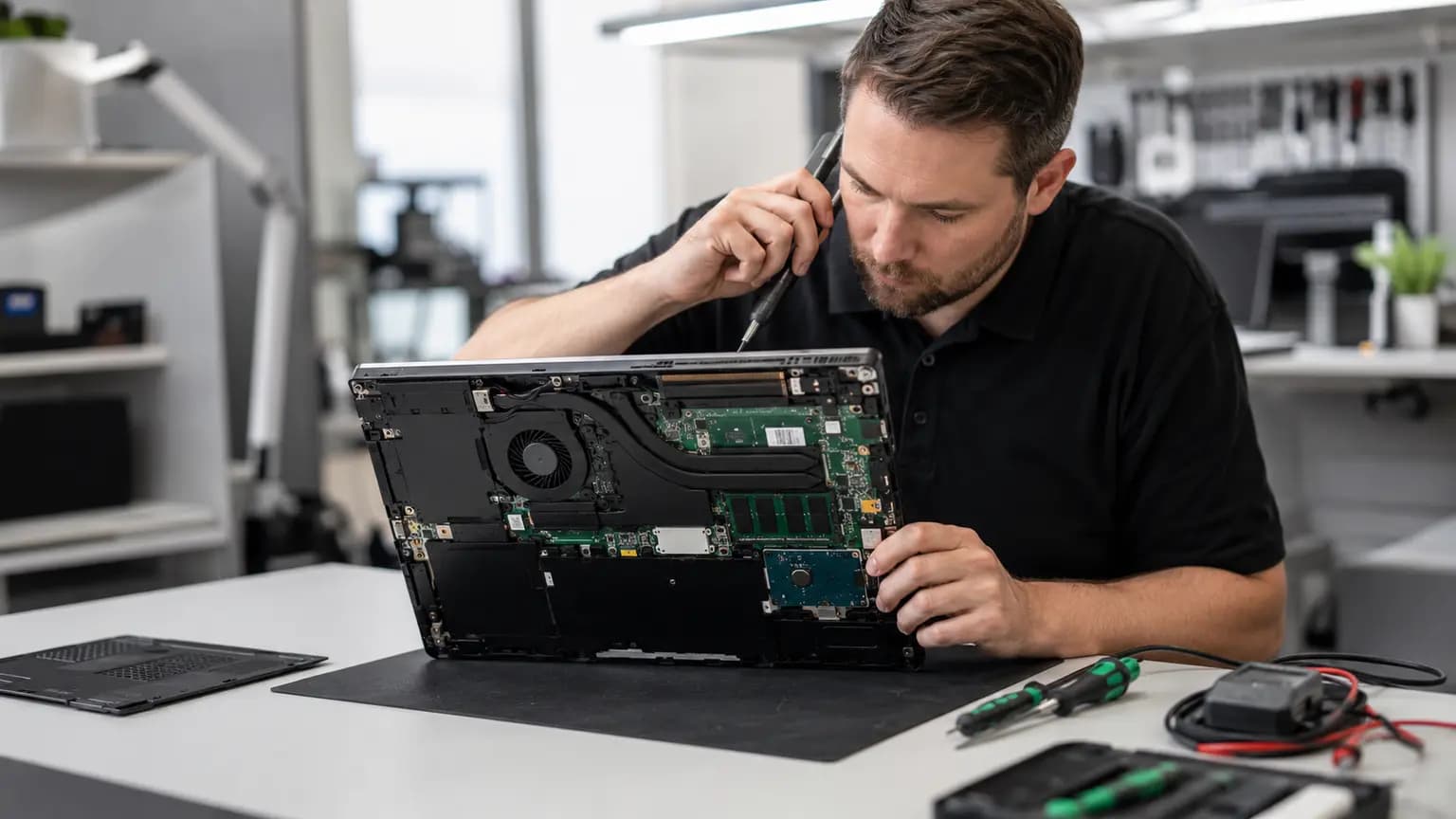
A cooling fan may speed up for a few minutes while Windows updates, a game loads, a video exports or the battery charges. That is normal when processor or graphics temperature rises and the sound settles after the work ends. A fan that stays loud while the laptop is idle, repeatedly surges with no clear workload, or makes grinding and rattling noises needs a closer look.
Before changing settings, note when the sound begins, whether the case feels unusually hot, whether performance slows and whether the fan noise changes with the charger connected. Record any recent update, drop, liquid spill or repair. The pattern helps separate ordinary cooling demand from blocked airflow, a worn fan, poor heatsink contact, software load or an electronic control fault.
Read the Clues
Higher airflow during gaming, rendering or updates may be normal if temperatures and performance remain controlled.
Background processes, malware, blocked vents, thermal trouble or incorrect fan control should be checked.
A worn bearing, damaged blade, loose cable or physical fan obstruction is more likely than ordinary airflow.
Thermal throttling may indicate dust, failed fan operation, poor heatsink contact or dried thermal material.
Changing workload, temperature thresholds, sensor readings or unstable fan control can make speed hunt up and down.
CPU and GPU fans may behave differently, but a weak, blocked or damaged fan should be compared with the other side.
Nine Common Causes
Updates, browser tabs, cloud sync, antivirus scans and runaway applications can keep the CPU or GPU busy.
A bed, couch, lap or tightly packed desk can cover intake openings and force the fan to work harder.
Dust can form a dense mat between the blower and heatsink fins even when the outside vent looks clean.
A hot environment, direct sunlight or restricted dock setup reduces the temperature difference available for cooling.
Mechanical wear, impact or debris can create grinding, ticking, vibration or inconsistent fan speed.
Loose mounting, uneven pressure or deteriorated thermal compound can transfer heat poorly and trigger higher fan speed.
BIOS, chipset, graphics and manufacturer control software can change power limits and fan response.
Persistent unauthorized processes may consume resources, although loud fan noise alone does not prove infection.
Incorrect readings, missing fan feedback or damaged control circuitry can command abnormal speed or fail to regulate it.
Safe First Checks
Keep every intake and exhaust opening clear. Do not use it on fabric while comparing noise.
After startup, allow several minutes for expected updates and background tasks before judging idle behavior.
Sort CPU and GPU activity and record persistent high-use processes. Do not end unknown Windows services at random.
Performance mode may change when connected to power. Use the normal compatible charger for the comparison.
A smooth airflow sound differs from scraping, ticking or vibration. Shut down if the fan sounds physically damaged.
Heat, shutdowns or storage trouble can overlap. Protect irreplaceable data before extended testing.
Airflow Inspection
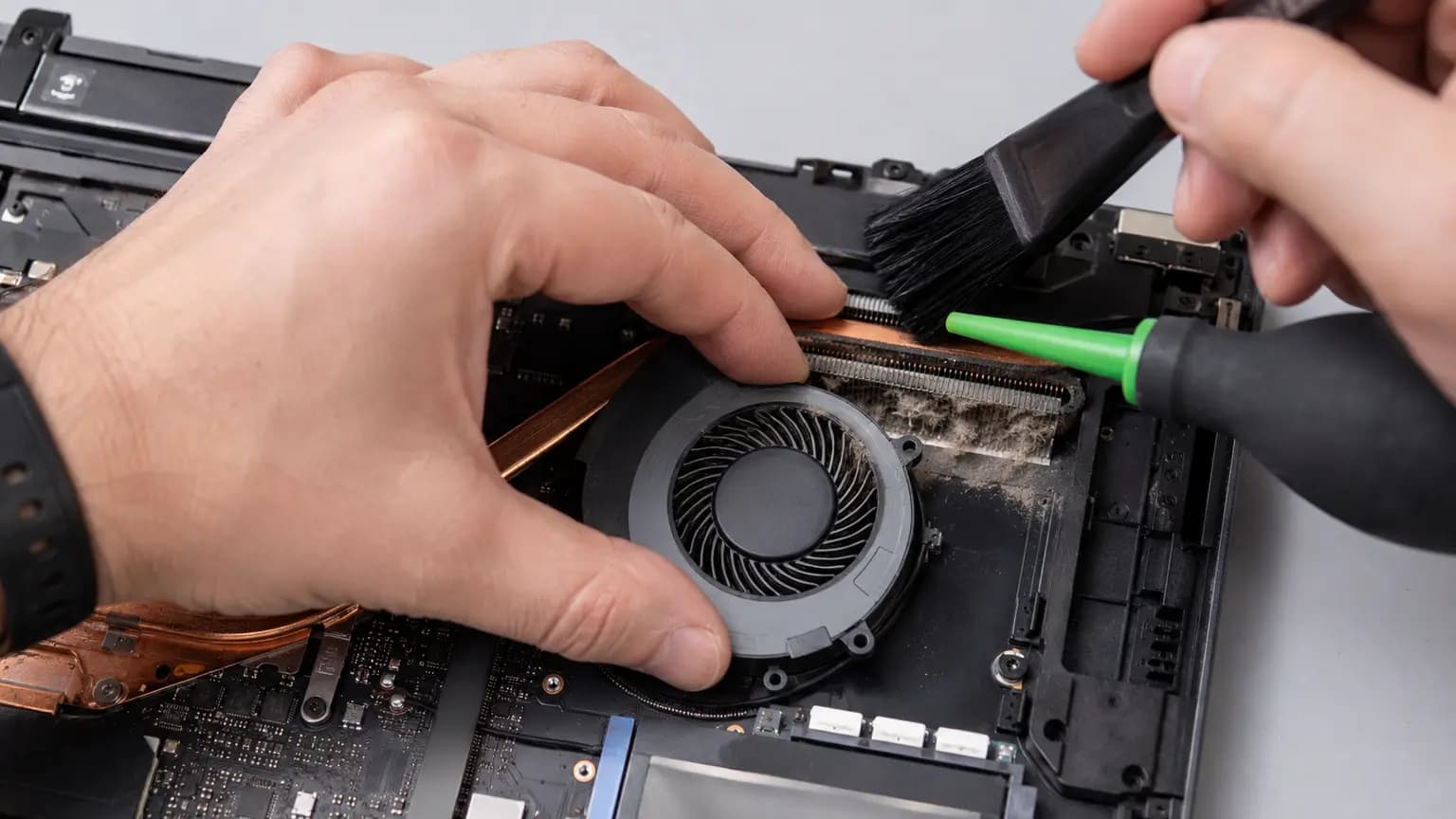
Laptop blower fans push air through a narrow heatsink fin stack. Dust often collects on the hidden inside face of those fins and forms a felt-like wall. Spraying compressed air through an exterior vent may move the dust deeper, spin the fan beyond its intended speed or fail to remove the packed layer.
A proper internal service starts with safe power isolation. The fan is held from free-spinning while the blades, housing and both sides of the exhaust path are cleaned. Cables, battery condition and heatsink mounting are inspected at the same time. A fan with bearing noise should be replaced rather than lubricated with household products.
Load and Temperature
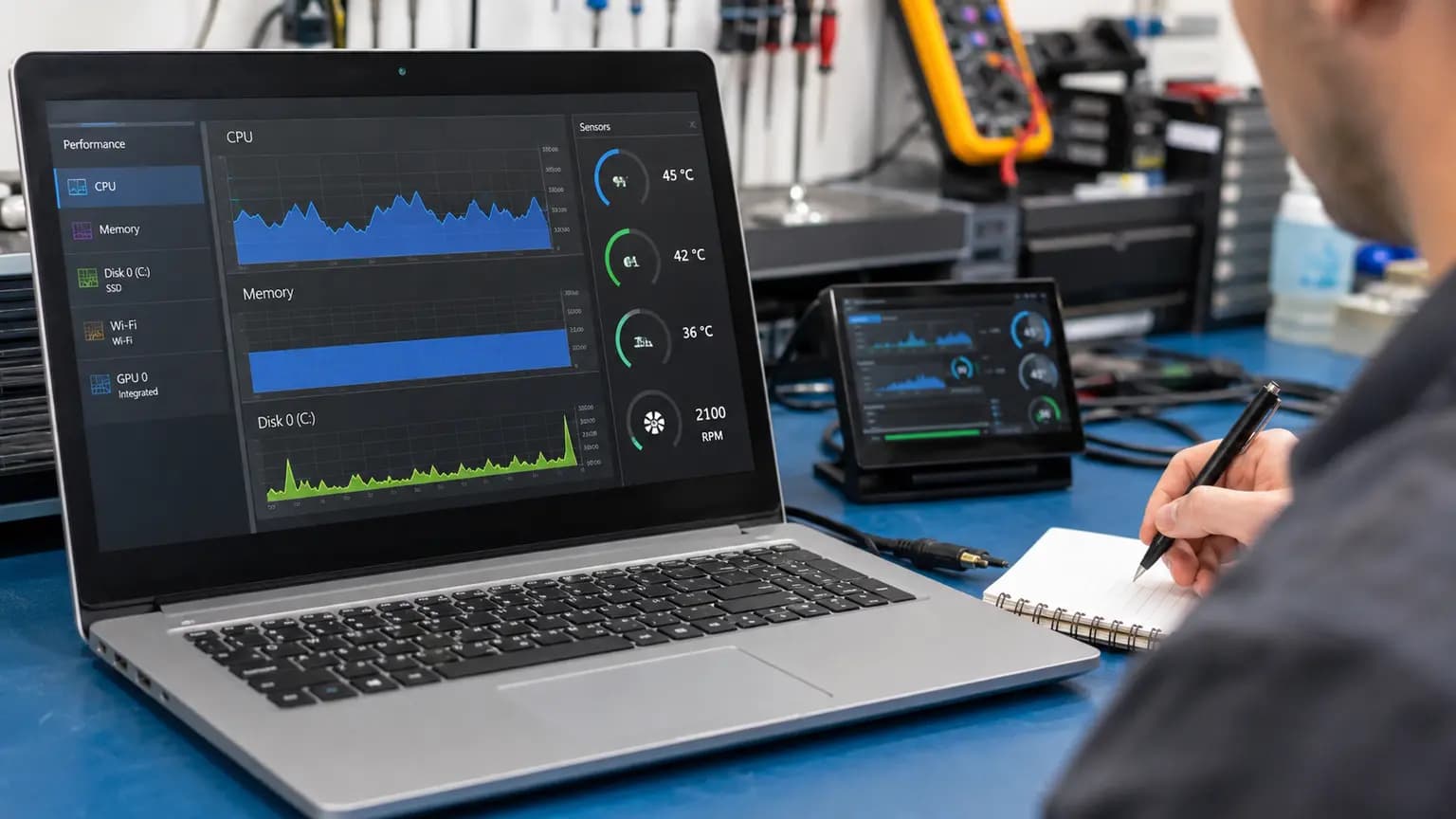
Task Manager can show whether CPU, GPU, memory or storage activity is keeping the system busy, but it does not prove the cooling hardware is healthy. A legitimate workload may explain higher fan speed; unexpectedly high use at idle may point to updates, sync, an application problem or unwanted software. Record the process name before making changes.
Temperature tools add context, but one number is not enough. Laptop design, processor, workload and sensor location matter. A technician compares idle and controlled-load behavior, fan speed, clock performance and whether temperatures recover after the workload stops. Loud airflow with reasonable temperatures may be a control or noise concern; high temperature with weak airflow may indicate blockage or fan failure.
Hardware Diagnosis
If the fan grinds, starts inconsistently or reports an error, its bearing, motor, cable or feedback circuit may be failing. If airflow is strong but temperatures remain abnormal, the heatsink may be loose, bent or poorly coupled to the processor. Thermal material must match the model and the heatsink should be tightened in the correct order; adding excessive paste does not improve a damaged cooling assembly.
Some laptops use separate CPU and GPU fans, vapor chambers or shared heatpipes. Diagnosis should confirm which component is heating and whether both fans respond correctly. When a known-good cooling assembly still behaves abnormally, temperature sensing, fan power and control signals on the motherboard may require testing.
Avoid Common Mistakes
Third-party fan utilities, undocumented BIOS settings or silent performance profiles can reduce noise while allowing damaging heat. Do not disable the fan, block vents or choose an arbitrary temperature limit. A laptop that shuts down, smells hot, swells, or becomes too hot to touch should be turned off and unplugged.
Do not vacuum directly across exposed electronics, spray cleaner into vents or spin the fan with high-pressure air. Do not replace thermal paste before confirming the real symptom and correct material. Opening a thin laptop without disconnecting internal battery power can damage connectors or the motherboard.
Related Repair Help
Learn how heat, throttling, shutdowns, airflow and thermal hardware are evaluated.
Learn moreComplete diagnosis for fan noise, heat, performance, battery, charging and startup symptoms.
Learn moreInspection when unexplained resource use, redirects or unknown applications accompany the fan noise.
Learn moreBoard-level diagnosis when fan power, feedback, sensor or control circuitry is suspected.
Learn moreFrequently Asked Questions
A new workload, update, blocked vent, dust, hot room, damaged fan, thermal problem or changed power setting may be responsible.
Often yes, because CPU and GPU load creates heat. Grinding, shutdowns, severe throttling or extreme case heat are not normal.
Background updates, sync, antivirus, browser processes, malware or thermal and control problems can continue without a visible window.
External air may not remove packed dust and can overspeed the fan. Internal cleaning requires power isolation and controlled fan movement.
Not always. The fan may be successfully controlling temperature, but noise, temperature and performance should be compared together.
Only if poor thermal transfer is actually involved. Dust, workload, fan wear or control problems require different corrections.
Not before confirming safe temperatures and manufacturer control behavior. Forcing a lower speed can cause overheating.
Yes. Bring the laptop and its normal charger. We can inspect workload, temperatures, airflow, fan condition and the cooling-control path.
Get the Cause Confirmed
Bring the laptop and its normal charger to Trueonefix in Tampa. We can compare load and temperature behavior, inspect the fan and airflow path, evaluate the heatsink and thermal contact, and explain whether cleaning, fan replacement, software correction or board-level repair is appropriate.
One local Tampa storefront
104 E Fletcher Ave, Tampa, FL 33612 · Walk-ins welcome during business hours.