
The fan runs loudly for long periods
A fan that stays near full speed during light work may be compensating for restricted airflow, background activity or poor heat transfer.
Repair Advice
Learn why laptops overheat, which warning signs matter, what you can check safely and when the cooling system needs professional diagnosis.
Heat Versus Overheating
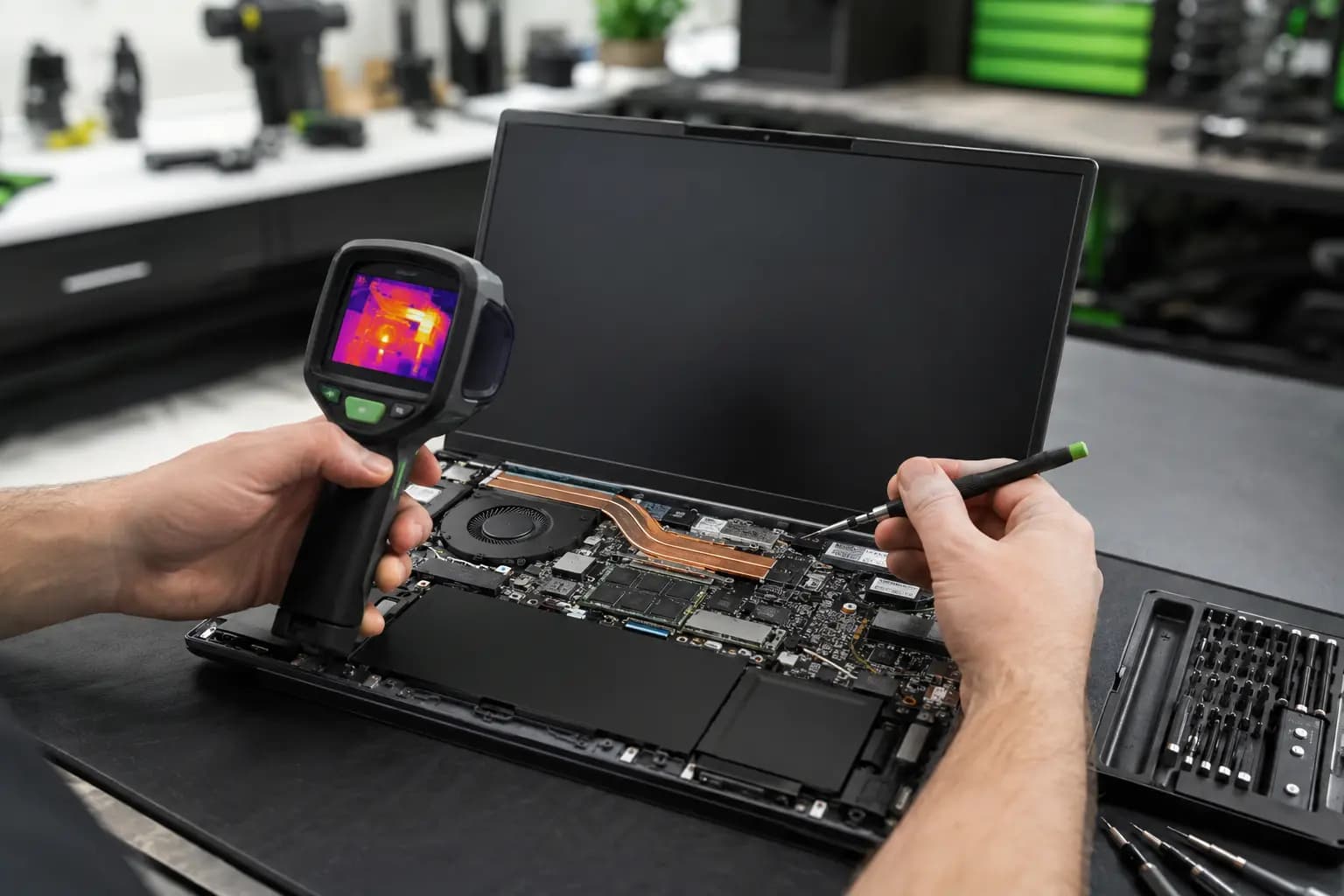
Laptops move heat from the processor and graphics chip through a heatsink and fan, then exhaust it through small vents. The case may feel warm during gaming, video editing, updates or other demanding work. That alone does not prove the computer is overheating.
A problem is more likely when the fan stays unusually loud, performance drops sharply, the keyboard or bottom becomes uncomfortable to touch, the laptop restarts or shuts down, or the symptoms appear during light use. Because compact computers have limited airflow, one blocked vent or weak fan can affect the entire system.
Warning Signs
Look for a pattern rather than relying on one temperature reading.
A fan that stays near full speed during light work may be compensating for restricted airflow, background activity or poor heat transfer.
The processor or graphics chip may reduce speed to control temperature, making games stutter and ordinary tasks feel slow.
Protective shutdowns can occur when cooling cannot keep temperatures under control, although power, memory and software faults can look similar.
An unusually hot keyboard, palm rest, vent or bottom panel may point to a cooling, battery or component problem that needs inspection.
Eight Common Causes
More than one cause can be present, especially in an older laptop or one that has been repaired before.
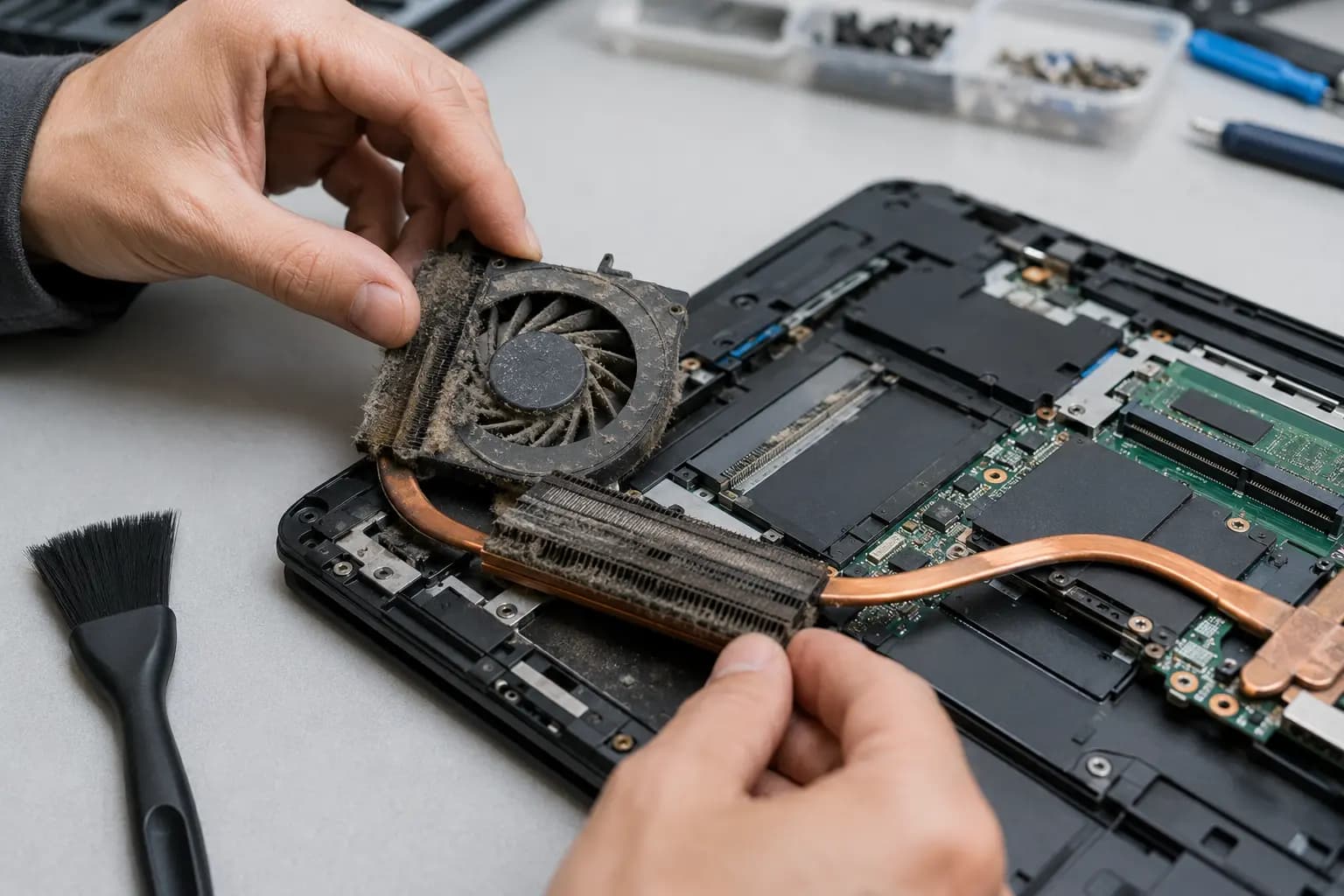
Debris collects in the intake, fan and heatsink fins until warm air can no longer leave the laptop efficiently.
Worn bearings, damaged blades, a loose cable or an electrical fault can reduce airflow or stop the fan completely.
Dried, displaced or incorrectly applied thermal compound can prevent efficient contact between a chip and its heatsink.
Beds, blankets, couches and laps can cover bottom or side intakes that need open space.
Updates, malware, runaway applications, browser tabs or startup programs can create constant load and heat.
High CPU and GPU load exposes weak airflow, aggressive performance settings or a cooling system that is no longer working as designed.
Charging problems, a damaged battery or board-level power issue can create heat that a fan cleaning will not solve.
Missing screws, uneven mounting pressure, incorrect thermal pads or a disconnected fan can cause overheating after service or an upgrade.
Airflow Inspection
A vent can look clean from outside while a dense layer of lint blocks the heatsink fins inside. Blowing air through an assembled laptop may move loose dust, but it may also spin the fan too fast or push debris deeper into the cooling path.
A complete cleaning normally requires model-appropriate disassembly, holding the fan safely, clearing the heatsink and checking that every fan starts and reports correctly. Liquid, corrosion and swollen batteries require a different approach and should not be treated as routine dust cleaning.
Safe First Steps
Move the laptop to a hard, flat surface and make sure every intake and exhaust vent has open space. Save your work, restart the computer and observe whether the fan becomes loud again before demanding programs are opened. In Windows, Task Manager can help identify an application using unusually high processor resources.
Install operating-system and manufacturer updates only when the laptop is stable and important files are backed up. Temporarily close unnecessary programs and disconnect unneeded accessories. Do not place the laptop in a refrigerator or freezer, spray liquid cleaner into the vents, puncture a battery or continue stress testing a computer that smells hot or repeatedly shuts down.
Controlled Diagnosis
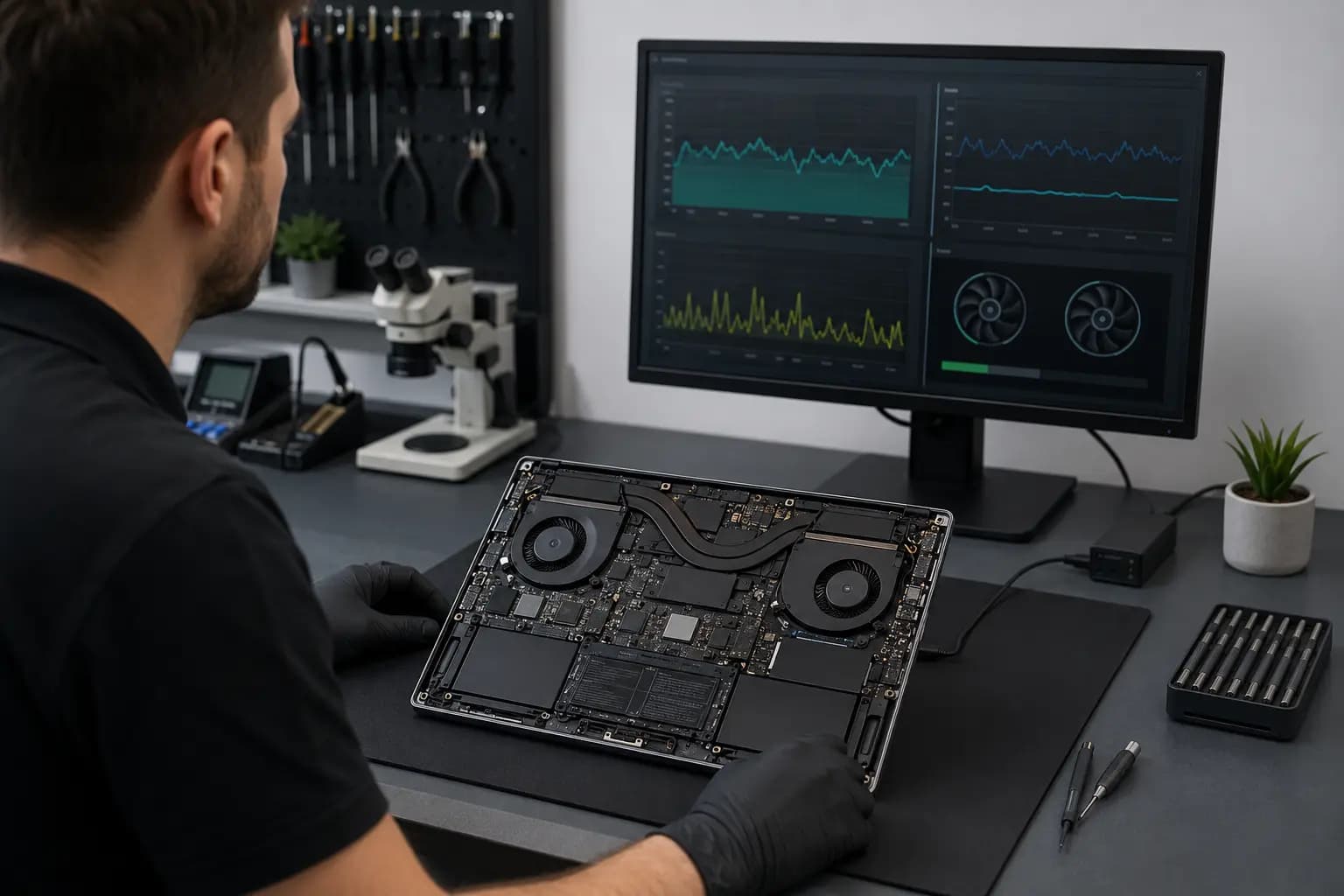
There is no single temperature that proves every laptop is defective. Safe operating behavior varies by processor, graphics chip, model, power mode, room temperature and workload. A brief temperature peak can be less important than sustained throttling, a fan that cannot respond or a shutdown under a repeatable load.
A useful diagnosis compares idle behavior, controlled workload, fan response, clock speed and the physical cooling system. Testing should stop if the laptop becomes unstable. The goal is to find the cause without adding unnecessary heat or risking customer data.
Related Help
The correct service depends on whether the heat comes from airflow, workload, power, a damaged component or another fault.
Diagnosis for loud fans, slow performance, freezing, shutdowns and other laptop problems.
Learn moreStability and thermal testing for gaming laptops and desktops that fail under load.
Learn moreBattery evaluation when heat, swelling, rapid drain or charging behavior points to the battery.
Learn moreBoard-level evaluation when fan control, power delivery or another circuit may be involved.
Learn moreFrequently Asked Questions
It can be. Charging, updates and performance modes may increase heat. Constant maximum fan speed during light use or charging-related hotspots should be investigated.
A cooling pad may improve airflow around some models, but it cannot repair a blocked heatsink, failed internal fan, poor heatsink contact, damaged battery or software problem.
Yes. Modern processors can reduce their speed when temperature or power limits are reached. Storage, memory and software problems can also cause slowness, so diagnosis matters.
Not automatically. The decision should consider the model, symptoms, temperatures, service history and condition of the existing cooling assembly.
Unexpected shutdowns and instability can interrupt writes and corrupt work. Keep important files backed up and stop repeated testing when the laptop is unstable.
Stop Repeated Shutdowns
Bring the laptop and its charger to Trueonefix in Tampa. Tell us when the heat appears, which applications trigger it and whether the laptop was recently repaired, dropped or exposed to liquid. We will inspect the system and explain the practical options before approved work begins.
One local Tampa storefront
104 E Fletcher Ave, Tampa, FL 33612 · Walk-ins welcome during business hours.