
One application stops responding
The program, its files, an extension or available system resources may be the issue. Check whether the rest of Windows still responds before forcing a restart.
Repair Advice
Learn why a computer keeps freezing, which clues separate software from hardware problems and what safe checks to try before data or components are put at risk.
Start With the Pattern
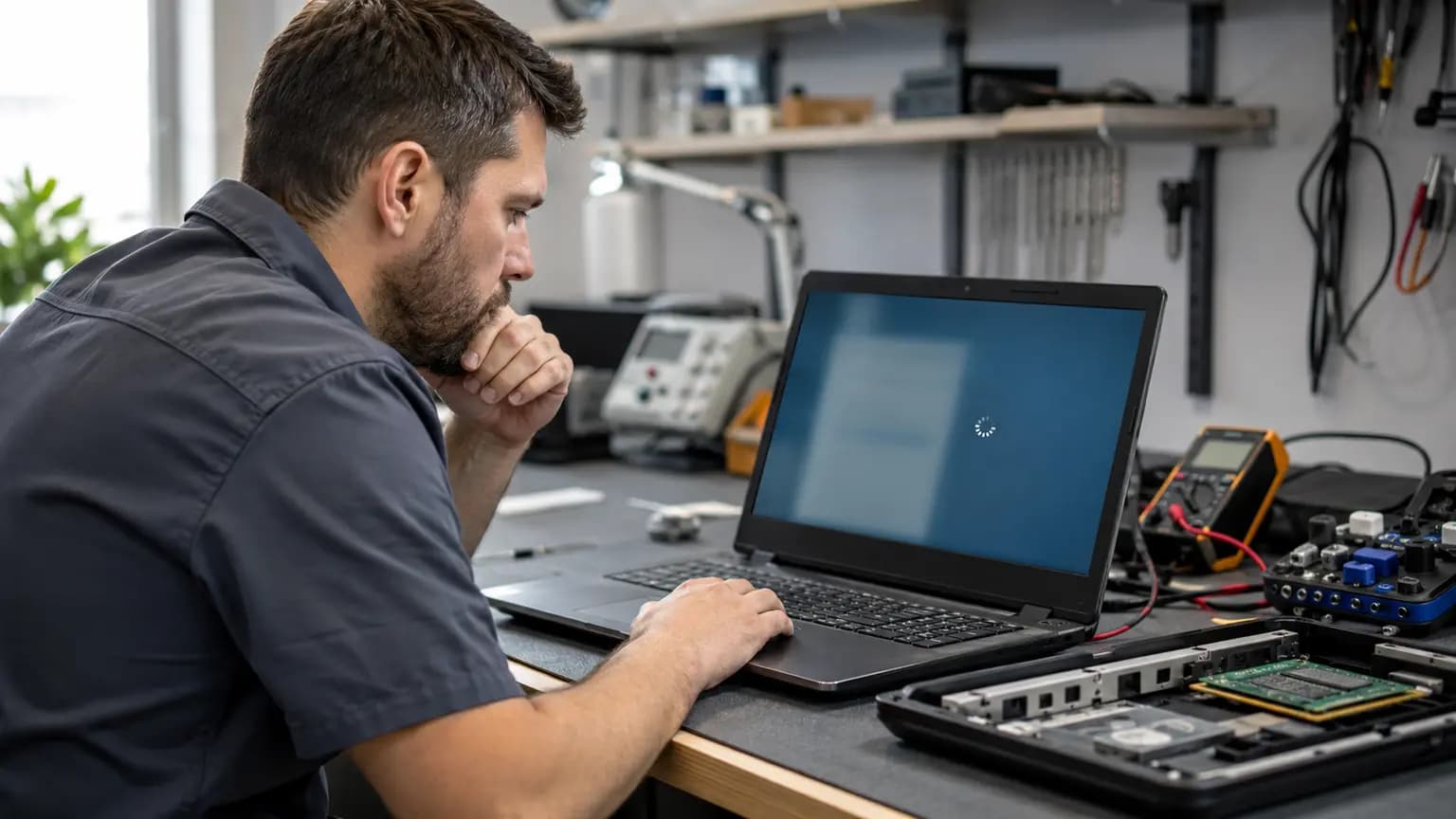
A frozen computer may stop responding for a few seconds, lock completely until it is powered off, or recover after one application closes. Those behaviors can look similar, but they do not always have the same cause. A busy background process may create a temporary pause, while failing storage, unstable memory, overheating or a motherboard fault can cause repeated full-system lockups.
Before changing settings or replacing parts, record what was happening when the freeze occurred. Note the application, whether the mouse still moved, whether audio repeated, how long the freeze lasted and whether the computer recovered. Also note whether the problem began after an update, new program, hardware upgrade, impact, liquid spill or power event. A repeatable pattern is much more useful than guessing from one isolated freeze.
Read the Clues
The program, its files, an extension or available system resources may be the issue. Check whether the rest of Windows still responds before forcing a restart.
If the pointer, keyboard and audio all stop, RAM, storage, drivers, heat, power or deeper hardware instability becomes more likely.
A damaged Windows installation, startup driver, failing SSD, connected device or unstable RAM can prevent the computer from reaching the desktop.
Higher CPU, GPU, RAM and power demand can expose cooling, graphics, memory, power-supply or tuning problems that remain hidden at idle.
Power management, firmware, graphics, chipset or peripheral drivers may fail when devices resume.
Storage errors, file-system corruption, a damaged external drive or insufficient free space deserves early attention—especially if the data is important.
Nine Common Causes
Heavy startup programs, browser tabs, synchronization tools, updates or security scans can saturate the processor, memory or disk and make the system appear frozen.
Too little memory can force constant storage swapping, while a faulty module, damaged slot or unstable XMP/EXPO setting can lock the entire system.
Slow reads, controller errors, bad sectors, firmware faults or a nearly full system drive can stall Windows and applications. Protect important data before intensive testing.
Blocked vents, dust, a failed fan, dried thermal material or poor cooler contact can reduce performance and eventually cause freezes, shutdowns or restarts.
A damaged graphics, storage or chipset driver, incomplete update or corrupted system file can make Windows hang during a particular action.
Malicious processes, browser hijackers and poorly designed utilities can consume resources, damage settings or create repeated instability.
Graphics hardware, drivers, temperature, insufficient power or unstable tuning can cause freezes during games, video playback, rendering or display changes.
A weak PSU, damaged adapter, unstable dock, failing USB device or loose internal connection can interrupt normal operation without an obvious error message.
BIOS settings, board-level power delivery, corrosion or an intermittent component can remain after simpler software and replaceable hardware causes are ruled out.
Software or Resource Load
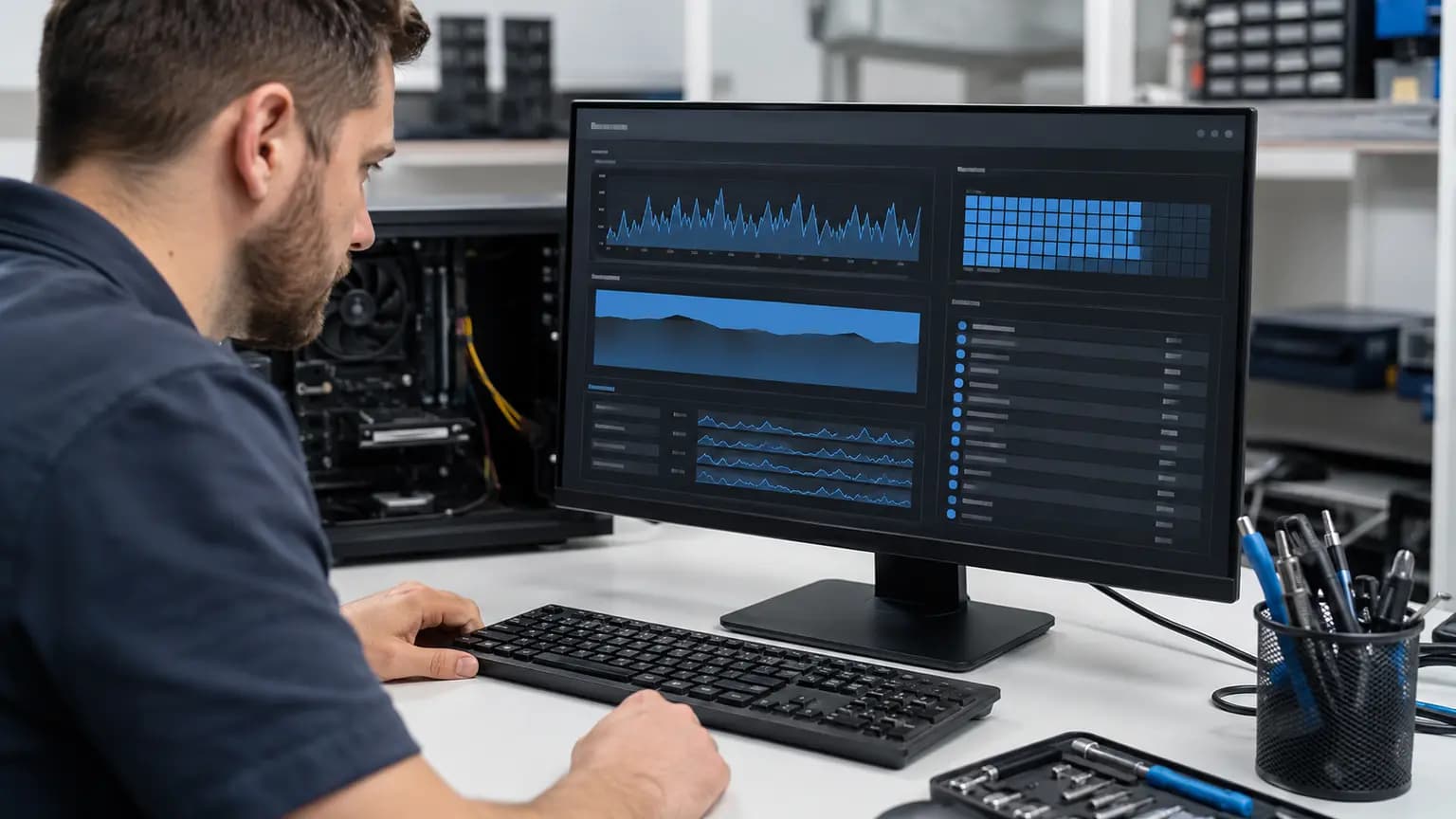
If Windows still responds, Task Manager can show whether CPU, memory or disk usage remains near its limit when the slowdown occurs. Sort one category at a time and record the process at the top. A brief spike during startup or an update can be normal; sustained high use while the computer is idle deserves investigation.
Do not end unfamiliar Windows services or install a one-click optimizer. Stopping the wrong process may interrupt an update or remove useful evidence. Also check available storage space and the number of startup programs. If the computer freezes too quickly to collect information, repeated forced shutdowns are not a safe diagnostic plan—especially when storage failure is possible.
Safe First Checks
If the computer remains usable, copy irreplaceable data before stress tests, resets, storage repair or repeated troubleshooting.
If there is no burning smell, unusual noise or storage warning, allow a short time to see whether the system recovers and identify what resumes first.
Compare a basic offline application with the browser or game that triggers the freeze. This helps separate one program or internet-dependent activity from a system-wide problem.
After shutting down normally, remove nonessential USB devices, hubs and docks. Reconnect one at a time only after the system is stable.
List recent Windows updates, drivers, programs, RAM or storage upgrades and BIOS changes. Avoid changing several items at once.
Keep vents unobstructed and confirm accessible fans turn. Never open a desktop power supply or continue testing a swollen battery.
Photograph error messages and note the exact time. Reliability Monitor and Event Viewer are useful when their entries are matched to the freeze rather than interpreted alone.
Confirm the Hardware
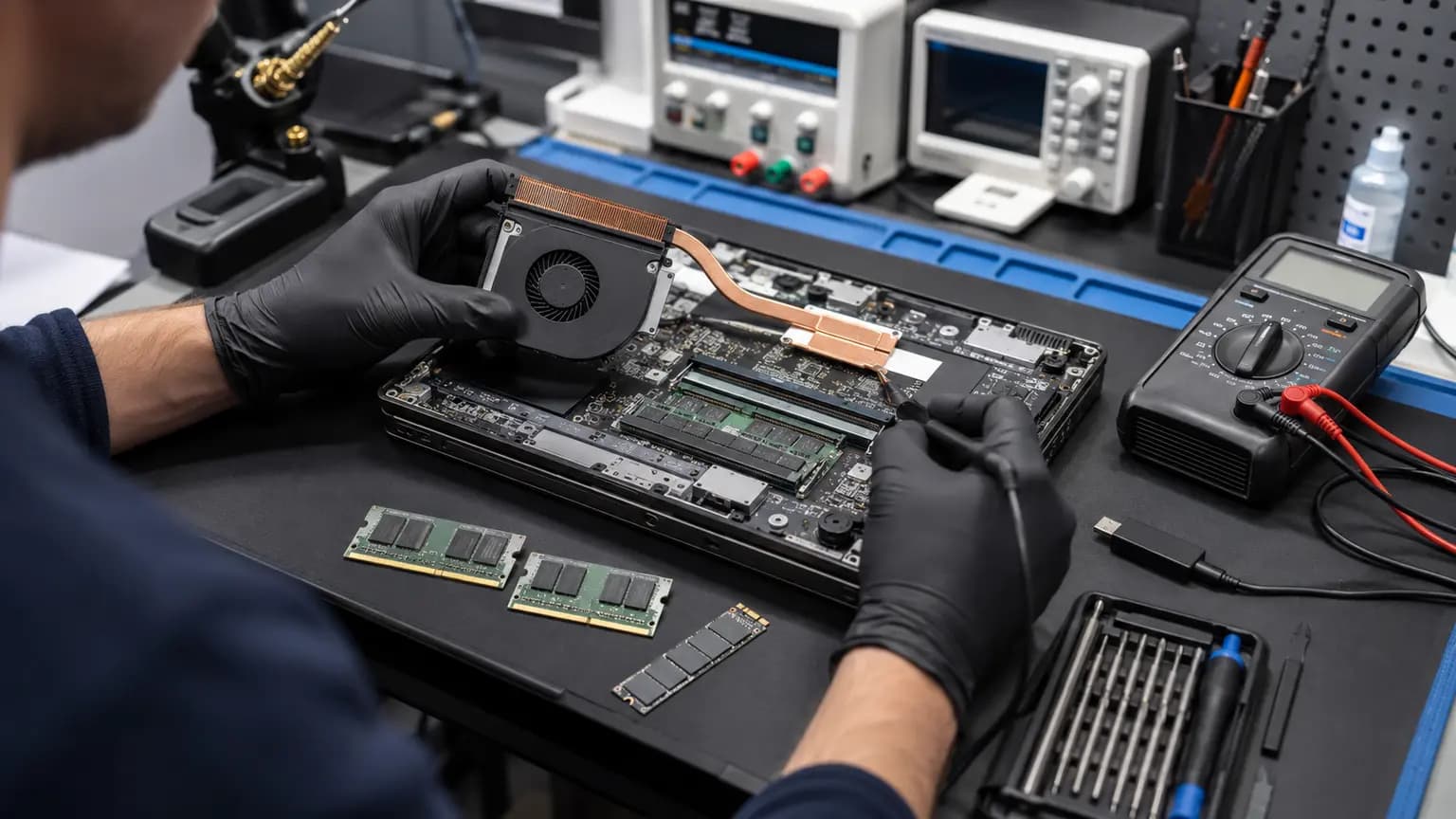
A single short memory test does not eliminate every intermittent RAM problem. Reliable diagnosis may require testing modules and slots separately, returning memory tuning to known-safe values and reproducing the normal workload. Mixed modules or an unstable XMP/EXPO profile can freeze a system even when the memory capacity looks correct.
Storage should be evaluated with SMART data, error logs, file behavior and controlled read testing—not only a green health label. Temperature and fan behavior should also be logged under an appropriate load. The goal is to reproduce the freeze safely, isolate one variable and verify that the same workload remains stable after the repair.
Avoid Making It Worse
A factory reset can erase files and still leave bad RAM, failing storage, overheating or unstable power untouched. Registry cleaners and generic driver-updater utilities can create additional problems without proving the original cause. A BIOS update should not be the first experiment on a computer that may freeze during the update process.
Avoid repeatedly holding the power button unless the system will not recover and there is no safer option. Forced shutdowns can corrupt open files. Stop testing immediately if you notice a burning odor, smoke, sparks, liquid residue, clicking storage, a swollen battery or unusual heat. Disconnect external power when safe and arrange professional inspection.
Freeze Versus Restart
Some computers remain locked until the user holds the power button; others automatically restart after a driver or hardware timeout. If the screen goes black and startup begins without user input, record that distinction and review our random restart guide. If Windows shows a stop code, photograph it before it disappears.
The final symptom does not identify the failed part by itself. A graphics driver, RAM error, SSD timeout, excessive heat or motherboard fault can appear as a freeze, blue screen or restart depending on how Windows and the hardware respond. Diagnosis should connect the timing, logs and physical tests rather than rely on one event name.
Related Repair Help
Complete diagnosis for desktops and laptops with repeated freezes, crashes and performance problems.
Learn moreRAM, SSD, cooling, Windows and power testing for laptops that lock during normal use.
Learn moreControlled thermal and stability testing for gaming PCs that freeze under load.
Learn moreMalware inspection when freezes occur with pop-ups, browser changes, high background use or suspicious programs.
Learn moreCompare freezing with a computer that shuts down or restarts without warning.
Learn moreFrequently Asked Questions
Common causes include saturated resources, insufficient or faulty RAM, storage errors, overheating, drivers, malware, graphics instability, power problems and motherboard faults.
Yes. Too little RAM can cause severe pauses as Windows uses the storage drive, while faulty or unstable RAM can lock the entire system.
Yes. Read timeouts, controller errors and file-system problems can stall startup, programs and file access. Back up important data before intensive testing.
Gaming raises CPU, GPU, memory, cooling and power demand. Temperature, graphics, RAM, PSU and tuning settings should be tested together.
Only when it will not recover and normal shutdown is impossible. Repeated forced shutdowns can corrupt open files and should not replace diagnosis.
Only when Windows or software is the confirmed cause. It will not repair bad RAM, failing storage, overheating, power or motherboard hardware.
Not necessarily. RAM, SSD, drivers, heat, malware, GPU and power issues are more practical to test before concluding that the motherboard failed.
Yes. Bring the computer, its normal power adapter when applicable and notes about the workload and timing. Controlled tests can narrow the cause before parts are recommended.
Stop Guessing at the Cause
Bring the computer and its normal power adapter to Trueonefix in Tampa. We can evaluate Windows, malware, RAM, storage, cooling, graphics and hardware stability, then explain the evidence and recommended next step.
One local Tampa storefront
104 E Fletcher Ave, Tampa, FL 33612 · Walk-ins welcome during business hours.