
Instant black screen, then startup
A sudden loss with no warning can point toward unstable power, overheating protection, a loose connection, the power supply or motherboard power delivery.
Repair Advice
Learn what can cause random computer restarts, which warning signs matter and which safe checks can separate heat, power, RAM, Windows and hardware problems.
Start With the Pattern
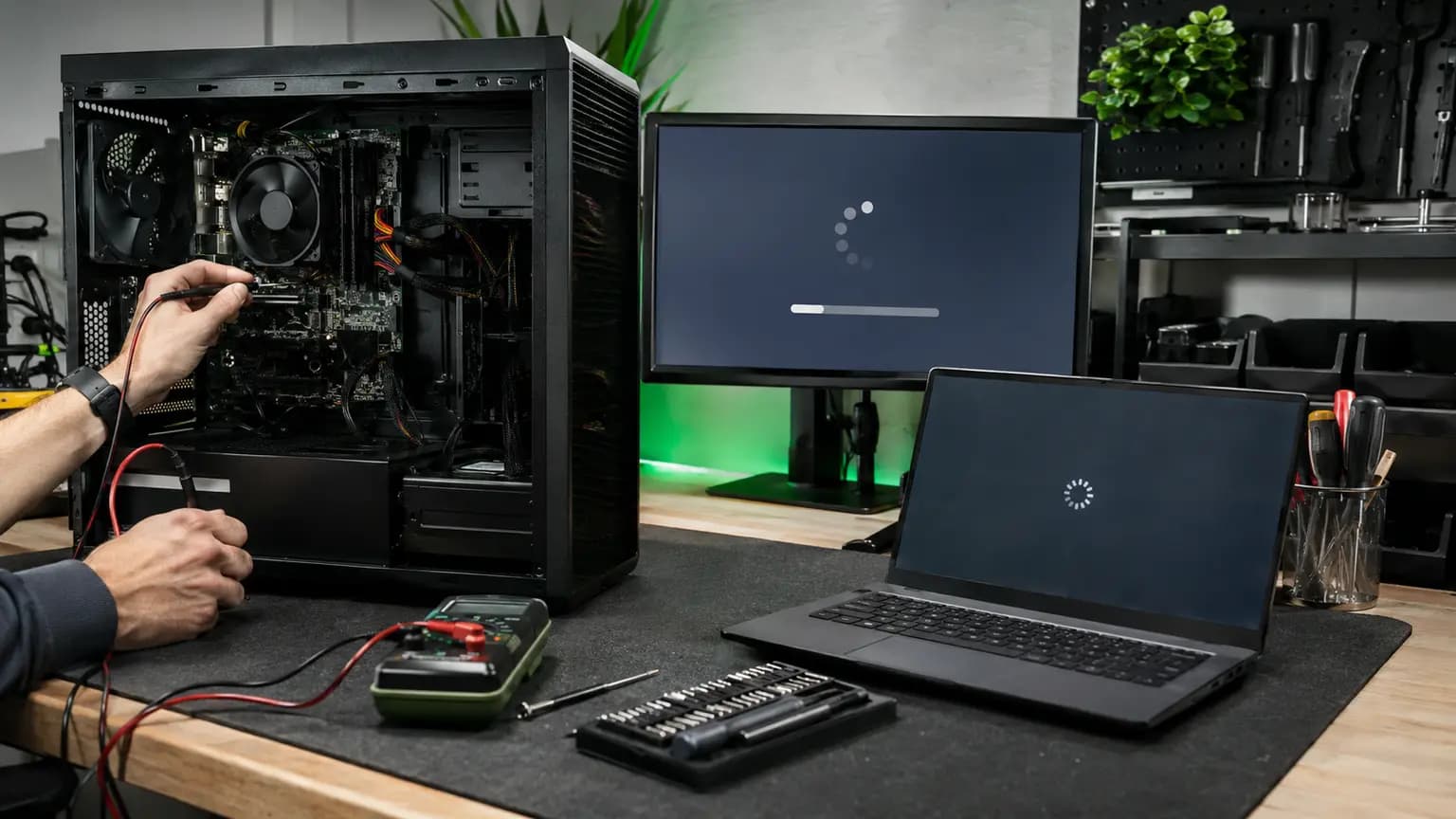
A computer that suddenly restarts may be protecting itself from excessive heat, losing stable power, crashing because of memory or drivers, or reacting to a deeper hardware fault. The same visible result can come from very different causes, so replacing parts at random often wastes time and money.
First record what happens immediately before the restart. Does the computer shut off as if the power cord was pulled, show a blue screen, freeze first, restart only during games, or reboot at the same point during startup? Also note whether it began after an update, repair, upgrade, move or power outage. A repeatable pattern gives a technician far more useful evidence than “it restarts sometimes.”
Read the Clues
A sudden loss with no warning can point toward unstable power, overheating protection, a loose connection, the power supply or motherboard power delivery.
Windows may be recording a stop code related to a driver, RAM, storage, system corruption or hardware instability. Photograph the code before it disappears.
Higher CPU and GPU demand exposes cooling, power-supply, graphics, memory and overclocking problems that may stay hidden at idle.
Background updates, sleep/wake behavior, drivers, scheduled software, power management or intermittent hardware faults become more relevant.
Startup repair, storage, Windows files, RAM, BIOS settings or connected hardware may be preventing a complete boot.
A partially seated RAM module, graphics card, cable or power connector may have shifted, especially in a desktop tower.
Nine Common Causes
Blocked vents, dust, a failed fan, dried thermal material or an incorrectly mounted cooler can make the processor or graphics card reach a protective shutdown temperature.
A weak desktop PSU, damaged laptop adapter, loose DC connection, overloaded power strip or unstable wall power can interrupt voltage without producing a normal Windows error.
A bad module, dirty or damaged slot, incorrect memory profile, mixed specifications or unstable XMP/EXPO setting can trigger crashes and restarts under changing workloads.
A damaged driver, incomplete update, corrupted system file or incompatible security software can crash the operating system and automatically restart it.
Read errors, controller faults, firmware problems or file-system corruption can interrupt startup and application access. Important data should be protected before heavy testing.
Graphics drivers, excessive temperature, unstable tuning, insufficient power or a failing graphics card may restart a computer during games, rendering or video work.
Overclocking, undervolting, XMP/EXPO, power limits or an unsuitable BIOS configuration can make otherwise working hardware unstable.
Damaged voltage regulation, liquid corrosion, a failing charging circuit or an intermittent board connection can cause unpredictable power loss.
A damaged USB device, dock, cable, internal peripheral or pinched wire can destabilize power or crash a driver when the device becomes active.
Power and Temperature
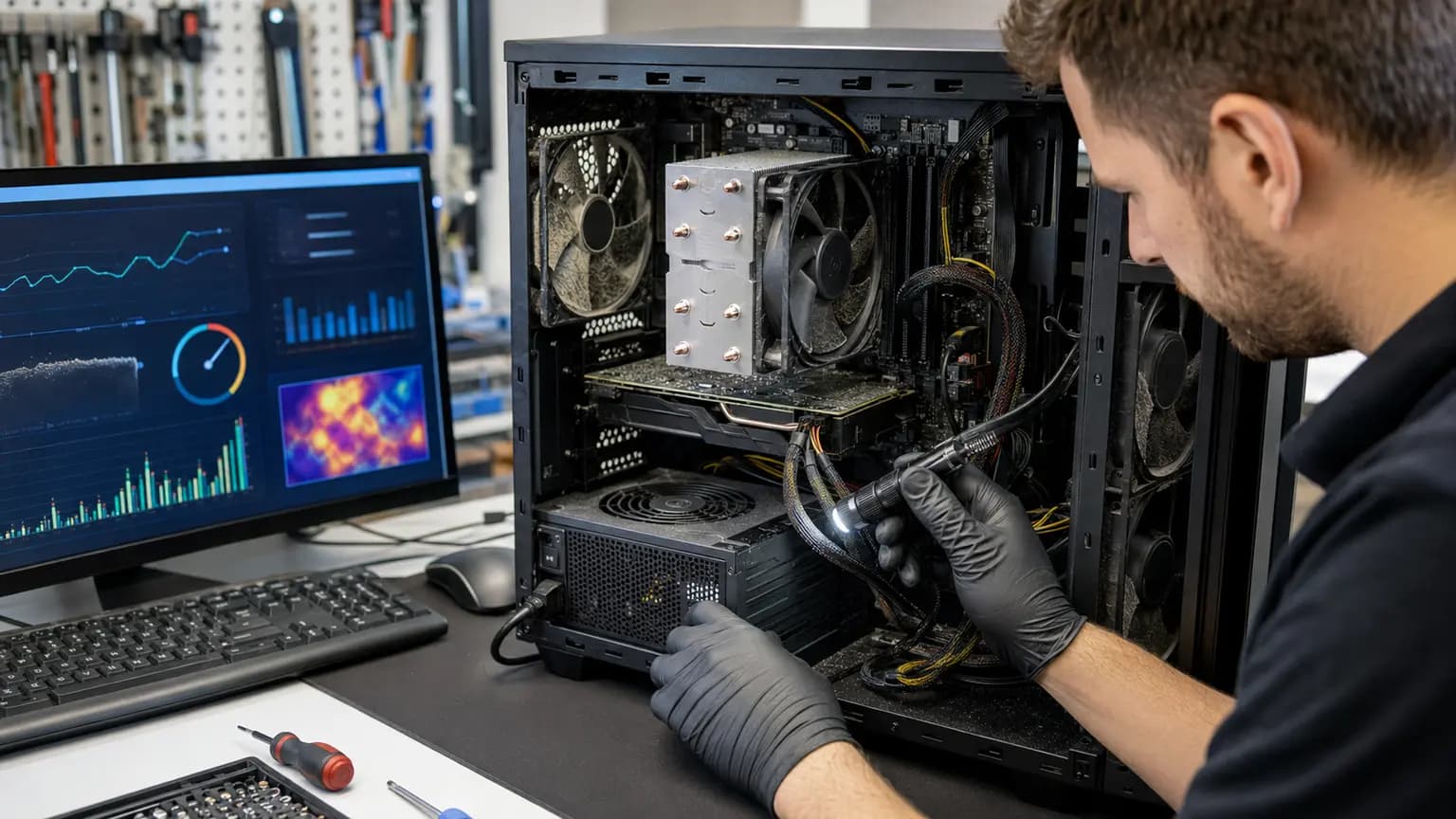
A gaming PC may appear normal on the desktop and restart only when a game raises CPU and GPU demand. That does not prove the graphics card is defective. The load also increases heat and the current demanded from the power supply, motherboard and power connectors.
Check that vents are open and fans are turning, but do not rely on fan noise alone. Temperature logs, clock behavior and a controlled stress test can show whether heat rises abnormally. Power-supply diagnosis should consider the correct wattage, unit quality, age, connector condition and voltage behavior under load. Never open a desktop power supply; internal capacitors can retain dangerous voltage even when unplugged.
Safe First Checks
If the computer remains usable, back up essential data before stress tests, BIOS changes, resets or storage repair.
Write down the application, whether the charger was connected, temperatures if known and whether a blue screen appeared.
Capture the Windows stop code, recovery message or BIOS warning. The exact wording is more useful than a summary from memory.
If you recently enabled overclocking, undervolting or XMP/EXPO, use the motherboard or computer maker's documented safe defaults. Do not update BIOS during an unstable-power condition.
After shutting down normally, remove optional USB accessories, docks and hubs, then test with only the required display, keyboard, mouse and normal power source.
Reliability Monitor and Event Viewer can establish timing, but a Kernel-Power event often confirms only that shutdown was unexpected; it does not identify the failed part.
Changing drivers, RAM, power settings and hardware simultaneously destroys the comparison needed to confirm the cause.
Confirm the Failure
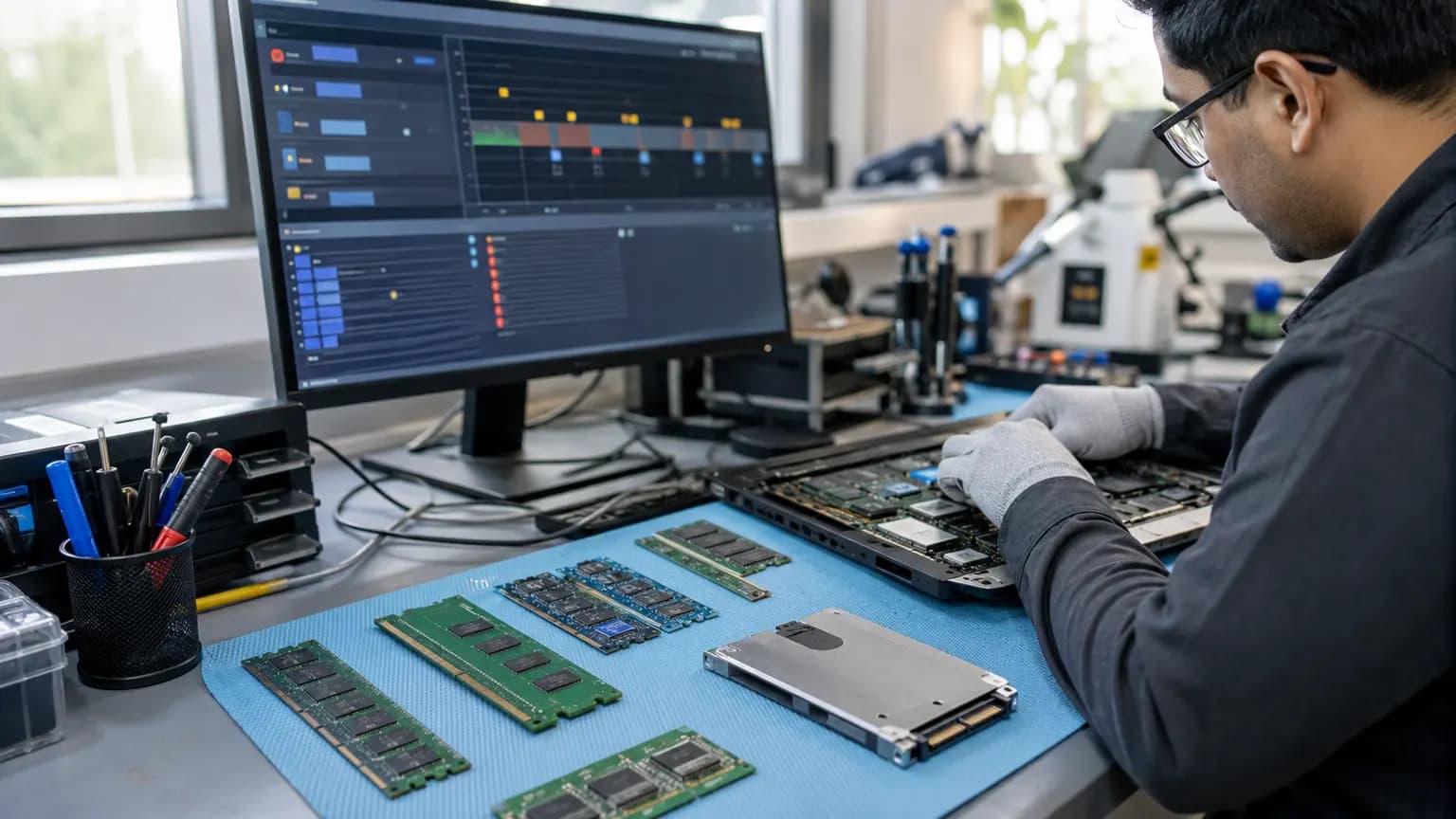
A quick memory test that passes once does not eliminate every intermittent RAM problem, especially when instability depends on temperature, memory profile or a particular slot. Proper testing compares modules and slots, uses suitable test duration and confirms the computer afterward under its normal workload.
Storage health also requires more than reading a single “good” label. SMART data, controller errors, Windows logs, file integrity and real read behavior should be considered together. Crash dumps and reliability history can support the diagnosis, but they must be matched with physical tests; an unexpected-power record by itself does not prove whether the PSU, wall power, overheating or motherboard caused the restart.
Avoid Making It Worse
Do not begin with a factory reset, random driver-updater utility or BIOS update. A reset can erase data while leaving a failing PSU, RAM module, SSD or cooling problem untouched. Unofficial driver tools can introduce the wrong software, and a BIOS update interrupted by unstable power can leave the computer unable to start.
Do not repeatedly force the computer through intensive benchmarks if it smells hot, makes electrical sounds, shows storage warnings or loses power instantly. Stop using it if you notice smoke, sparks, a swollen battery, liquid residue or a burning odor. Disconnect external power when safe and arrange professional inspection.
Professional Testing
A useful repair process begins with the reported workload and restart pattern. Technicians can inspect physical connections, cooling, power delivery and liquid or heat damage; review Windows crash history; test RAM and storage; and apply controlled CPU, GPU or combined load only when it is safe.
The final step matters as much as finding a suspect part. After a repair or configuration change, the computer should complete the workload that previously triggered the restart and remain stable through appropriate follow-up testing. That reduces the chance of confusing coincidence with a confirmed fix.
Related Repair Help
Complete diagnosis for desktops and laptops with sudden shutdowns, restart loops and system instability.
Learn moreLoad testing for gaming PCs that restart during games, rendering or other demanding work.
Learn morePower, thermal, Windows, memory and storage testing for randomly restarting laptops.
Learn moreLearn what to record when Windows shows a stop code before restarting.
Learn moreBoard-level evaluation when stable power, RAM, storage and software causes have been ruled out.
Learn moreFrequently Asked Questions
Common causes include overheating, unstable power, RAM errors, drivers, storage faults, GPU instability, BIOS settings and motherboard problems. The timing and workload help separate them.
Gaming increases heat and power demand. The cause may involve cooling, the PSU, GPU, RAM, tuning settings or motherboard power delivery rather than the game itself.
No. It means Windows detected an unexpected shutdown. A bad PSU is one possibility, but overheating, wall power, forced shutdowns and motherboard faults can create the same event.
Yes. Memory instability can cause blue screens, freezes, application crashes or abrupt restarts. Modules, slots and memory settings may all need testing.
Yes. Protective shutdown behavior can look like sudden power loss, especially under heavy load. Temperatures and cooling operation should be measured rather than guessed.
Not as a first step. Stabilize power and identify the pattern first. A BIOS update interrupted by another restart can create a more serious startup problem.
Only if Windows or software is the confirmed cause. It will not repair faulty power, RAM, cooling, storage, GPU or motherboard hardware and may erase data.
Yes. Bring the computer, its normal power adapter when applicable and details about what triggers the restart. Controlled testing can narrow the failure before parts are recommended.
Stop Guessing at Parts
Bring the computer and its normal power adapter to Trueonefix in Tampa. We can evaluate power, cooling, RAM, storage, Windows and workload stability, then explain the evidence and recommended next step.
One local Tampa storefront
104 E Fletcher Ave, Tampa, FL 33612 · Walk-ins welcome during business hours.