
1. Unstable or failing memory
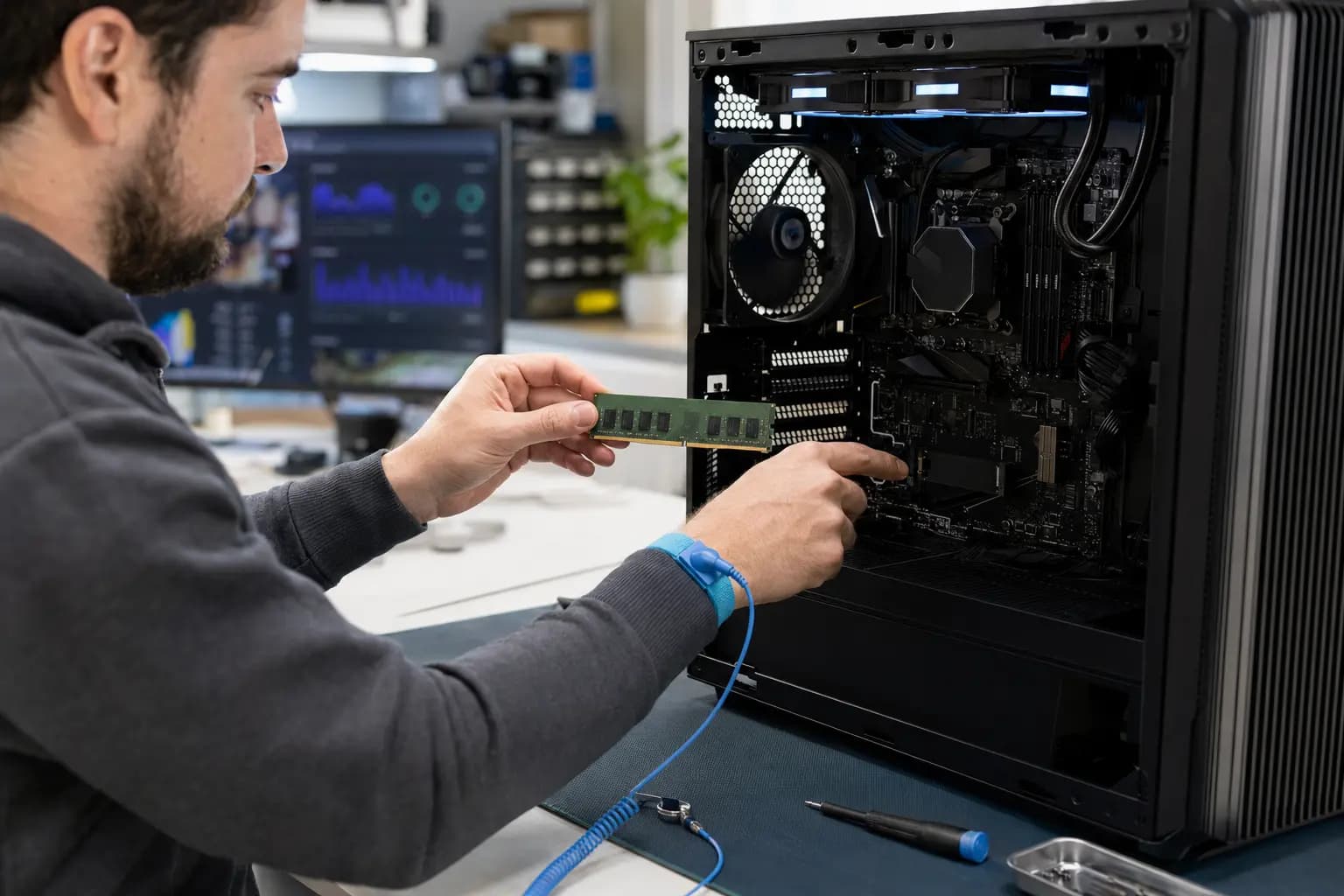
Defective RAM, poor contact, incompatible modules or aggressive XMP settings can corrupt active data and cause changing stop codes.
Repair Advice
Learn eight common causes of Windows blue-screen crashes, what information to record, which checks are safe and when repeated crashes need professional diagnosis.
Start With the Pattern
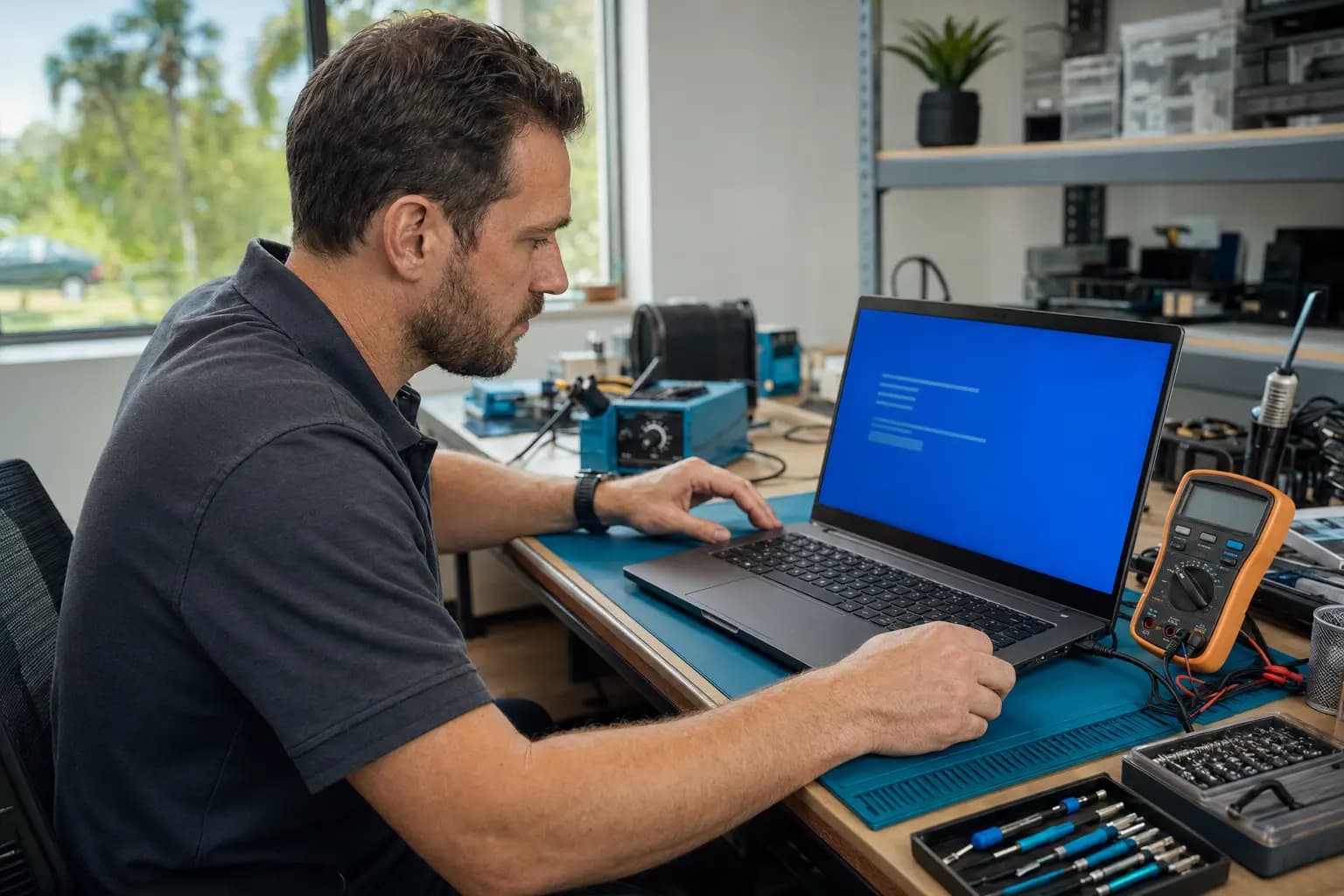
A Windows blue screen appears when the operating system stops to protect the computer after a serious error. A single crash after an update or disconnected accessory may never return. Repeated crashes, changing stop codes, failed startups or freezes under load deserve a structured diagnosis.
Before changing settings or reinstalling Windows, note when the crash happens: during startup, gaming, charging, sleep, an update or ordinary use. That pattern often matters more than the color of the screen itself.
Eight Common Causes
A stop code is a clue, not proof that one named part has failed. Several different faults can produce similar messages.
Defective RAM, poor contact, incompatible modules or aggressive XMP settings can corrupt active data and cause changing stop codes.
A failing SSD, damaged file system or unreadable Windows files can trigger crashes during startup, updates or file access.
A recently installed graphics, storage, network or security driver may be incompatible, corrupted or unsuitable for the exact hardware.
Loss of power, insufficient storage or an existing system problem can leave Windows components in an inconsistent state.
Blocked airflow, failed fans, dried thermal material or poor cooler contact can make a laptop or gaming PC unstable under load.
A failing adapter, battery, desktop power supply or motherboard power circuit can cause crashes, sudden restarts and shutdowns.
Incorrect firmware settings, an unsuitable update or unstable overclock can prevent otherwise good hardware from operating reliably.
Board-level damage and failing processors or graphics hardware are less common than software problems, but require proper testing when evidence points there.
Save the Evidence
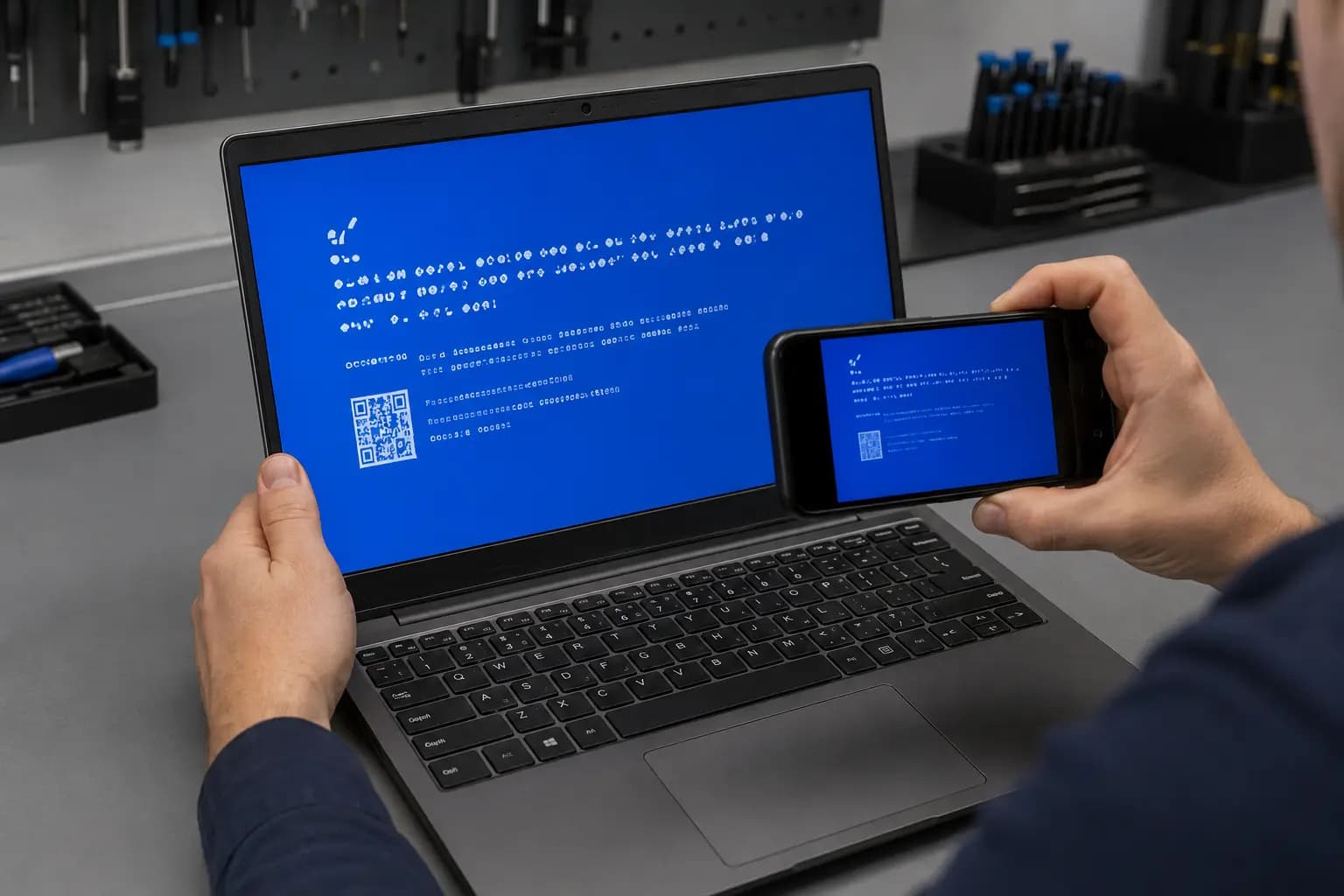
If it is safe to do so, take a clear photo that includes the stop code, any named file and the percentage shown. Also write down what you were doing immediately before the crash. Windows may restart too quickly to remember those details later.
Do not assume that searching one stop code reveals the exact failed component. The same code can result from memory corruption, a driver, storage damage or another underlying fault. Crash history and repeatable testing are needed to confirm the cause.
Safe First Steps
Remove recently added USB devices, hubs and docks, then observe whether the crash returns.
If Windows still runs and the drive appears healthy, back up irreplaceable data before repeated testing or major updates.
Record new RAM, drivers, antivirus tools, Windows updates, BIOS changes or software installed just before the problem began.
Very low free space can interfere with updates, temporary files and normal Windows operation.
Registry cleaners, driver-download sites and repeated automated fixes can add new variables or make data recovery more difficult.
Protect the Data
If the computer freezes while opening files, reports drive errors, becomes unusually slow or stops detecting the SSD, prioritize the data. Repeated restarts, repair installs and large diagnostic scans may place additional stress on a failing drive.
Stop using the computer if the files are irreplaceable and the storage device is behaving abnormally. Diagnosis and data recovery are different goals; the safest next step depends on the drive’s condition and whether a current backup exists.
Hardware Verification
A professional diagnosis can review crash records, Windows integrity, storage health, temperatures and recent driver changes before isolating hardware. RAM should be tested under appropriate settings, and SSD results must be interpreted alongside symptoms rather than relying on one health percentage.
For gaming PCs, testing may also include XMP stability, CPU and GPU load, power delivery and thermal behavior. Replacing Windows without checking those conditions can temporarily hide the symptom while leaving the actual fault unresolved.
Related Services
Complete diagnosis for repeated Windows crashes, freezes, restarts and startup failures.
Learn moreMalware inspection and Windows cleanup when suspicious software or security problems are involved.
Learn moreEvaluation when important files are at risk or the storage device may be failing.
Learn moreSSD testing and replacement when storage condition or capacity is contributing to instability.
Learn moreFrequently Asked Questions
No. A blue screen can result from a temporary driver or update problem, but repeated crashes can also indicate failing hardware. The pattern and test results determine the seriousness.
Usually not before preserving important files and checking the crash history. A reinstall may help corrupted software but will not repair bad RAM, a failing SSD, overheating or unstable power.
Yes. Memory corruption can affect different processes and produce changing messages. Proper RAM testing and configuration checks are more reliable than guessing from one code.
Yes. Storage errors can damage or interrupt access to Windows files. Slowdowns, read errors, missing drives and startup trouble make storage evaluation more urgent.
Usually not after an isolated crash. Unsaved work may be lost, and an underlying storage failure can put saved files at risk, so a current backup is important.
Crashes Keep Returning?
Tell Trueonefix when the crashes began, what changed beforehand and whether they occur during startup or under load. We will test the likely software and hardware causes in a logical order and explain the repair options before approved work begins.
One local Tampa storefront
104 E Fletcher Ave, Tampa, FL 33612 · Walk-ins welcome during business hours.