
UEFI
The modern firmware environment that initializes hardware and starts the operating system. Legacy BIOS or CSM supports older boot methods.
Repair Advice
Learn why anti-cheat systems inspect UEFI, Secure Boot and TPM 2.0—and why updating BIOS is not always the correct first step.
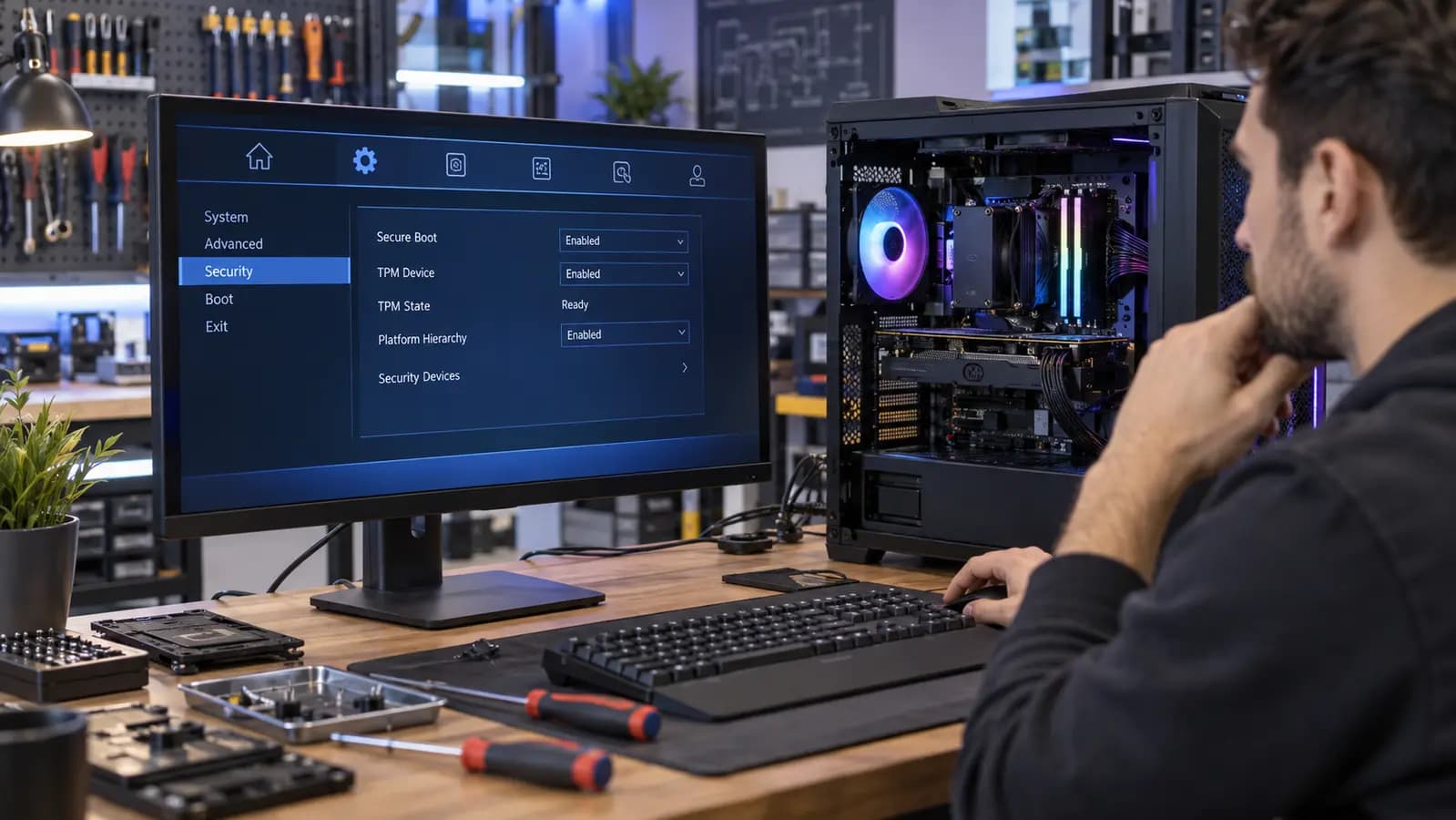
Gaming platform security
Some competitive games use kernel-level anti-cheat systems. These tools inspect platform security to make it harder for malicious software to load before Windows and hide from detection. That is why a game may require UEFI mode, Secure Boot and TPM 2.0 even when the PC otherwise runs normally.
These features are related, but they are not interchangeable. Enabling one does not automatically configure the others correctly.
Plain-English definitions
The modern firmware environment that initializes hardware and starts the operating system. Legacy BIOS or CSM supports older boot methods.
A signature-based process that helps prevent unauthorized boot software from loading.
A physical or firmware-based security component used for protected cryptographic operations. It may appear as Intel PTT or AMD fTPM.
Why the error persists
The system disk may use an older partition style, firmware may remain in mixed Legacy and UEFI mode, Secure Boot keys may be missing, or an anti-cheat service may read the state differently from Windows. Firmware changes may also require a complete restart before every component reports the new state.
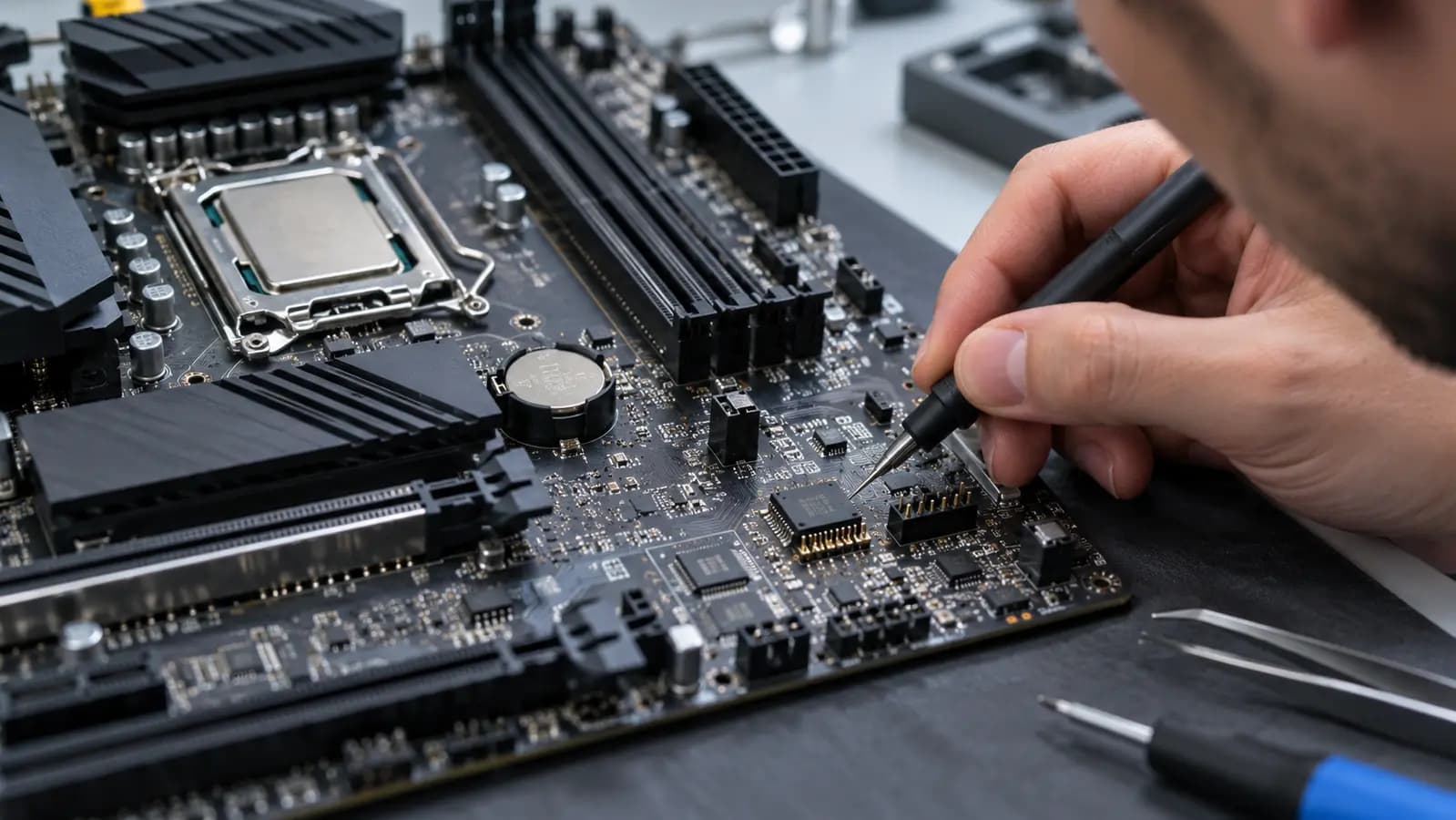
BIOS is not the first answer
A newer BIOS may add compatibility, update security certificates or fix firmware behavior. But many game errors are configuration problems, not outdated firmware. An unnecessary update adds risk: a power interruption, incorrect file or interrupted flash can leave the PC unable to boot.
Before flashing, identify the exact motherboard and revision, review the manufacturer’s release notes, confirm BitLocker recovery information and stabilize the computer.
Correct diagnostic order
First verify whether Windows is installed in UEFI or Legacy mode and whether the system disk layout is compatible. Then check TPM availability, Secure Boot keys and status, Windows configuration, and the game’s published requirements. Compare the installed BIOS version with the motherboard manufacturer’s release notes last.
Changing from Legacy to UEFI or enabling Secure Boot without checking compatibility can prevent Windows from starting. Back up important data before boot or firmware changes.
Related services and guides
Stability, firmware, TPM and Secure Boot diagnosis for gaming systems.
Learn moreUnderstand the benefits, risks and preparation steps before flashing firmware.
Learn moreProtect important files before major boot or storage changes.
Learn moreFrequently asked questions
No. Verify UEFI mode, disk layout, TPM and Secure Boot configuration first.
Yes, when the existing installation, disk layout or boot configuration is incompatible.
No. Many computers use firmware TPM implementations such as Intel PTT or AMD fTPM.
Tampa repair support
Bring the exact error message and game name. We can verify the boot environment before changing firmware.
One local Tampa storefront
104 E Fletcher Ave, Tampa, FL 33612 · Walk-ins welcome during business hours.