
1. The touchpad is raised or difficult to click
A battery located beneath the touchpad can push it upward, make clicks uneven or prevent the pad from sitting flush.
Repair Advice
Learn the warning signs of a swollen laptop battery, how to handle the computer safely, what not to do, and when professional battery replacement is needed.
Treat Physical Swelling Seriously
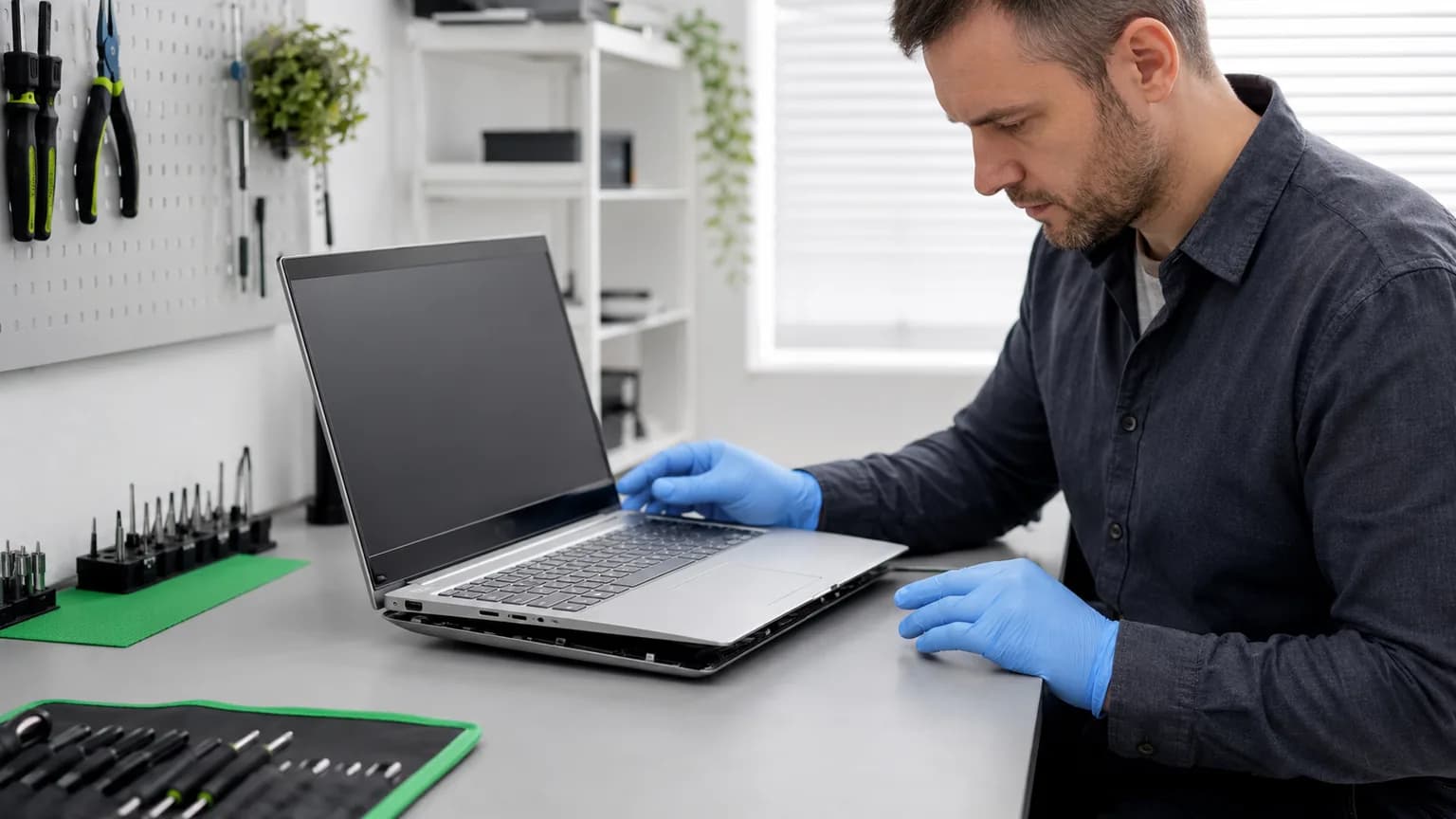
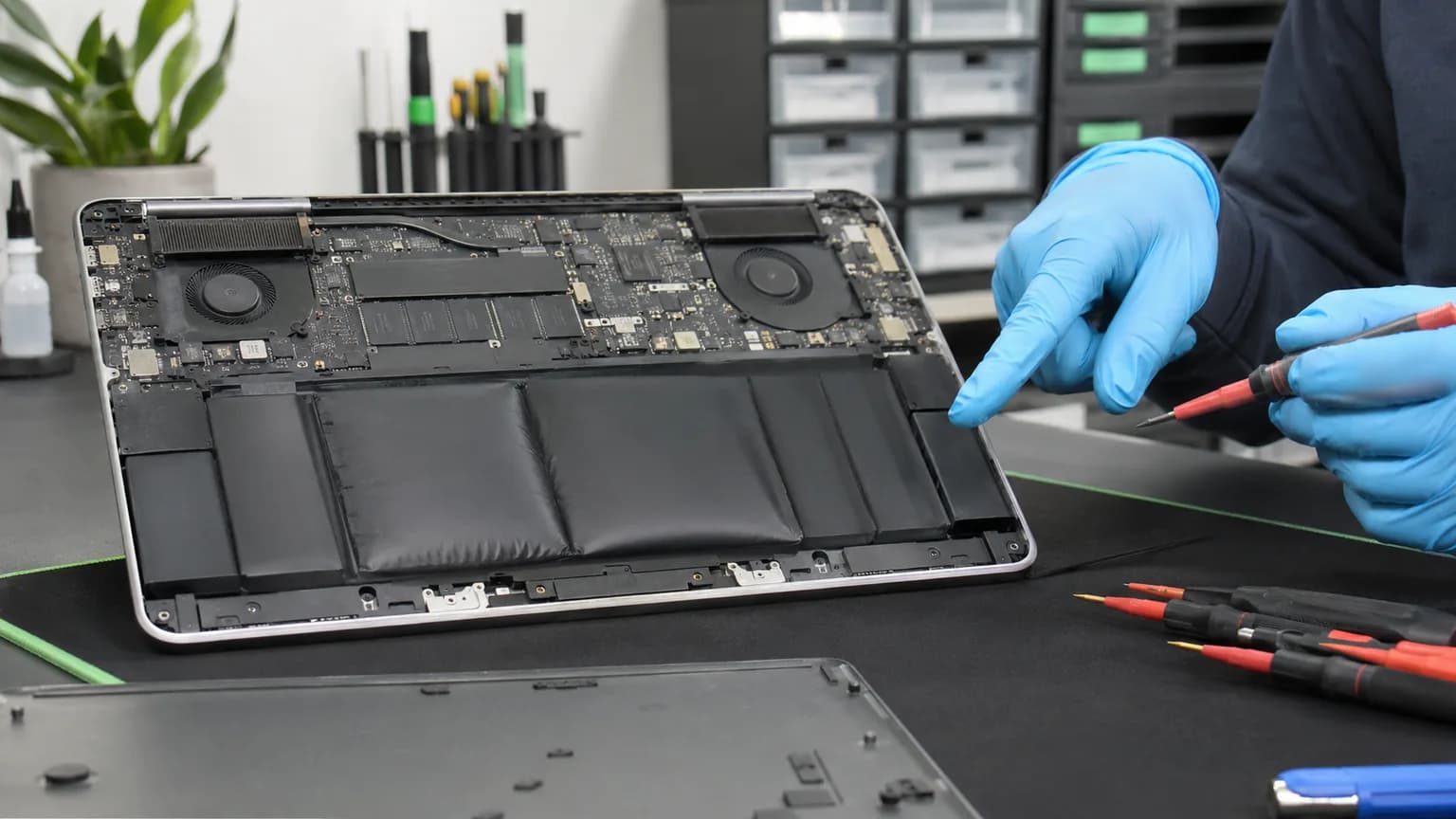
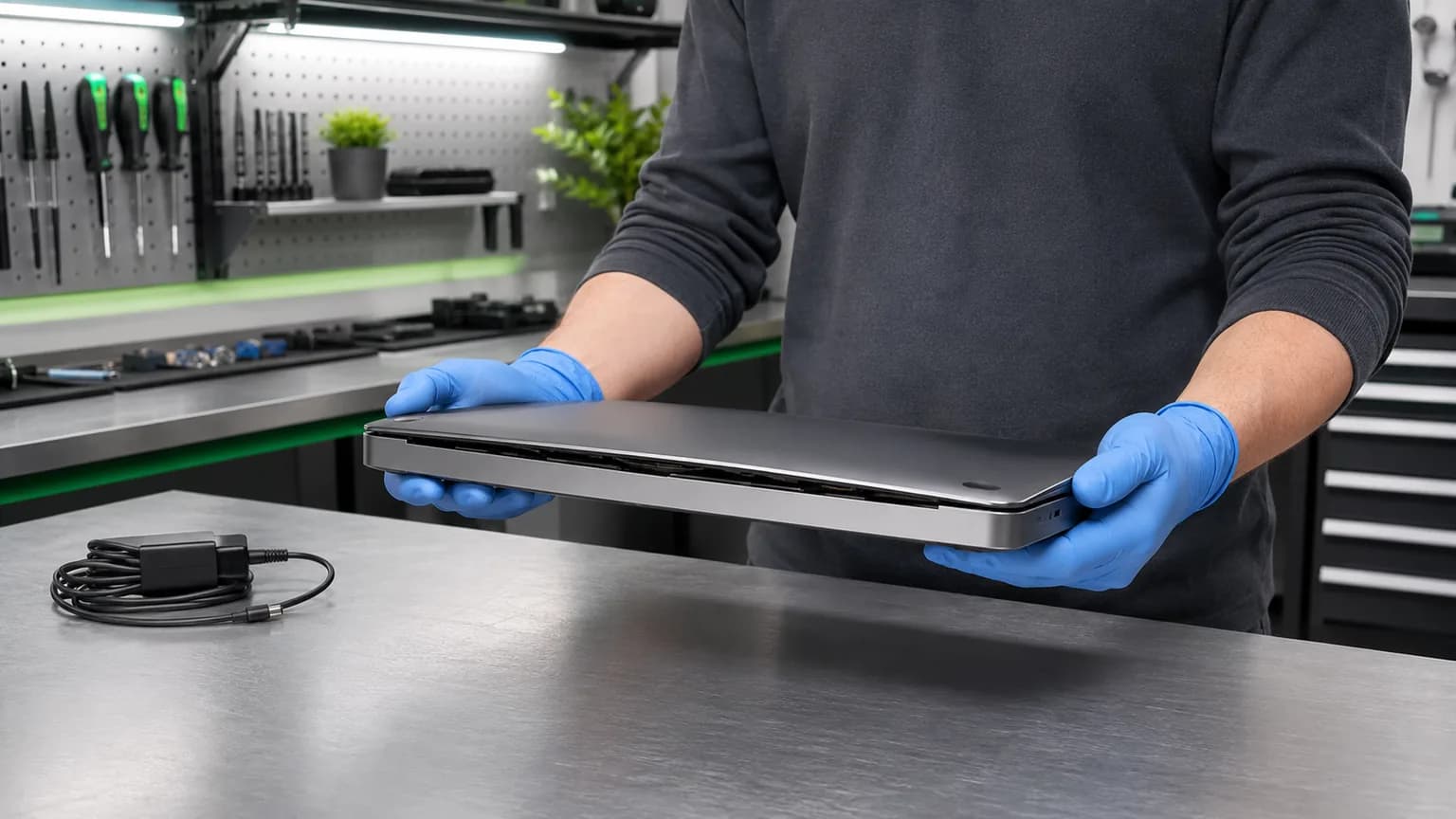
A lithium-ion or lithium-polymer laptop battery may produce gas internally as its cells deteriorate. Because the sealed cell cannot release that pressure normally, the battery begins to expand. The first visible clue may be a touchpad that sits higher than before, a palm rest that no longer lies flat, or a gap along the bottom cover.
The computer may still turn on and the battery percentage may even appear normal. That does not make continued charging safe. Expansion can place pressure on the touchpad, keyboard, motherboard and case. If you suspect swelling, disconnect the charger, shut the laptop down, stop pressing the raised area and avoid repeatedly opening the case to confirm it.
Eight Warning Signs
A battery located beneath the touchpad can push it upward, make clicks uneven or prevent the pad from sitting flush.
Internal pressure may lift the top case or create a curve that was not present before.
A widening seam, displaced clips or screws that no longer sit correctly can result from a battery pressing against the cover.
A bulging bottom panel can make one side or the center of the computer touch the table unevenly.
New creaking or tension around the palm rest may come from internal pressure rather than a broken hinge.
Rapid discharge, sudden percentage changes or unexpected shutdowns often accompany advanced cell deterioration, although they do not prove swelling by themselves.
Excess heat near the battery area, especially with physical distortion, means charging should stop until the device is inspected.
An unusual odor may indicate cell damage or venting. Move away from the device, avoid breathing fumes and contact appropriate emergency services if it becomes hot, smokes or ignites.
What to Do Immediately
Disconnect external power without bending or squeezing the laptop. Do not continue charging to test whether the percentage rises.
Use a normal shutdown if the computer is cool and stable. If it is hot, hissing, smoking or producing a strong odor, move away and contact emergency services.
Pushing down on a raised touchpad or reinstalling screws under tension can damage the battery or nearby components.
Place the powered-off device on a stable, nonflammable surface away from direct sun, heaters, children and pets while arranging service.
Do not mail, fly with or leave a swollen battery in a hot vehicle. Follow carrier and local hazardous-battery rules.
The battery should be disconnected and removed using the correct procedure for the exact laptop model.
Confirming the Cause
A proper inspection confirms whether the battery cells are expanded and whether pressure has damaged the touchpad, keyboard, case or connectors. The computer is powered down, external power is removed and the bottom cover is opened with tools and procedures appropriate for the model. The technician avoids sharp tools near the cell pouches and does not bend an adhesive-mounted battery to force it free.
Not every raised touchpad proves battery swelling. A displaced touchpad bracket, damaged case, incorrect screw or liquid residue can create similar symptoms. Conversely, reduced battery runtime alone may reflect normal wear without physical expansion. Visual inspection and battery-health information together produce a more reliable diagnosis.
Safe Handling
If the laptop is cool, stable and must be moved a short distance for local repair, leave it powered off and unplugged. Support it from underneath with both hands, keep pressure away from the raised case and do not pack heavy objects against it. A rigid open container may prevent other items from pressing on the computer, but transportation and disposal requirements vary by location.
Never puncture, crush, bend, freeze, burn or place a swollen battery in household trash. Do not try to flatten the case or discharge the battery by running demanding software. Once removed, the battery requires an approved recycling or hazardous-waste route; it should not be stored loose beside metal tools or other batteries.
Why Batteries Swell
Rechargeable batteries are consumable components. Their internal chemistry changes with charge cycles and calendar age. Sustained heat, manufacturing defects, physical damage, long-term storage at extreme charge levels and charging-system faults can accelerate deterioration. Swelling is not a normal feature to manage with software calibration; it is a physical failure that requires replacement.
Battery replacement should be followed by checks of the charger, charging port and charging behavior. If the new battery does not charge correctly, becomes unusually hot or reports unstable percentages, the adapter or charging circuit may also need diagnosis. Replacing a swollen battery restores the failed component but does not automatically repair a warped touchpad, broken clips or damaged case.
Protecting Your Data
If the laptop is already backed up, leave it off. If important data exists only on the device, tell the technician before service. Depending on the design and condition, the storage drive may be removable or the computer may be safely powered after the failed battery is disconnected. That decision should be made after inspection rather than by repeatedly charging a distorted machine.
A battery replacement normally does not erase files, but every repair involving a device that may become unusable should begin with a clear data plan. Account passwords, drive encryption and soldered storage can affect recovery options, so provide accurate information about the device and the urgency of the files.
Related Repair Help
Professional battery inspection and replacement for poor runtime, charging problems and physical swelling.
Learn moreComplete diagnosis for power, case, keyboard, touchpad, screen and motherboard problems.
Learn moreCompare settings, drivers, ribbon-cable faults and battery pressure when a touchpad stops working.
Learn moreSeparate battery failure from charger, charging-port and motherboard causes.
Learn moreFrequently Asked Questions
No. Disconnect the charger, shut the computer down and arrange inspection. Continued use or charging can increase pressure and risk.
A damaged lithium battery can vent, ignite or create hazardous fumes. Do not puncture, compress, heat or continue charging it.
A swollen battery beneath the palm rest is a common cause, but the touchpad bracket and case should also be inspected.
No. Pressure can damage the battery and nearby components. Leave screws and clips alone until the battery is safely removed.
Often the pressure is relieved after removal, but a warped touchpad, bracket or case may require additional repair.
The battery itself does not normally erase storage, but the laptop should not be repeatedly powered for backup. Discuss the data with the technician first.
No. It requires an approved battery-recycling or hazardous-waste process under local rules.
Yes. Bring the powered-off laptop and its normal charger if the device is cool and stable. Tell us immediately that battery swelling is suspected.
Do Not Keep Charging It
Bring the powered-off laptop and its normal charger to Trueonefix in Tampa if the device is cool and stable. We can inspect the battery, touchpad, case and charging system, identify the correct replacement and explain any additional damage before repair.
One local Tampa storefront
104 E Fletcher Ave, Tampa, FL 33612 · Walk-ins welcome during business hours.