
No movement or click
A disabled touchpad, missing driver, disconnected cable, failed assembly or controller problem should be separated.
Repair Advice
Learn why a laptop touchpad stops working, which safe checks separate settings and drivers from battery, cable and touchpad hardware problems, and when repair is needed.
Start With the Symptom
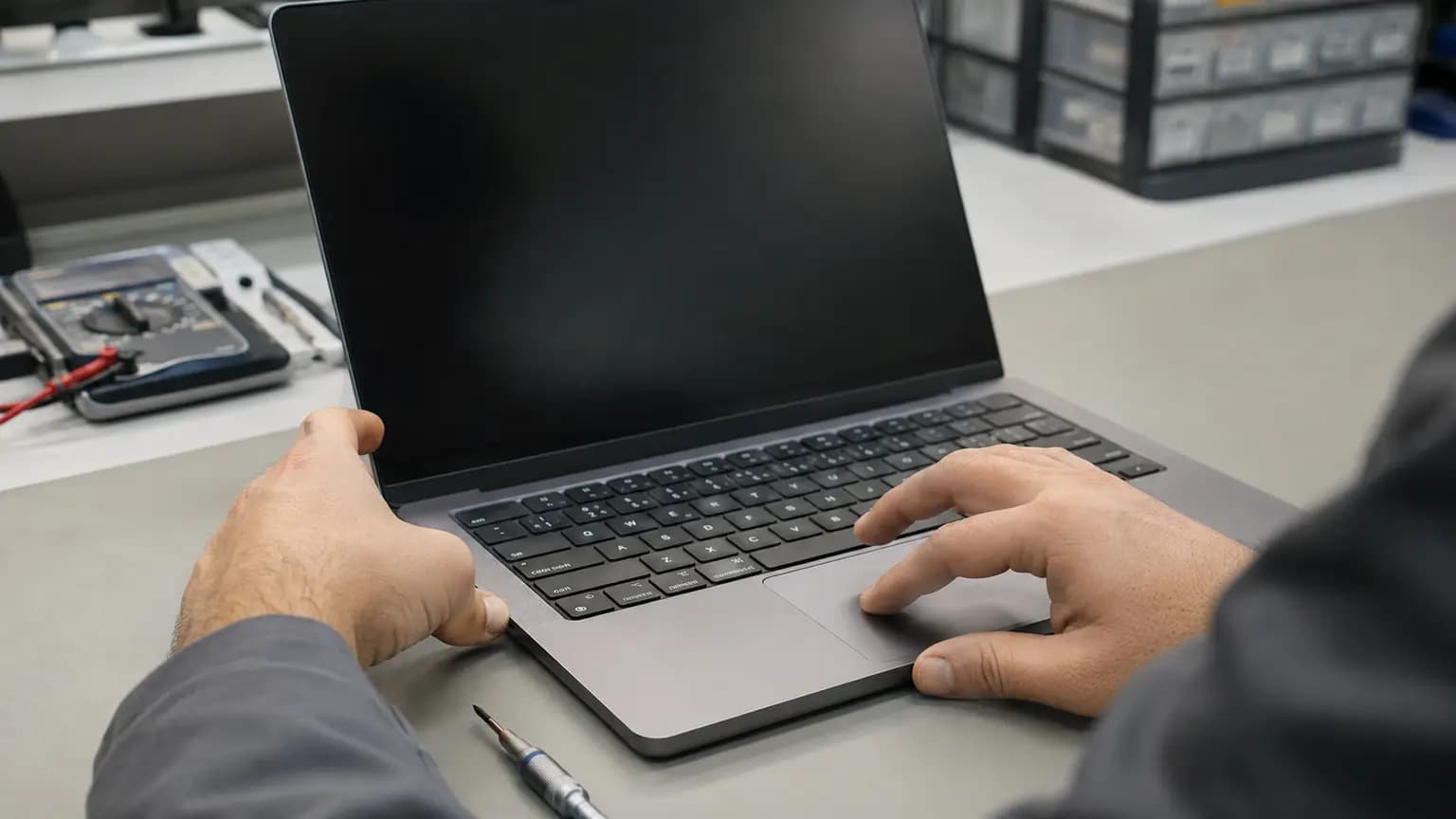
A cursor that does not move at all is different from a touchpad that clicks but will not track, moves erratically, works only near one edge or stops after Windows loads. The exact behavior helps separate an accidental setting from a driver problem, physical pressure, a loose cable or failed hardware.
Before changing drivers or opening the laptop, note when the problem began. Record whether the laptop was dropped, exposed to liquid, repaired recently or updated. Also check whether the palmrest looks raised, the touchpad is difficult to click or the case no longer closes evenly. Those can be signs of a swollen battery and should be treated as a safety issue rather than an ordinary input problem.
Read the Clues
A disabled touchpad, missing driver, disconnected cable, failed assembly or controller problem should be separated.
Mechanical click hardware, pressure from below, click settings or a damaged touchpad assembly may be involved.
Moisture, contamination, charger electrical noise, palm-rejection settings or touchpad hardware damage can create erratic input.
If the touchpad responds in BIOS/UEFI or recovery but fails in Windows, settings, drivers or software become more likely.
Stop pressing on the case. A loose connection, cracked mounting point or swollen battery may be changing the touchpad position.
Liquid, corrosion, a shifted cable, broken connector or damaged palmrest should be inspected before repeated use.
Eight Common Causes
Many laptops use an Fn key, dedicated button or double-tap corner gesture that can disable the touchpad accidentally.
Windows can turn the touchpad off or disable it automatically when a mouse is connected, depending on the selected settings.
A damaged HID, I2C, Serial IO or manufacturer touchpad driver can make the device disappear or stop after Windows loads.
A mouse utility, docking station, accessibility tool or other input software can change pointer behavior or block gestures.
The internal flexible cable can become partially seated after service, suffer impact damage or lose contact at its connector.
A battery located beneath the palmrest can expand and push the touchpad upward, making clicks stiff, uneven or impossible.
Residue, corrosion, cracked mounting points or failed sensor electronics can cause intermittent, erratic or completely lost input.
If a known-good touchpad and cable path do not respond, power, I2C communication or board-side controller circuitry may need diagnosis.
Safe First Checks
A full restart can clear a temporary input-service or power-state problem. Avoid repeated forced shutdowns.
Look for a touchpad symbol on the function row or a marked corner on the touchpad. Use only the documented toggle for the model.
Confirm the touchpad is enabled and check whether Windows is set to turn it off when a mouse is connected.
Temporarily remove docks, hubs and extra USB input devices, then restart and test under controlled conditions.
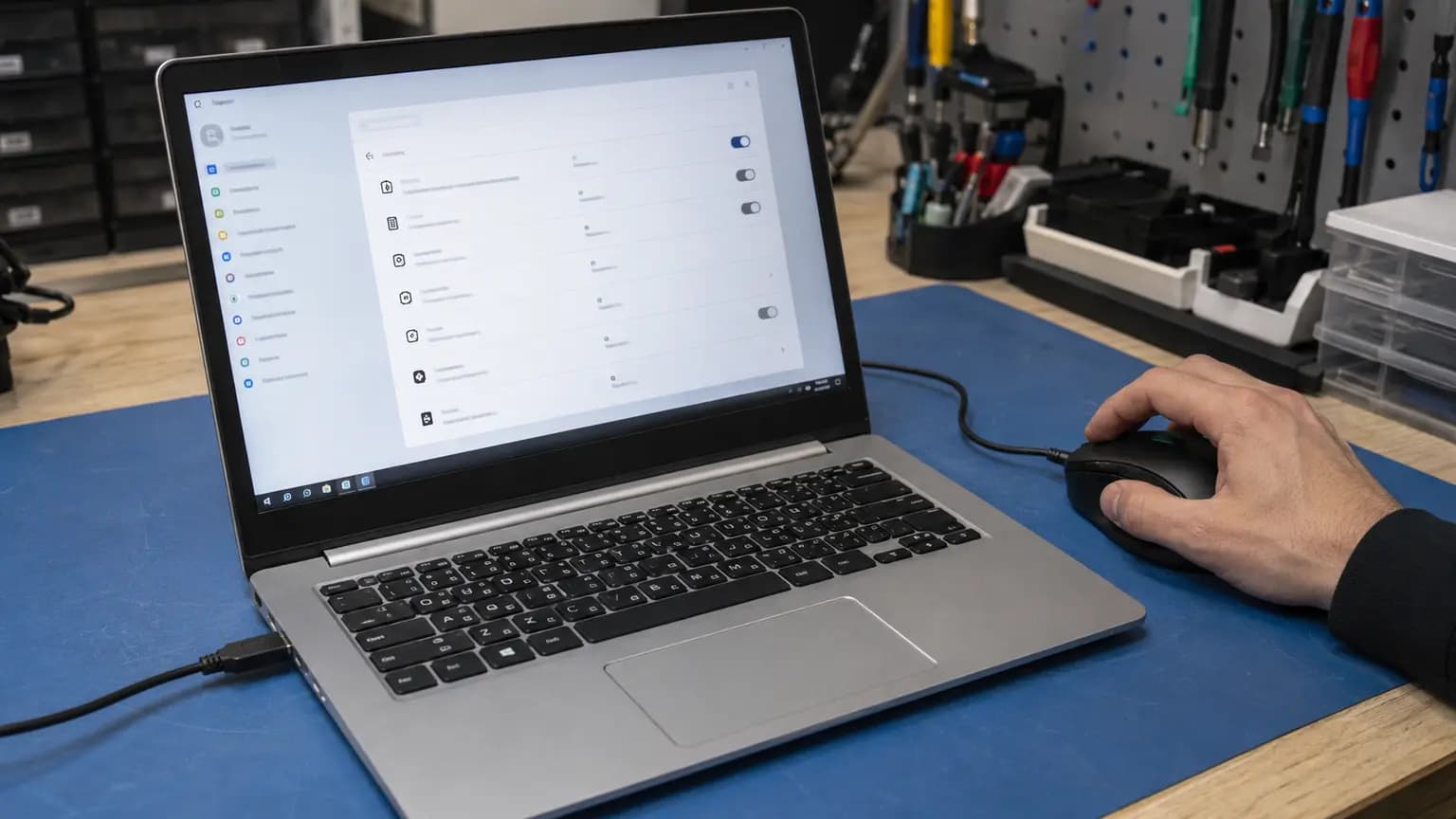
A wired USB mouse can provide temporary control and show whether Windows accepts pointer input from another device.
Look for a raised touchpad, separated palmrest, warped bottom cover, residue or impact damage. Stop if swelling is suspected.
Software or Built-In Hardware
If a trusted USB mouse works while the built-in touchpad does not, Windows is still accepting pointer input. That result narrows the problem toward touchpad settings, its device-specific driver, the internal cable, the touchpad assembly or its board connection. If neither device works, Windows, USB, system-wide input software or a broader freeze may be involved.
Open Windows touchpad settings using the external mouse and confirm the touchpad is present and enabled. Device Manager may show an HID, precision touchpad or I2C device rather than the laptop brand. Do not delete unknown system devices or use a generic driver-updater. Record what is shown before changing anything.
Battery Safety
In many thin laptops, the battery sits directly beneath or close to the touchpad. As a lithium-ion battery swells, it can push against the palmrest and change the touchpad height or click feel. You may also see a gap in the case, a bowed bottom cover or a keyboard and palmrest that no longer sit flat.
Do not press the touchpad back down, puncture the battery or continue charging the laptop to test it. Shut the computer down, disconnect the charger and place it on a nonflammable surface away from heat. A swollen battery needs safe replacement and the surrounding touchpad, cable and case should be checked for damage.
Internal Inspection
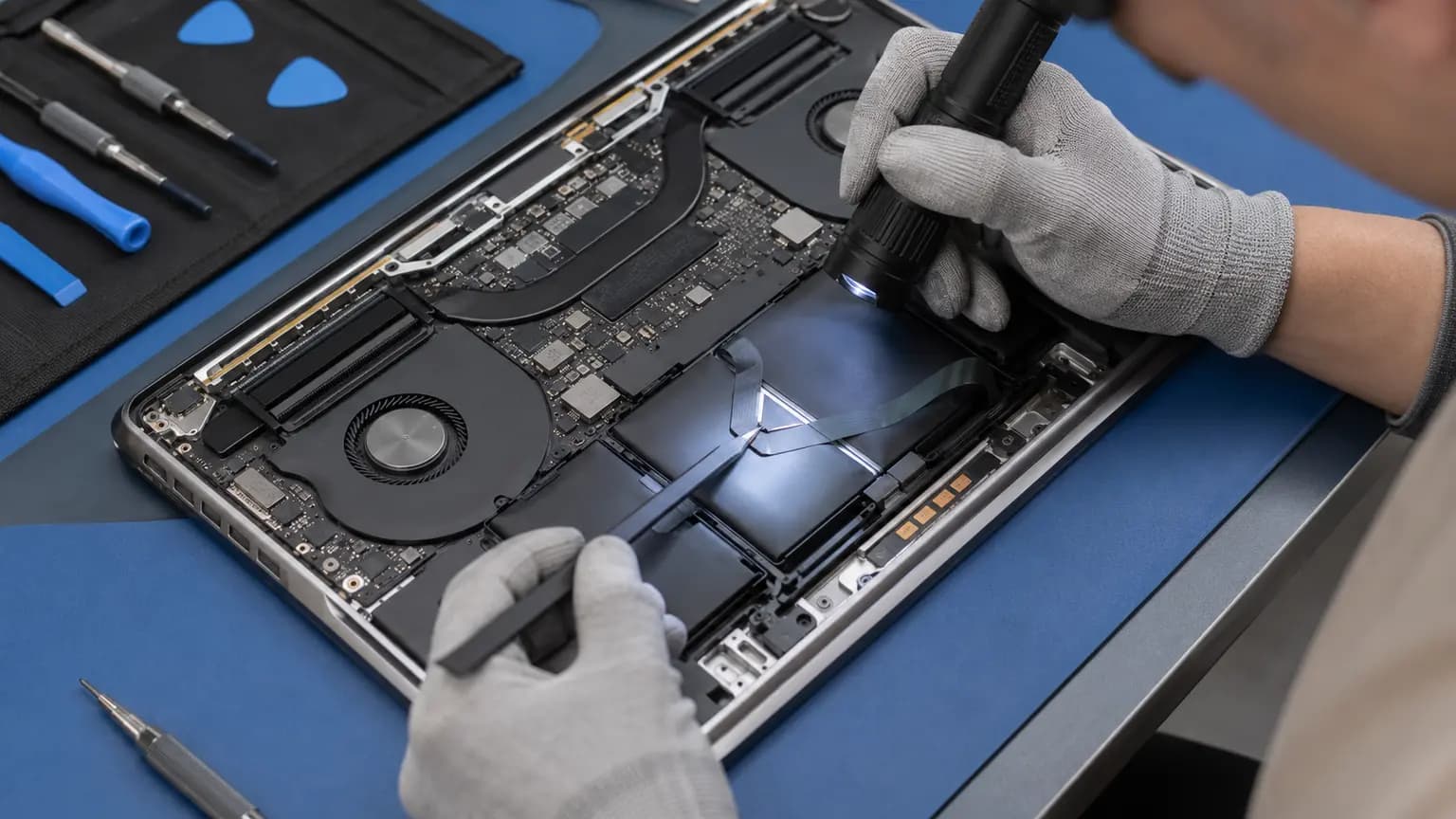
A laptop touchpad commonly connects through a thin flexible cable secured by a small locking connector. The connector style varies, and its latch can break if it is pulled incorrectly. The same area may contain the battery, keyboard cable and palmrest mounting points, so random disassembly can create additional faults.
A technician can isolate battery power, inspect for swelling, check the cable contacts and connector lock, look for liquid residue and verify that the touchpad sits correctly in the palmrest. If reseating a cable restores operation, the repair should still be verified through startup, sleep, charging and repeated pointer tests before the laptop is returned.
Avoid Costly Mistakes
Forcing a stiff touchpad can damage its bracket, glass surface or palmrest, and it is especially unsafe when battery swelling is possible. Spraying cleaner around the touchpad can carry liquid through its edge and onto the cable or motherboard. A BIOS update is also unnecessary risk on a laptop with uncertain battery or charging behavior.
Do not order a touchpad from appearance alone. The exact laptop model, palmrest design, cable, connector and color may differ. Some touchpads replace separately; others are bonded or supplied with the full palmrest. Confirm whether the cause is settings, battery pressure, cable damage or the touchpad itself before buying parts.
Related Repair Help
Complete diagnosis for touchpad, keyboard, charging, battery, startup and motherboard symptoms.
Learn moreSafe inspection and replacement when swelling, case separation or touchpad pressure points to the battery.
Learn moreImmediate safety steps when touchpad trouble began after water, coffee or another liquid.
Learn moreBoard-level diagnosis when the touchpad connector, power or communication circuit is suspected.
Learn moreFrequently Asked Questions
It may have been disabled by a shortcut or setting, or a driver, cable, battery, touchpad assembly or motherboard problem may have developed.
That shows Windows can accept pointer input, but the built-in touchpad may still be disabled, missing its driver or have an internal hardware fault.
Yes. An I2C, Serial IO, HID or manufacturer driver problem can appear after an update. Test settings and device state before replacing hardware.
Mechanical damage or misalignment is possible, but a swollen battery pressing from below must be ruled out promptly.
Usually only as a temporary measure when there is no swelling, liquid, burning smell, unusual heat or case separation.
Not until the device and correct driver path are identified. Removing the wrong I2C or HID component can affect other input devices.
It depends on the model. Some are separate parts, while others require palmrest replacement or extensive disassembly.
Yes. Bring the laptop and its normal charger. We can compare software and hardware behavior, inspect the battery and connection, and confirm the appropriate repair.
Get the Cause Confirmed
Bring the laptop and its normal charger to Trueonefix in Tampa. We can check settings and drivers, compare external input, inspect the battery, cable and connector, and explain whether software correction, battery replacement, touchpad replacement or board-level repair is appropriate.
One local Tampa storefront
104 E Fletcher Ave, Tampa, FL 33612 · Walk-ins welcome during business hours.