
1. Disconnect external power
Unplug the charger from the wall and laptop when you can do so safely. Remove docks, USB devices and other connected accessories.
Repair Advice
Learn what to do immediately after spilling water, coffee or another liquid on a laptop, which common drying tricks can make damage worse and when professional inspection matters.
Act Quickly, Not Hastily
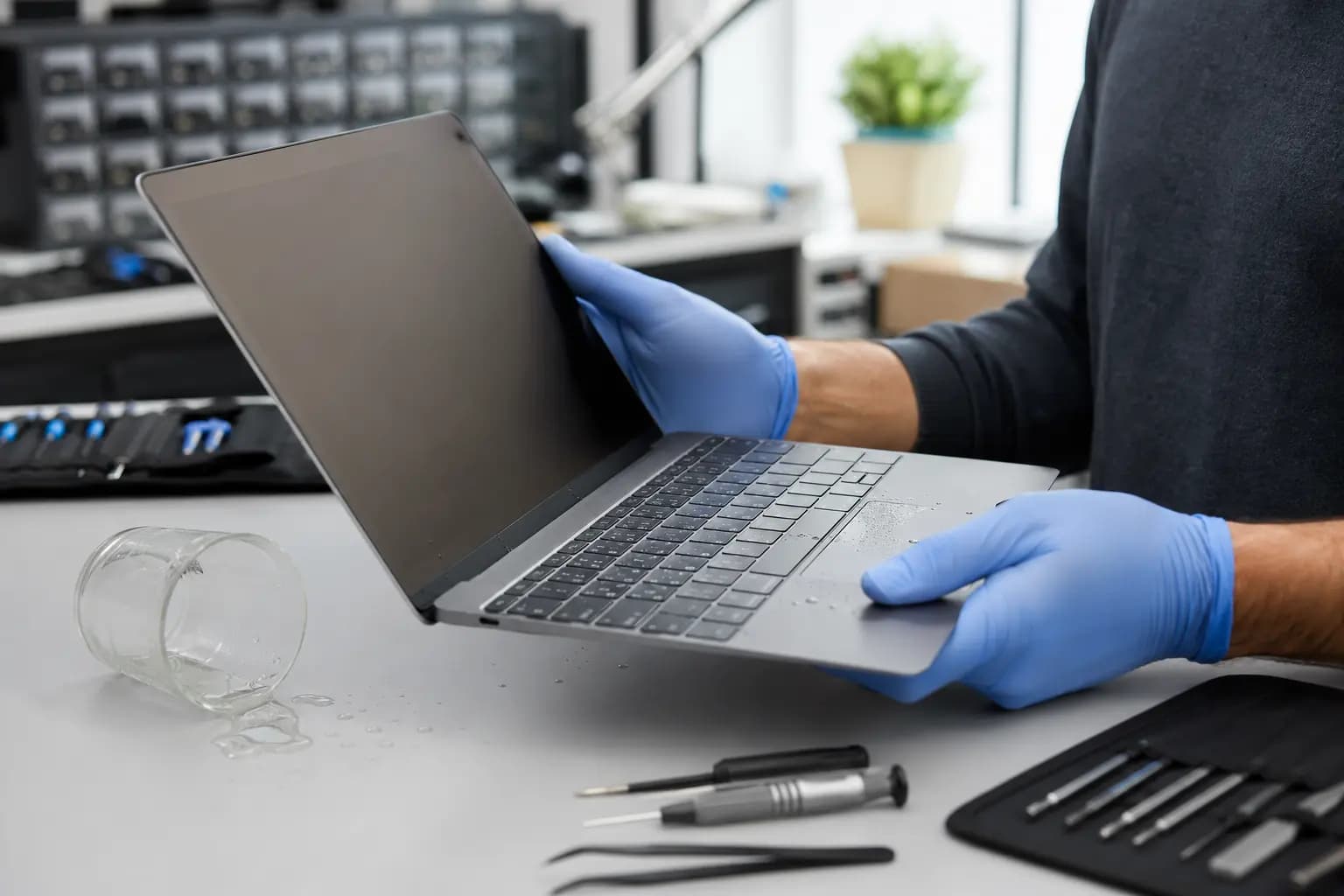
A laptop may keep working immediately after a spill, but that does not mean the liquid stayed above the keyboard. Water can travel through key openings, vents and seams toward the battery, connectors and motherboard. Coffee, soda, juice and other drinks can also leave conductive or corrosive residue after the visible moisture dries.
The safest response is to stop electrical activity, remove surface liquid without forcing it deeper and avoid repeated testing. The steps below are general guidance. If you see smoke, feel unusual heat, hear hissing or notice a swollen battery, move away from the device and treat it as an electrical and battery safety issue.
Immediate Response
Unplug the charger from the wall and laptop when you can do so safely. Remove docks, USB devices and other connected accessories.
If it is still running and there is no immediate electrical hazard, shut it down promptly. Do not continue working just because the screen still looks normal.
A test boot can energize wet or contaminated circuits. Leaving the laptop off gives inspection and data recovery a better starting point.
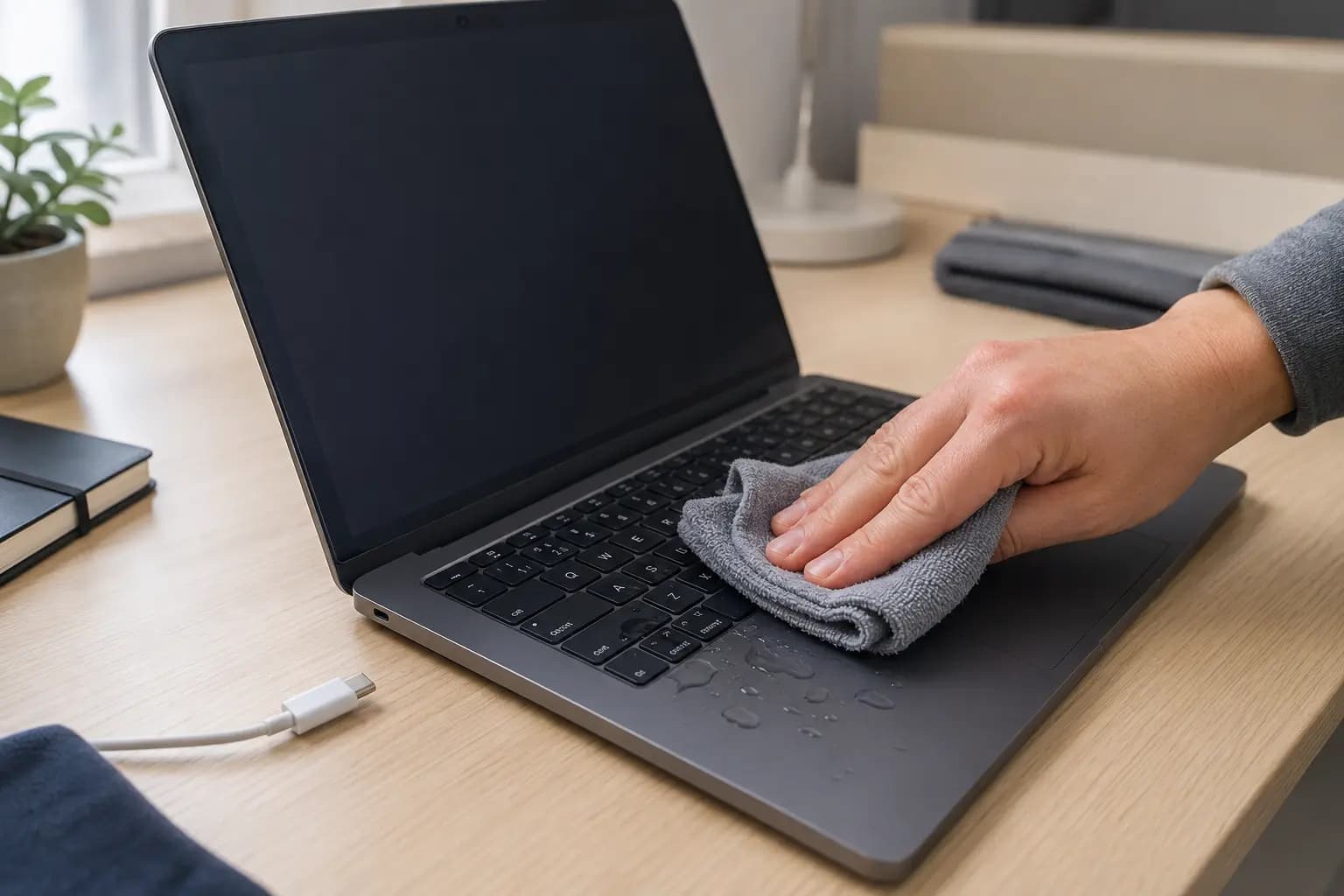
Use an absorbent, lint-free cloth to blot the keyboard and case. Do not press hard, wipe liquid toward openings or shake the computer.
Some older laptops have a battery designed for tool-free removal. Do not open a sealed laptop or pry at an internal battery unless you are trained and equipped to do it safely.
Note the liquid type, approximate amount, affected area, time of the spill and whether the laptop was powered or charged afterward. This history helps direct inspection.
Limit Further Exposure
Place the laptop on a stable, dry surface away from the spilled liquid. Blot what you can see and keep the charger disconnected. Do not rotate or aggressively tilt the laptop in ways that may send liquid through the hinge, display, speakers or other internal areas.
Advice to place every laptop upside down is too broad. Internal layouts differ, and the wrong position can move liquid into components that were not originally affected. After the immediate surface cleanup, careful transport and prompt inspection are safer than repeated home experiments.
Common Mistakes
Rice does not remove contamination from inside a laptop and can introduce dust or debris into ports and vents.
Household heat can deform plastics, damage the display or battery and move moisture farther into the computer.
Each power-on or charging attempt can energize a wet area and turn a cleanable condition into electrical damage.
Adding alcohol, contact cleaner or another liquid from above does not provide controlled board cleaning and may spread residue.
Pressing keys can push liquid through the keyboard assembly. Sticky or unresponsive keys should be evaluated after internal risk is addressed.
Moisture can evaporate while sugar, minerals and corrosion remain. A laptop that starts today may fail later if residue is left untreated.
Professional Evaluation
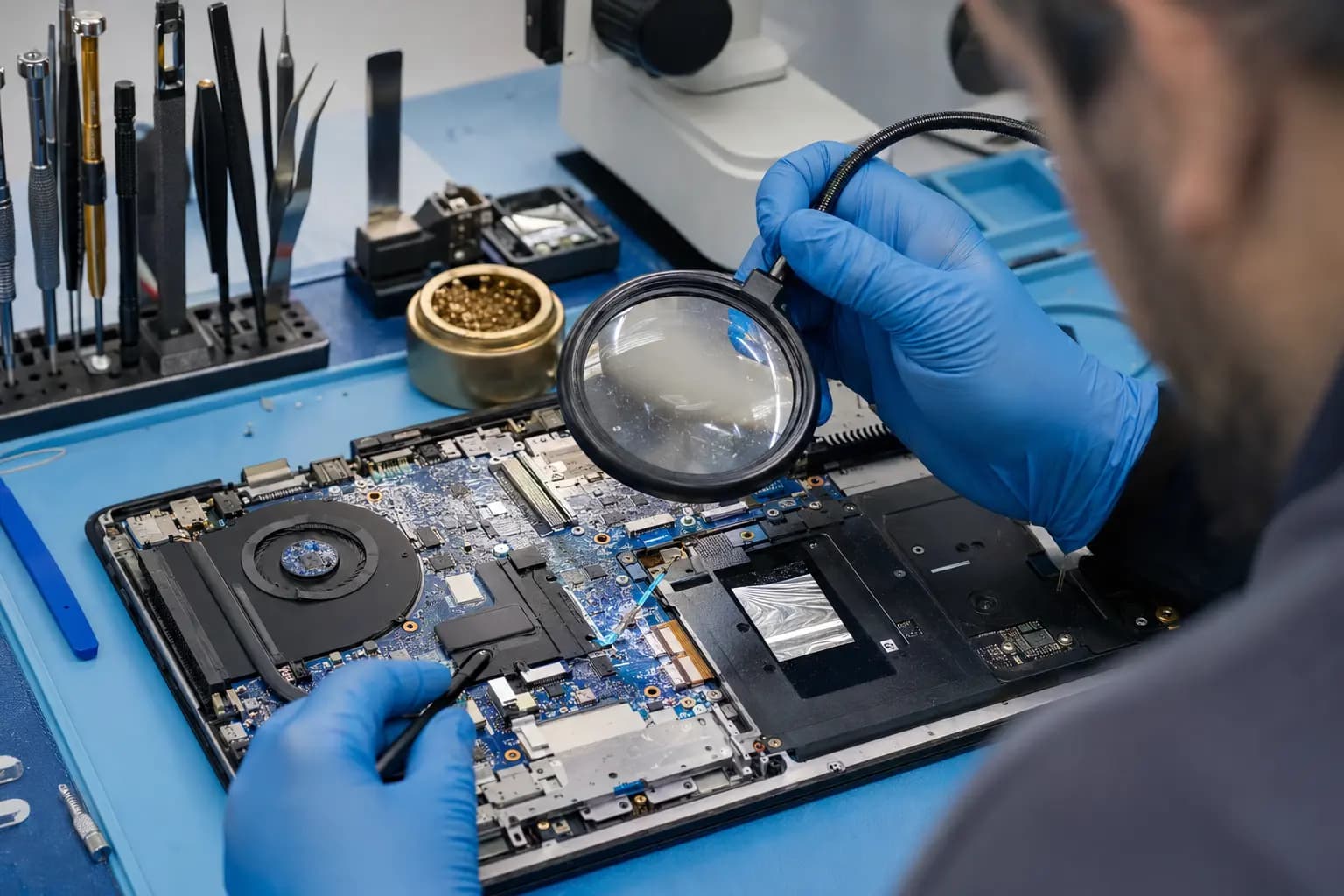
A technician may disconnect the internal battery, inspect liquid indicators and examine the keyboard, connectors and motherboard for residue or corrosion. The correct next step depends on where the liquid traveled, what it contained and whether power was present.
Cleaning cannot guarantee that every affected component will remain reliable, and severe damage may require keyboard, trackpad, battery or board-level work. A responsible estimate separates visible contamination from confirmed failed parts instead of promising a fixed liquid-damage repair before inspection.
Protect Important Files
Repairing the computer and recovering its files are related but different goals. If the storage device is removable and healthy, data may be accessible even when the motherboard is damaged. Newer laptops may use soldered storage or encryption, making the original board and account recovery information more important.
Do not keep powering on an unstable laptop just to copy files. At check-in, identify the folders that matter, whether a current backup exists and whether BitLocker or FileVault may be enabled. This allows the diagnostic plan to prioritize data before actions that could add risk.
Related Help
Internal evaluation after water, coffee, soda and other liquid exposure.
Learn moreRisk-based evaluation when files are more important than restoring the original computer.
Learn moreDiagnosis for keyboard, charging, power, display and motherboard symptoms after a spill.
Learn moreModel-specific keyboard or palm-rest options when keys remain sticky or unresponsive.
Learn moreLiquid-Damage FAQ
Possibly, but drying alone does not remove minerals, sugar or other residue. Hidden corrosion or electrical damage can appear later, so normal operation immediately after a spill is not proof that the inside is clean.
There is no universal safe waiting period. Liquid type, internal path, battery connection and contamination matter more than a fixed number of hours. Avoid test boots until the risk has been evaluated.
No. Rice cannot clean internal electronics and may add debris. Disconnecting power, blotting surface liquid and arranging proper inspection are more useful.
Plain water may leave less residue than sugary or acidic drinks, but it can still create shorts and corrosion because real-world water contains dissolved minerals. Any powered spill deserves caution.
Sometimes. The affected area must be inspected first because liquid can pass through the keyboard and reach connectors or the motherboard.
Often, depending on the storage design, encryption and damage. Stop repeated power attempts and state that data is the priority when the device is checked in.
Keep it disconnected after the spill. You may bring it separately for later testing, especially if liquid reached the charging port or adapter.
Keep It Powered Off
Tell Trueonefix what was spilled, when it happened and whether the laptop was powered or charged afterward. If your files are the priority, say so before diagnosis begins.
One local Tampa storefront
104 E Fletcher Ave, Tampa, FL 33612 · Walk-ins welcome during business hours.