
1. Outlet or power-strip problem
A loose outlet, switched-off strip or failed surge protector may prevent the adapter from receiving stable power.
Repair Advice
Learn why a laptop may be plugged in but not charging, which checks are safe, and how to separate charger, port, battery and charging-circuit problems.
Start With the Power Path
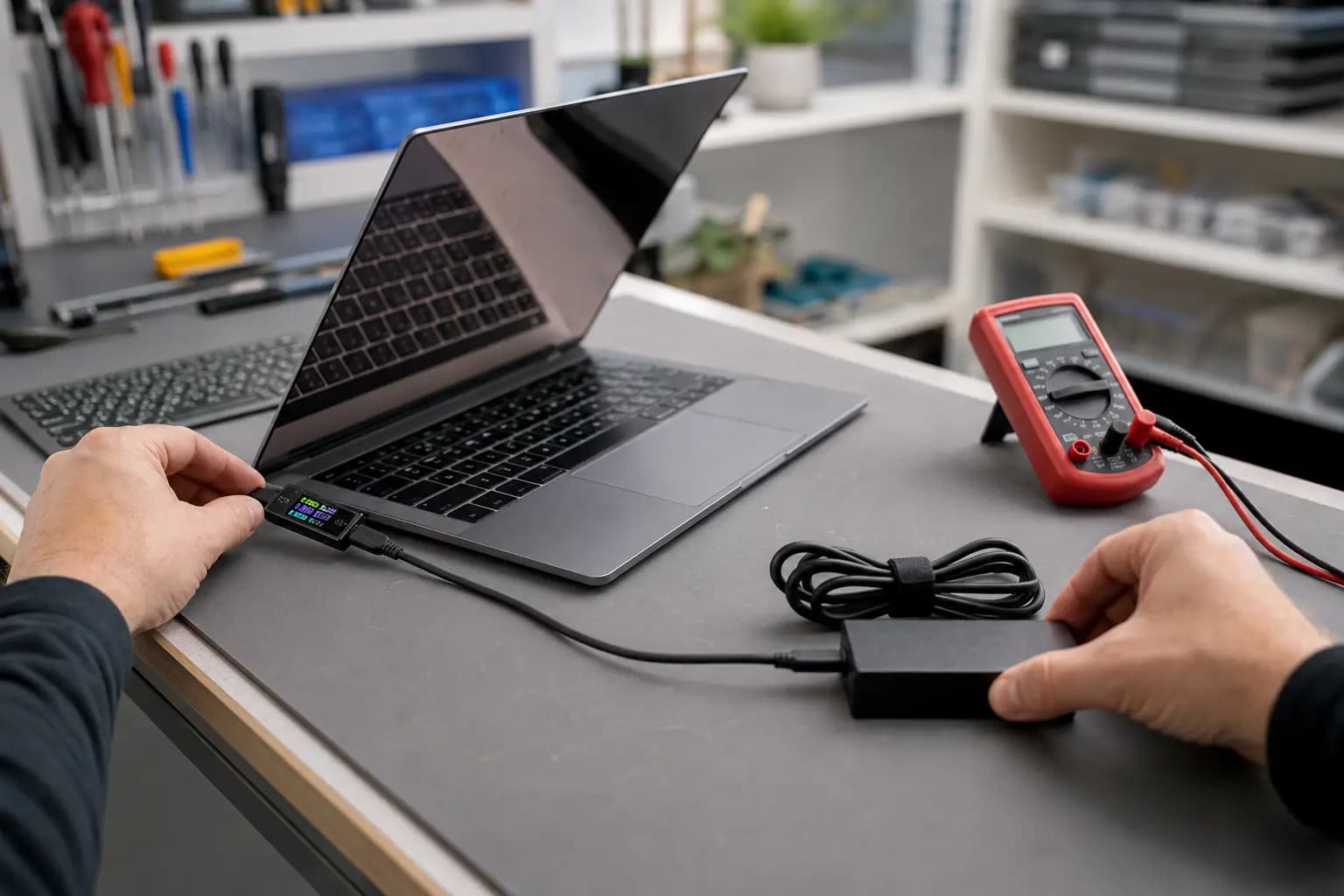
A laptop can recognize a charger yet fail to charge because of the wall outlet, adapter, cable, connector, charging port, battery, firmware or motherboard charging circuit. Some systems also pause charging intentionally to protect battery health.
Before replacing parts, note the battery percentage, charging message, indicator-light behavior and whether the connector must be held at an angle. Those details help separate a simple external-power problem from an internal fault.
Eight Common Causes
A loose outlet, switched-off strip or failed surge protector may prevent the adapter from receiving stable power.
Internal cable breaks, bent ends, overheating or a failing adapter can deliver no power or only intermittent power.
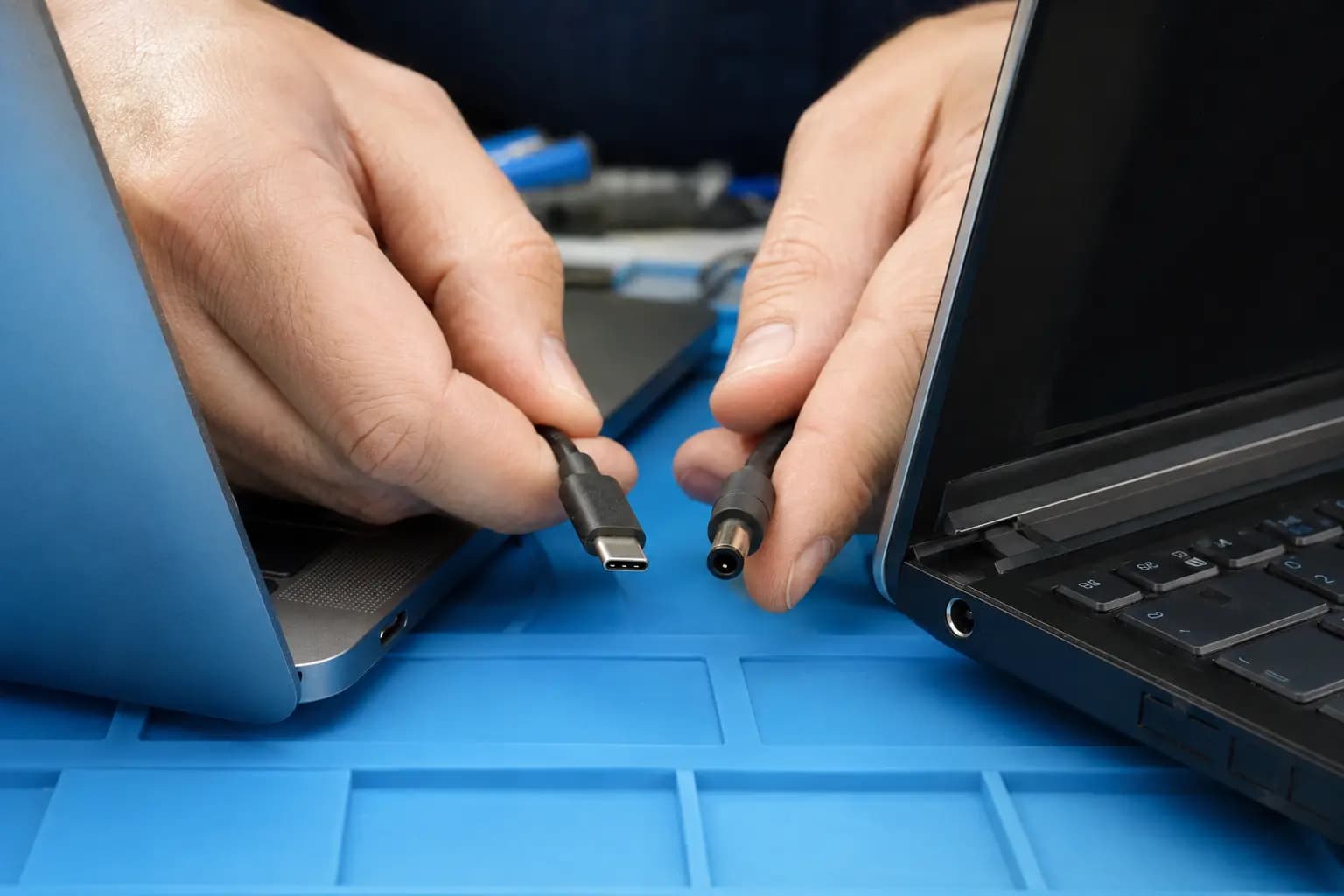
A charger may fit but provide insufficient wattage or the wrong USB-C Power Delivery profile, causing slow charging, warnings or no charging.
Debris, worn contacts, cracked solder joints or physical port damage can interrupt the connection.
Manufacturer battery-health features may intentionally stop charging near a selected percentage, commonly around 60% or 80%.
An aged battery may not accept charge. Swelling, heat or odor requires immediate shutdown and professional handling.
A BIOS, embedded-controller or Windows battery-driver problem can cause incorrect charging status or prevent normal control.
Input protection, charging-controller or power-rail faults may stop the battery from receiving correct voltage and current.
Check Compatibility and Condition
Inspect the adapter and cable for cuts, bends, discoloration, looseness or unusual heat. For USB-C laptops, use a charger and cable that support the manufacturer’s required wattage and Power Delivery profile. A phone charger may power an indicator but still be unable to charge the laptop correctly.
Look into the port with the computer off. Do not insert metal tools, spray liquid cleaner into it or force a loose plug. If charging changes when the connector moves, the port or cable needs controlled testing.
Safe First Checks
Connect directly to a known-working outlet and temporarily remove the power strip or dock from the path.
With dry hands, firmly reseat the removable wall cable, adapter connection and laptop connector.
Compare the charger wattage and output specification with the laptop manufacturer’s requirement.
Leave the correct charger connected for 20–30 minutes before one startup attempt.
Record whether it says charging, plugged in not charging, slow charger or battery not detected.
A normal restart can clear a temporary power-management state. Avoid repeated forced starts if the laptop becomes hot or smells electrical.
Stop Testing When Safety Changes
Disconnect the charger and stop using the laptop if the battery pushes up the keyboard or trackpad, the adapter or port becomes excessively hot, you smell chemicals or burning, or the connector crackles. Do not puncture or press a swollen battery.
Also stop swapping random adapters. Incorrect voltage, polarity or poor-quality USB-C equipment can damage the laptop even when the plug physically fits.
Professional Diagnosis
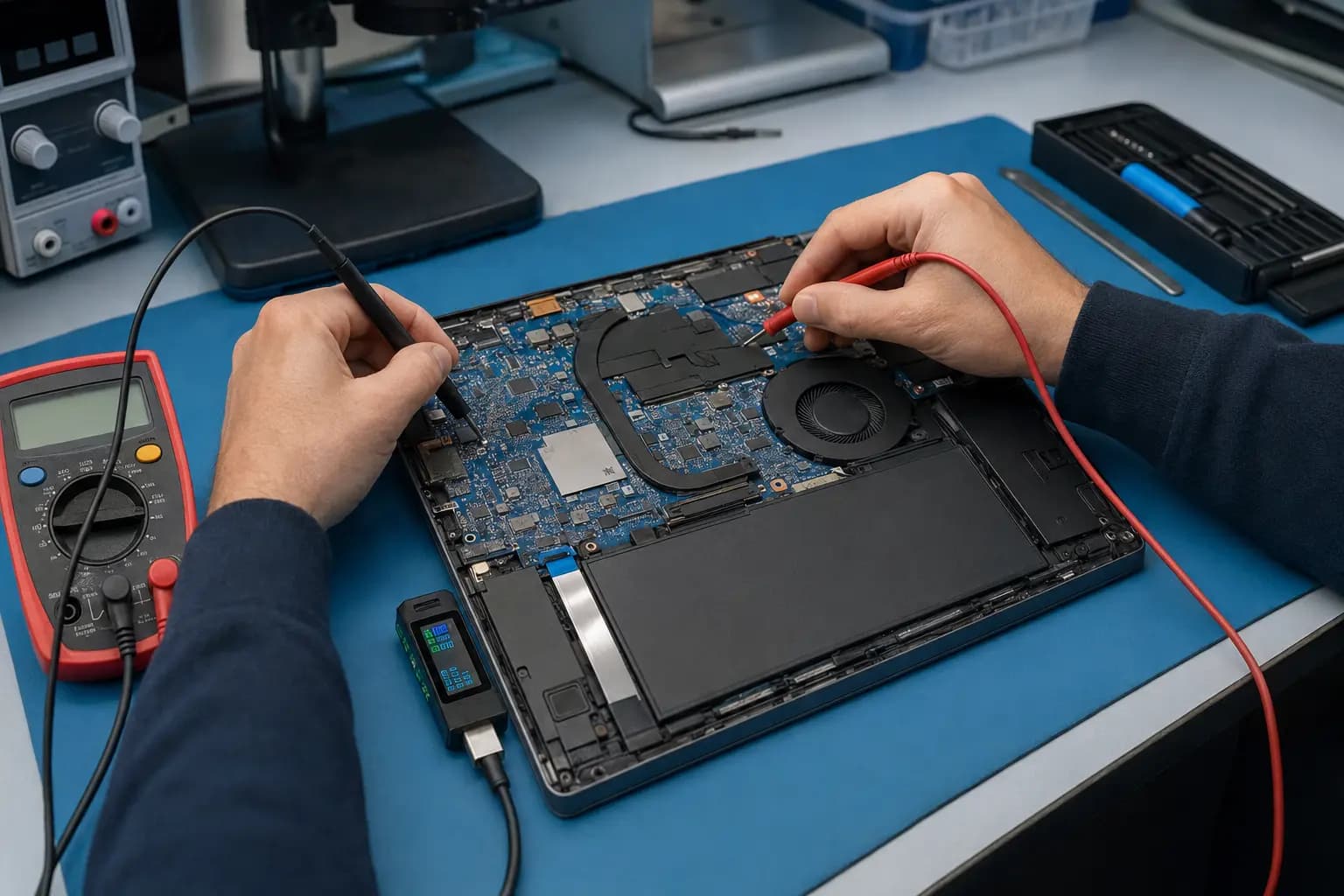
A technician can verify adapter output, negotiated USB-C voltage, input current, port stability, battery condition and charging-circuit behavior. If external power is correct, measurements along the motherboard power path can identify a failed port, input component, charging controller or battery connection.
This evidence prevents replacing a battery when the port is faulty—and prevents replacing a motherboard when the real problem is only the charger.
Related Services
Diagnosis and repair for loose, damaged or intermittent DC-in and USB-C charging ports.
Learn moreBattery health testing and replacement for worn, failed or swollen laptop batteries.
Learn moreComplete diagnosis when charger, port, battery, firmware and board symptoms overlap.
Learn moreCircuit-level diagnosis when correct input power does not reach or charge the battery.
Learn moreFrequently Asked Questions
It may be using a battery charge limit, detecting an underpowered adapter, protecting an overheated battery or experiencing a battery, driver, port or charging-circuit fault.
No. The charger and cable must support the wattage and USB-C Power Delivery profile required by the laptop. A low-power phone charger is often insufficient.
A known-good compatible charger and battery-health measurements help separate them. Port instability and motherboard input current should also be checked before buying parts.
Many manufacturers offer battery-preservation modes that intentionally cap charge. Check the manufacturer utility or BIOS settings before assuming the battery failed.
A loose or shorted port can create heat, arcing or unstable input. Stop using it if the connection crackles, becomes hot or only works at an angle.
No. Shut the laptop down, disconnect the charger and do not press or puncture the battery. Arrange safe professional removal.
Need a Clear Answer?
Bring the laptop and the charger you normally use. Trueonefix can trace the charging path and explain whether the practical repair is an adapter, charging port, battery or motherboard circuit.
One local Tampa storefront
104 E Fletcher Ave, Tampa, FL 33612 · Walk-ins welcome during business hours.