
1. Finish the update and restart once
Open Windows Update, allow any pending installation to complete and perform one normal restart. Repeatedly forcing the laptop off can leave system files incomplete.
Repair Advice
Learn why a laptop may run slowly after a Windows update, which eight checks are safe to try and when the slowdown points to an SSD, memory, driver or cooling problem.
Start With the Timing
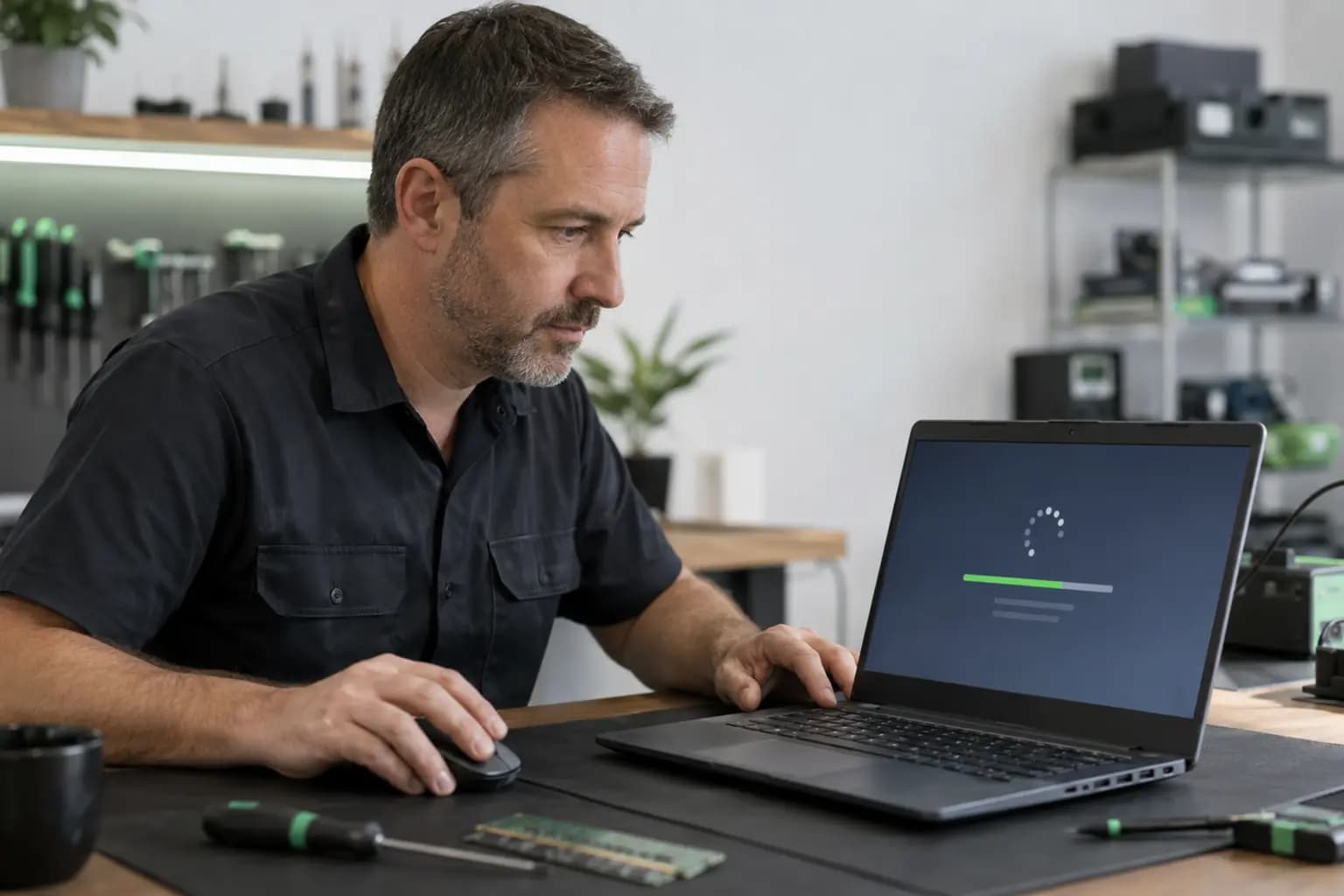
Windows may continue installing components, rebuilding its search index, optimizing applications and scanning files after the desktop becomes available. That background work can temporarily increase CPU, storage and memory use, especially on an older laptop or one with limited free space.
A slowdown that steadily improves is different from a computer that freezes, crashes, overheats or remains unusable. Before removing updates or installing repair tools, protect important files and identify whether the problem began immediately after one update, after a restart or after another change made at the same time.
Eight Safe Checks
Open Windows Update, allow any pending installation to complete and perform one normal restart. Repeatedly forcing the laptop off can leave system files incomplete.
Keep it connected to the correct charger on a hard, ventilated surface for a reasonable period. Indexing, security scans and application updates may finish without intervention.
Look for sustained CPU, memory or disk use and note the process name. A brief spike is normal; one process remaining at very high use helps narrow the diagnosis.
Windows needs working space for updates, temporary files and normal operation. A nearly full drive can make an otherwise healthy laptop feel extremely slow.
Disable only nonessential programs you recognize. Do not randomly disable Windows services, security components or hardware utilities.
Use Windows Update or the laptop manufacturer’s support page for the exact model. Avoid generic driver-download websites and one-click driver tools.
A fan running constantly, a very hot case or performance that drops under load can indicate thermal throttling rather than an update-only problem.
Back up important data before uninstalling a feature update, resetting Windows or reinstalling the operating system. Those actions should follow evidence, not guesswork.
Read the Activity
Sort Task Manager by CPU, Memory and Disk one column at a time. Windows Update, Microsoft Defender, search indexing, cloud synchronization and application installers may be busy for a while after an update. Record what stays high instead of ending unfamiliar processes at random.
If disk use remains near its limit while transfer speed is very low, or the laptop repeatedly freezes while opening files, storage health deserves attention. High memory use with many browser tabs and startup programs may point to limited RAM rather than a failed update.
Avoid Added Problems
Interrupting active servicing can damage Windows files and create startup problems that were not present initially.
Registry cleaning and performance-booster utilities rarely identify the real bottleneck and may remove useful settings.
Removing Windows Update or temporary-system folders without the correct process can break recovery and future updates.
Indexing and scanning can create temporary activity. Storage condition must be interpreted with symptoms and proper tests.
A reset or reinstall can remove applications and may put files at risk depending on the option selected and the drive’s condition.
When Software Is Not the Whole Story
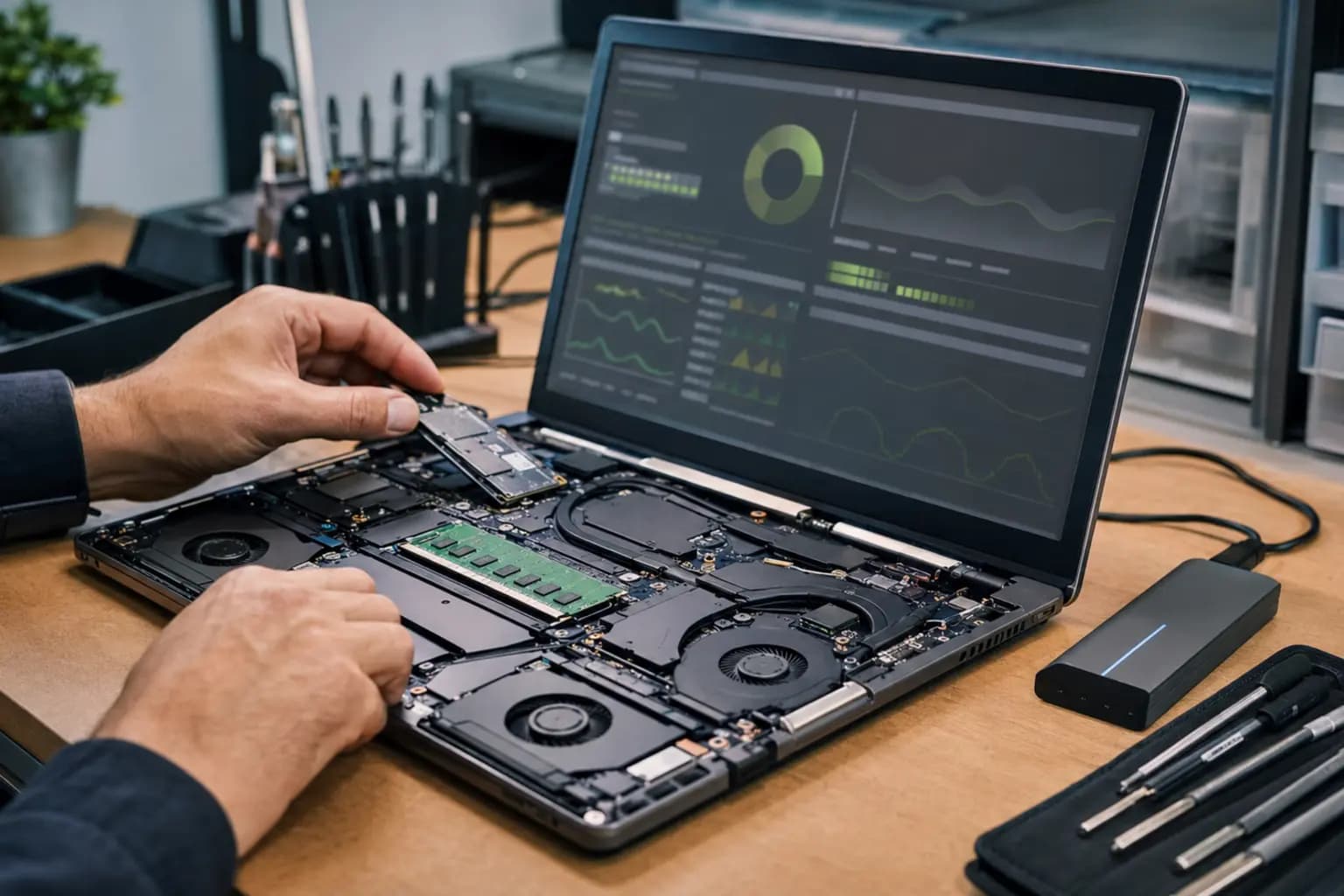
A large update places sustained demand on storage, memory, cooling and power. A worn drive, insufficient RAM, limited free space or an overheating processor may become obvious during that workload even though Windows Update did not physically damage the component.
A professional evaluation can compare startup behavior, temperatures, drive health, memory use, system integrity and driver history. The goal is to confirm the bottleneck before recommending an SSD upgrade, RAM change, cooling service or Windows repair.
Recovery With a Reason
If the slowdown began with a specific recent update and continues after background work finishes, Windows recovery options may help. The correct choice depends on whether it was a quality update, a major feature update or a driver change. Recovery windows can expire, and uninstalling an update may also remove important security fixes.
Before rolling back, confirm that important files are backed up and record the update history. If Windows is unstable, the SSD is showing errors or the laptop cannot complete a restart, prioritize diagnosis and data safety instead of repeatedly attempting the same recovery operation.
Related Services
Diagnosis for persistent slowdowns, freezes, update failures and startup problems.
Learn moreStorage testing and SSD upgrade options when drive speed, health or capacity is limiting performance.
Learn moreMalware inspection and Windows cleanup when suspicious processes or unwanted software are involved.
Learn moreRisk-based evaluation when the drive behaves abnormally and important files are not backed up.
Learn moreFrequently Asked Questions
Some background activity is normal after an update, but there is no universal duration. The laptop’s hardware, update size, free space and number of files all matter. Performance should trend toward normal rather than remain frozen or worsen.
Not automatically. First confirm that installation has finished, restart normally, check resource use and back up important files. Rollback is most useful when evidence points to one specific update.
Windows may be indexing, scanning, optimizing or installing components. Sustained high use combined with freezing, read errors or abnormal drive behavior can also justify an SSD health check.
An update creates storage activity but does not normally physically damage a healthy SSD. The workload can reveal a drive that was already worn, unstable or nearly full.
Only when limited memory is the confirmed bottleneck. Storage, background processes, drivers and overheating can create similar symptoms, so usage should be measured first.
It can correct serious software corruption, but it will not repair failing storage, overheating or inadequate hardware. Back up important data and identify the likely cause before reinstalling.
Still Slow After the Update?
Tell Trueonefix when the slowdown began, which update or change happened beforehand and whether the laptop freezes, overheats or shows drive errors. We will separate temporary background work from Windows, driver and hardware problems before recommending a repair.
One local Tampa storefront
104 E Fletcher Ave, Tampa, FL 33612 · Walk-ins welcome during business hours.