
Every device drops together
The router, modem, internet provider or building connection is more likely than one laptop.
Repair Advice
Learn why laptop Wi-Fi repeatedly disconnects, which safe comparisons separate router and signal problems from drivers, power settings, antennas and Wi-Fi hardware, and when repair is needed.
Start With the Pattern
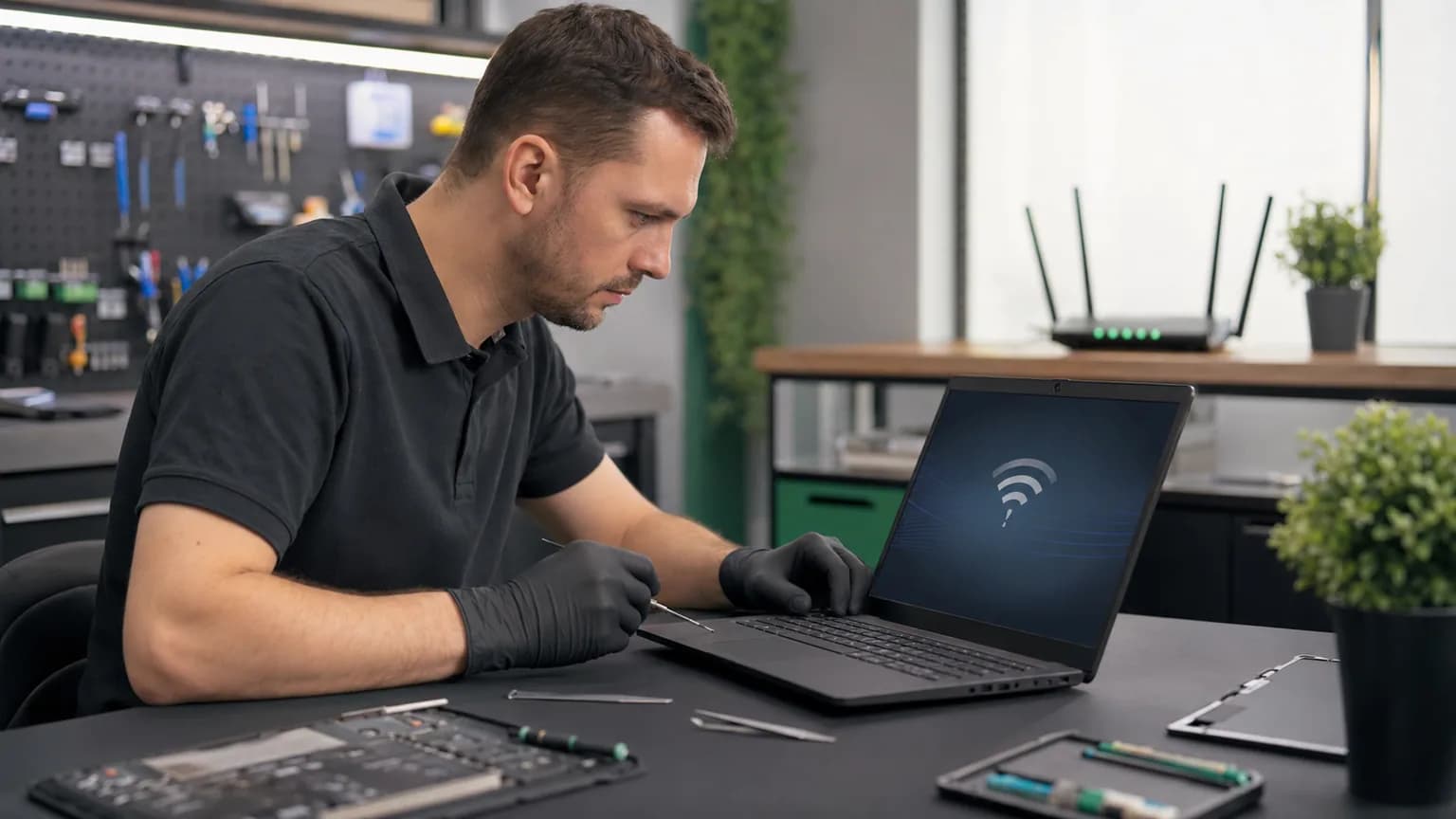
A laptop that loses Wi-Fi every few minutes is not necessarily suffering from a failed wireless card. The same symptom can come from a router restarting, weak or congested signal, an aggressive power-saving setting, a damaged driver, VPN software, loose antenna leads or board-level trouble. The fastest diagnosis begins by recording exactly what disconnects and when.
Notice whether the Wi-Fi icon disappears, the network remains visible but will not reconnect, or the laptop stays connected while websites stop loading. Also note whether every device in the home loses service, whether the problem occurs only in one room, and whether it began after an update, repair, drop or liquid spill. Those details prevent unnecessary Windows resets and random parts replacement.
Read the Clues
The router, modem, internet provider or building connection is more likely than one laptop.
Windows settings, drivers, the Wi-Fi card, antenna path or software on that laptop deserves attention.
Signal strength, interference, antenna performance or the router’s placement may be involved.
Power management, Modern Standby behavior or a driver power-state problem becomes more likely.
A disabled adapter, driver crash, loose card, failed hardware or missing power can make the wireless device vanish.
DNS, router, ISP, VPN, security software or captive-portal trouble can imitate a wireless disconnect.
Nine Common Causes
A router reboot, modem signal problem or provider outage can disconnect every device even when the laptop is healthy.
Distance, walls, microwaves, Bluetooth traffic and crowded neighboring networks can make a marginal connection unstable.
A corrupted saved network, DHCP conflict, captive portal or DNS issue can block reconnection or internet access.
Windows may reduce or suspend wireless hardware to save energy, especially after sleep or while running on battery.
A driver update, Windows update or wrong vendor package can cause adapter resets, missing networks or repeated drops.
Filtering software can interrupt traffic, alter DNS or make an active Wi-Fi link appear to have no internet.
Band steering, older security modes, channel width or firmware behavior can affect one adapter more than others.
Impact, prior service, corrosion or aging hardware can weaken reception or make the adapter disconnect intermittently.
A damaged slot, USB/PCIe path, power rail or board controller can prevent a known-good wireless device from operating reliably.
Safe First Checks
Test a phone or second computer in the same place and at the same time. This separates a network-wide event from one laptop.
A controlled short test near the router helps reveal a signal or interference problem without changing hardware.
Restart the laptop normally. If all devices are affected, restart network equipment according to the provider’s instructions.
If the laptop has Ethernet or a trusted adapter, a stable wired connection helps separate internet service from Wi-Fi.
Note whether the adapter disappears from Device Manager, shows a warning or returns only after restarting.
When permitted, compare behavior without a VPN or third-party filtering tool. Do not disable required business security.
Network or Wireless Path
If the same laptop remains stable on Ethernet while Wi-Fi repeatedly drops, the internet provider and most of the operating system are still working. The remaining possibilities include signal quality, the router’s wireless settings, the Wi-Fi driver, power management, antenna connections or the wireless card itself. Ethernet does not prove which of those parts is responsible, but it narrows the test path significantly.
If both wired and wireless connections fail at the same time, investigate the router, modem, DNS, VPN, security software and ISP before replacing a Wi-Fi card. Use the same laptop, website and time period for the comparison. A single successful speed test is not enough; an intermittent problem needs a stability test long enough to reproduce the normal symptom.

Windows and Driver Checks
Device Manager may identify the wireless adapter as Intel, Realtek, MediaTek, Qualcomm or another manufacturer even when the laptop carries a different brand. Record the exact adapter name and any error code before uninstalling or updating anything. The laptop manufacturer’s support package is usually safer than an unverified generic driver-updater.
Power management deserves attention when disconnects happen after sleep or only on battery. Adapter properties, Windows power mode and manufacturer utilities can all influence wireless power. Change one setting at a time and keep a record so it can be reversed. A BIOS update should not be the first Wi-Fi experiment, especially if the laptop has uncertain battery or charging behavior.
Hardware Inspection
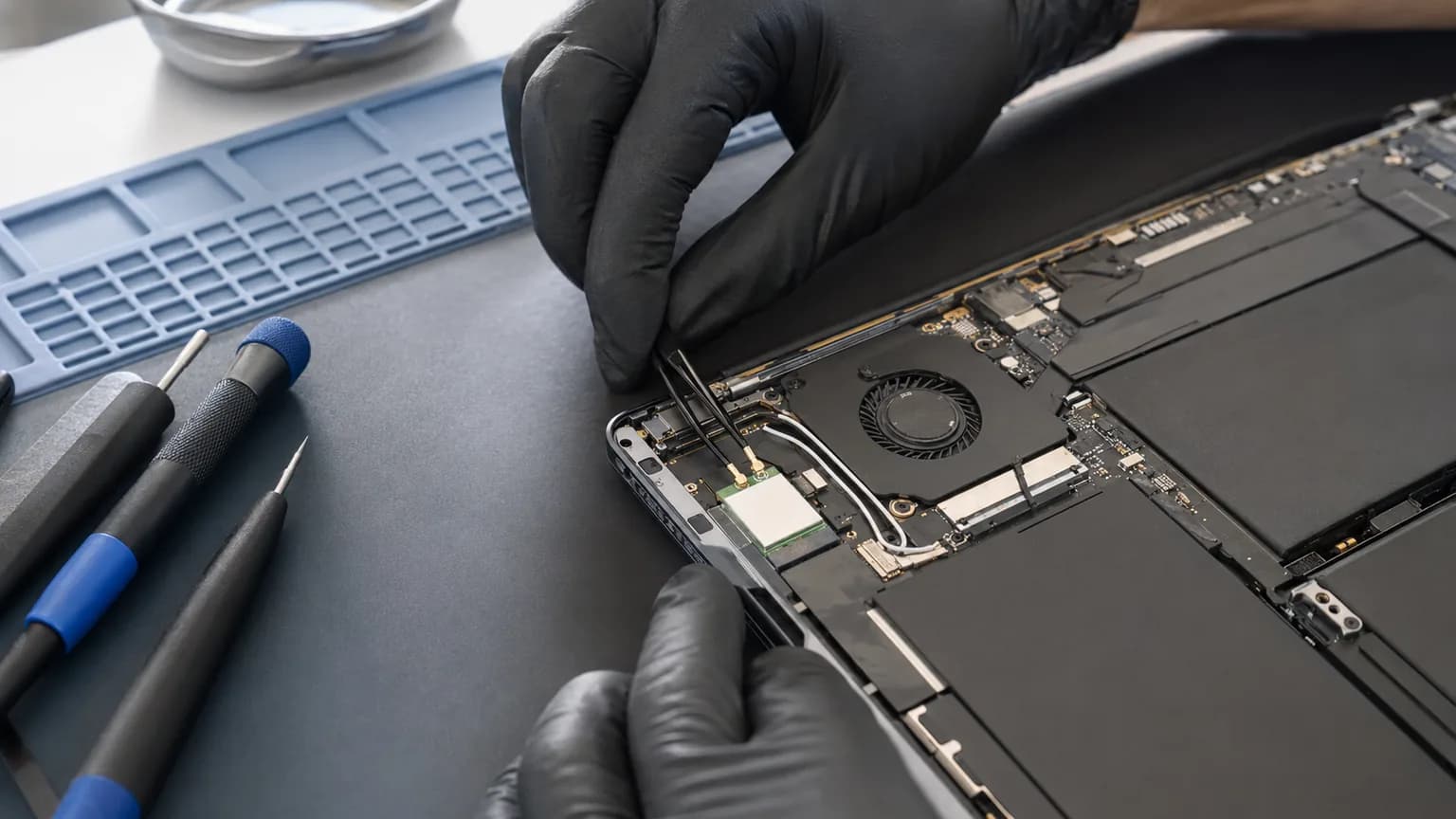
Many laptops use a replaceable M.2 wireless card connected to one or two tiny snap-on antenna leads. Other models solder the wireless hardware to the motherboard. A partially attached lead, damaged coaxial cable, corroded connector or cracked card can reduce range and create intermittent service even though Windows still shows the adapter.
These connectors are easy to bend or tear from the cable, and antenna routing often passes through the hinge and display assembly. A technician can isolate battery power, inspect the leads under magnification, verify card seating and compare signal behavior with known-good hardware. If the laptop was dropped, opened recently or exposed to liquid, that physical history is important.
Avoid Common Mistakes
A full Windows reset can erase applications and settings without fixing router interference, a damaged antenna or failing hardware. Repeatedly installing unrelated drivers can make the original condition harder to identify. Network reset may be useful in a controlled software diagnosis, but saved networks, VPN adapters and business configurations should be documented first.
Do not order a wireless card from its shape alone. The laptop may require a specific interface, form factor, antenna arrangement, driver support or firmware compatibility. Do not pry antenna connectors or route cables differently through a hinge. Confirm whether the failure follows the router, location, Windows state, card or antenna path before replacing parts.
Security Matters
Unexpected disconnects are usually caused by ordinary network, software or hardware conditions. They do not by themselves show that someone has entered the computer. Warning signs such as unknown remote-access software, unauthorized account logins, browser redirects or security alerts should be evaluated separately rather than assumed from a weak connection.
Avoid posting router passwords, Wi-Fi keys, IP addresses or account screenshots publicly while requesting help. If malware is suspected, preserve important data, disconnect from sensitive accounts and have the system examined. Changing every password will not repair a loose antenna or damaged wireless card.
Related Repair Help
Complete diagnosis for Wi-Fi, Bluetooth, power, charging, startup and motherboard symptoms.
Learn moreUse local-app, second-device, Wi-Fi and Ethernet tests when the main symptom is slowness rather than disconnection.
Learn moreInspection when redirects, unknown software or security warnings accompany network trouble.
Learn moreBoard-level diagnosis when the wireless slot, power or communication circuit is suspected.
Learn moreFrequently Asked Questions
Common causes include the router, weak signal, interference, a saved-network problem, power saving, drivers, VPN software, antenna damage or a failing wireless card.
That points more strongly toward settings, software, drivers or hardware specific to the laptop, although router compatibility can still affect one device.
Adapter power management, Modern Standby, a driver power-state problem or router reconnection behavior may be involved.
No. It narrows the problem to the wireless path, which still includes signal, router settings, drivers, power settings, antennas and the card.
Yes. A changed or damaged wireless driver can cause instability, but timing alone does not prove the update is the only cause.
Only after documenting saved networks, VPNs and special configurations. It may help software problems but cannot repair physical hardware.
Many can, but some are soldered and others have compatibility requirements. The card and antenna system should be tested before ordering parts.
Yes. Bring the laptop and its normal charger. If possible, note where and when it disconnects and whether other devices are affected.
Get the Cause Confirmed
Bring the laptop and its normal charger to Trueonefix in Tampa. We can compare wireless and wired behavior, inspect Windows and driver state, evaluate signal and power patterns, and check the Wi-Fi card, antennas and motherboard path before recommending a repair.
One local Tampa storefront
104 E Fletcher Ave, Tampa, FL 33612 · Walk-ins welcome during business hours.