
Websites are slow, but local apps open normally
This usually points toward Wi-Fi, the router, the modem, the internet provider, DNS or the remote website rather than the laptop's storage.
Repair Advice
Learn how to tell whether slow websites, downloads and video calls come from the internet connection or from the computer itself.
Start With What Is Slow
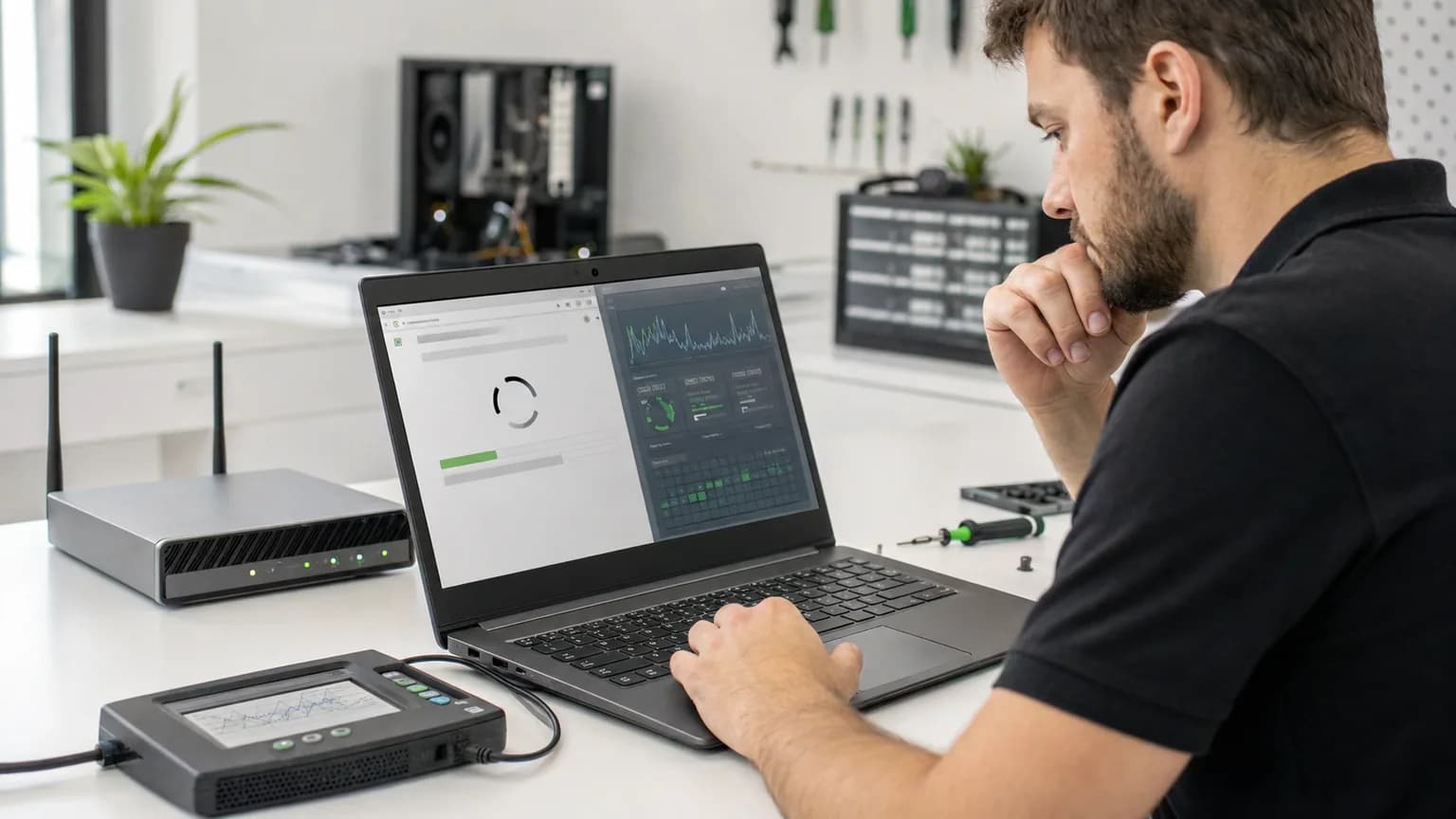
When a laptop feels slow, it is easy to blame the Wi-Fi. The opposite also happens: a slow browser or video call makes a healthy computer seem broken. Internet speed and computer performance affect each other, but they are not the same problem and they are tested differently.
Start by asking what still works normally. If programs, folders and settings open quickly but websites, downloads and streaming struggle, the connection is more likely. If the entire computer hesitates—even when no internet is needed—the laptop itself needs attention. A few controlled comparisons can keep you from replacing the router, upgrading the computer or resetting Windows for the wrong reason.
Compare the Symptoms
This usually points toward Wi-Fi, the router, the modem, the internet provider, DNS or the remote website rather than the laptop's storage.
Whole-system delay is more consistent with high CPU or memory use, a slow or failing drive, overheating, Windows problems or unwanted software.
The affected computer may have a weak Wi-Fi adapter, driver problem, VPN, browser extension, malware or local performance issue.
A router, modem, provider outage, congested Wi-Fi channel or overloaded home connection becomes more likely.
Distance, walls, interference and Wi-Fi band selection can reduce signal quality even when the internet plan is fast.
Background programs, memory pressure, updates, heat or a storage problem may be building up during use.
Use a Controlled Connection Test
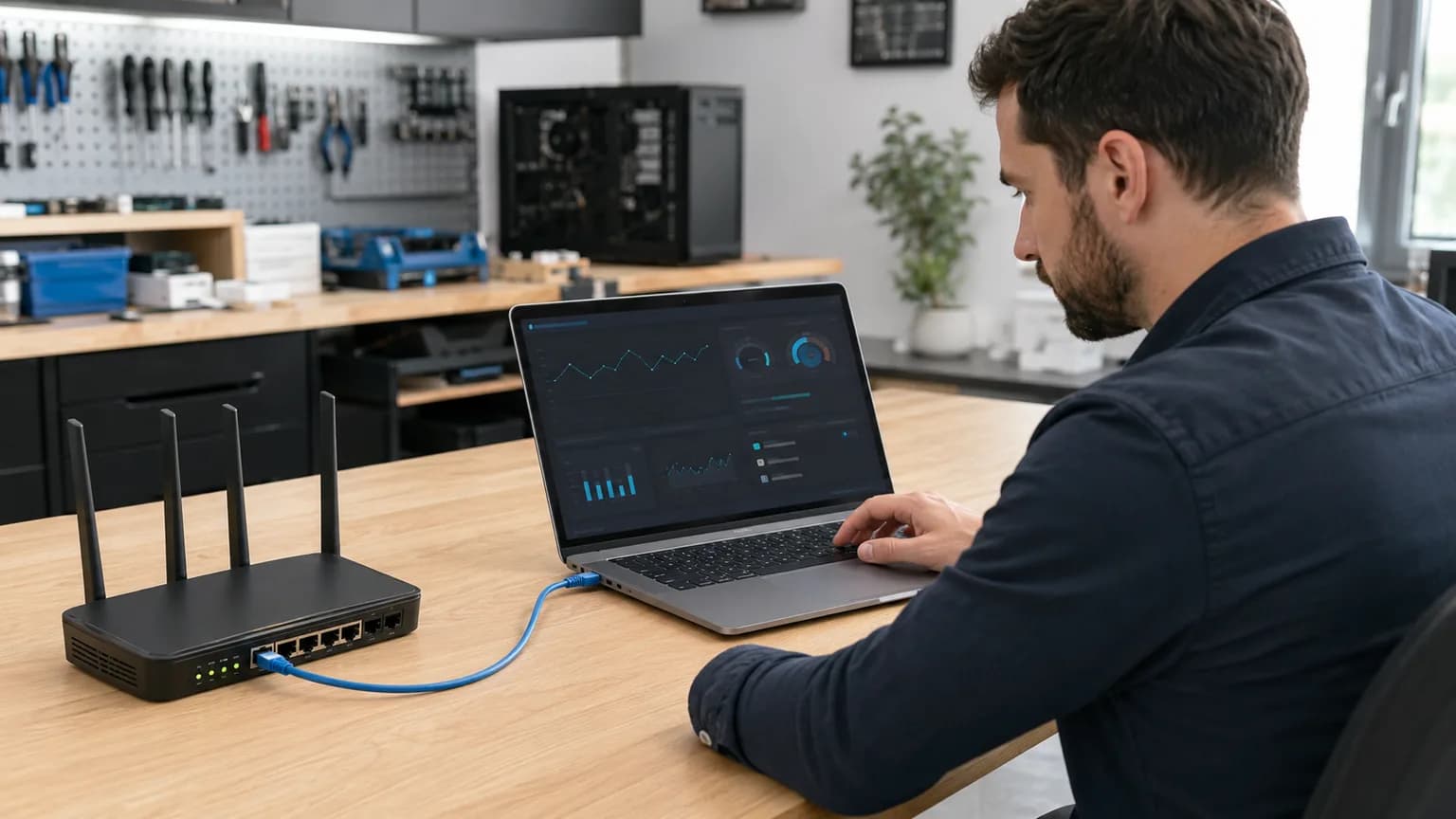
Test near the router first. Pause large downloads, cloud backups, game updates and streaming on other devices. If practical, connect the same laptop directly to the router with a known-good Ethernet cable and repeat the same task. A strong improvement on Ethernet points toward Wi-Fi signal, interference, the wireless adapter or router configuration.
Run more than one speed test and compare the result with another device in the same location. One result can be distorted by a busy test server, a temporary provider issue or background traffic. Speed-test numbers also do not prove the computer is healthy; they measure the connection during that test.
Eight Practical Checks
Open Settings, File Explorer and a locally saved photo or document. If these are also delayed, the problem is not limited to internet speed.
One slow website, game server or cloud service may be having its own problem. Test unrelated sites before changing the computer.
Use a phone or another computer in the same location and at the same time. Similar slowness suggests the network or provider.
Save your work, restart the computer normally and power-cycle the modem and router according to the provider's instructions. Avoid repeated resets or factory resets.
A direct wired test can separate weak wireless performance from the actual internet service, provided the cable and router port are working.
Look for sustained high CPU, Memory or Disk activity. Record the process name before ending anything; normal updates and security scans may temporarily use resources.
A work VPN, privacy VPN or proxy can change speed and latency. Disconnect it only if policy allows, then compare the same task.
Very low free space, a failing drive or thermal throttling can make browsers and every other application respond slowly even on a fast connection.
When Only the Browser Is Slow
If other apps and another browser work normally, look at browser extensions, excessive open tabs, a damaged profile, cached data, unwanted notifications or a security product inspecting traffic. Pop-ups, redirects, a changed search engine, unfamiliar extensions or repeated security warnings can indicate unwanted software.
Do not install random “PC cleaner,” driver-update or internet-booster programs. These tools often add more background activity and can introduce unwanted software. Record the symptoms and scan with trusted security tools. If business or school software is involved, check with the administrator before removing managed extensions, VPNs or security controls.
When the Whole Computer Is Slow
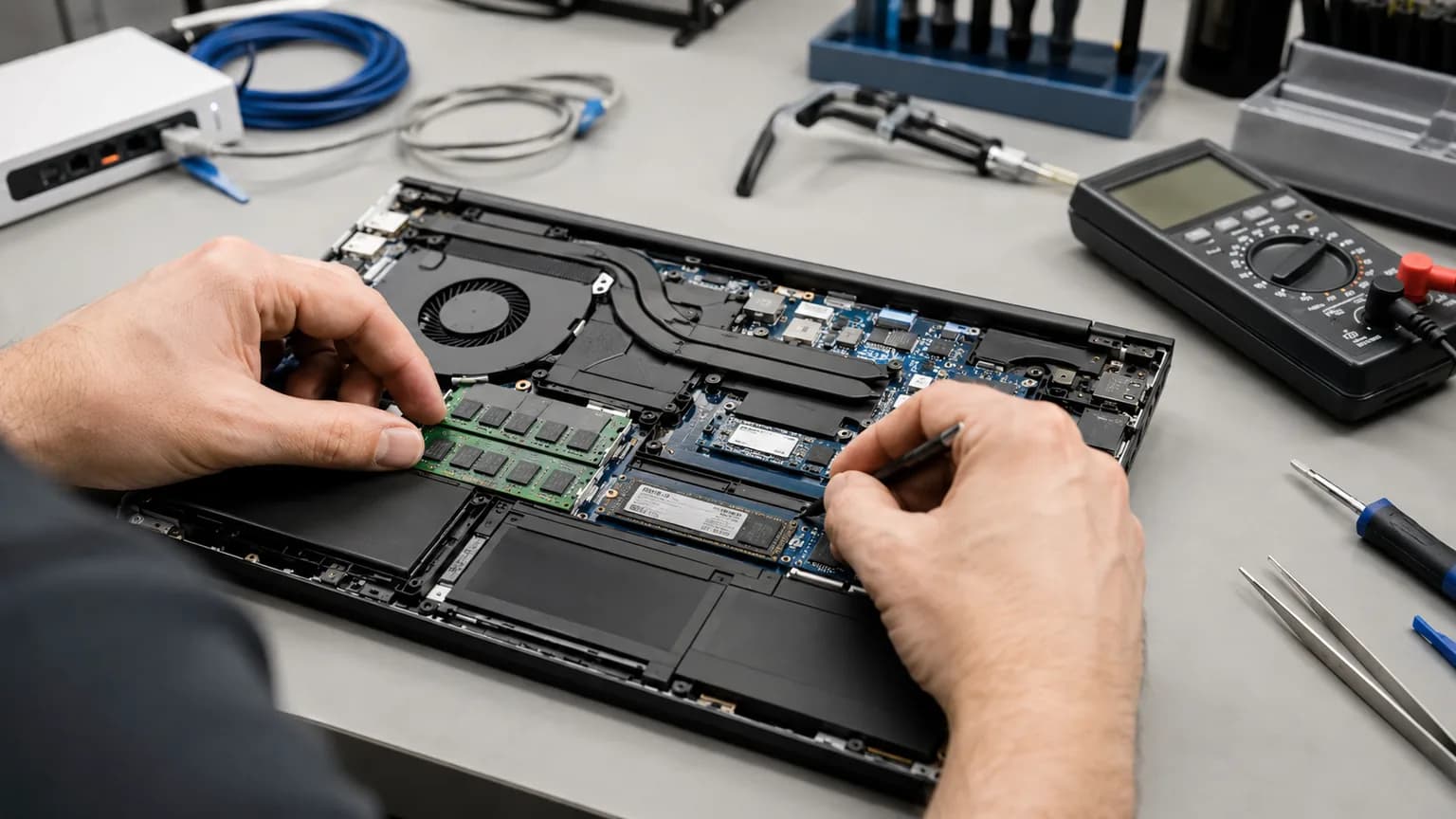
A browser depends on the SSD or hard drive, RAM, processor and cooling system to load pages, decode video and save downloads. A hard drive at 100% activity, an SSD with errors, insufficient memory or a hot processor that reduces its speed can make an excellent connection feel unusable.
A proper diagnosis checks drive health, memory pressure, startup programs, Windows integrity, temperatures and malware before recommending an upgrade. Adding RAM or installing an SSD can help the right computer, but neither repair fixes weak Wi-Fi or an internet-provider problem.
Speed Is Not the Only Number
Download speed describes how much data arrives over time. Latency describes how long data takes to travel, while packet loss means some data never arrives correctly. Video calls, remote work and online games may stutter because of high latency, packet loss or unstable Wi-Fi even when a speed test reports a high download number.
Compare results at different times and note whether the problem appears during busy evening hours, only on Wi-Fi or only in one application. That pattern is more useful than a single screenshot. If every device shows the same instability on a wired connection, contact the internet provider with the test times and results.
Protect Your Files
Stop heavy testing if the computer freezes repeatedly, shows drive warnings, makes unusual mechanical clicking sounds, reports missing files, restarts unexpectedly or displays blue screens. Continuing to stress failing storage can make data recovery more difficult.
If important files are accessible, make a backup before resets, major updates or drive replacement. Do not use a factory reset as the first diagnostic step: it can erase data without proving whether the problem came from Windows, malware, storage, heat or the network.
Related Services
Complete diagnosis for slow Windows, freezing, startup delays and performance problems.
Learn moreHardware and Windows testing when a laptop is slow both online and offline.
Learn moreInspection and cleanup for pop-ups, redirects, suspicious extensions and unwanted background software.
Learn moreDrive-health testing and compatible SSD options when storage is the performance bottleneck.
Learn moreData-first evaluation when slowness appears with drive errors, crashes or inaccessible files.
Learn moreFrequently Asked Questions
Try local tasks that do not need the internet, compare another device in the same location and test Wi-Fi against Ethernet. If local apps are slow too, the computer is likely contributing.
Possible causes include weak Wi-Fi hardware, an incorrect driver, VPN, browser extension, malware, background downloads or a generally slow computer.
Yes. Browsers read and write cache, use virtual memory and load local program files. A slow or failing drive can delay the browser even when the connection is fast.
Not always. Short tests may miss intermittent packet loss, high latency, room-to-room signal problems and slowdowns inside a specific application.
RAM does not increase the service speed, but insufficient memory can make the browser and computer respond slowly. It helps only when memory pressure is part of the problem.
Not as the first step. Diagnose storage, memory, heat, startup load, malware and Windows condition first, and back up important files before any reset.
Yes. If these checks do not identify the cause, bring the computer and its normal charger for a Free Diagnostic & Repair Estimate. We can separate network symptoms from Windows, storage, memory, thermal and malware problems.
Still Not Sure What Is Slow?
Bring the computer and its normal charger to Trueonefix in Tampa. We can test its local performance, storage, memory, temperatures, Windows condition and network behavior, then explain whether the computer needs repair or the connection should be investigated.
One local Tampa storefront
104 E Fletcher Ave, Tampa, FL 33612 · Walk-ins welcome during business hours.