
1. Inspect the outlet and power strip
Test the wall outlet with another known-working device. Bypass a questionable surge protector or docking station during the check.
Repair Advice
Learn nine safe checks for a laptop that will not turn on, how to separate a no-power problem from a no-display problem and when to stop troubleshooting.
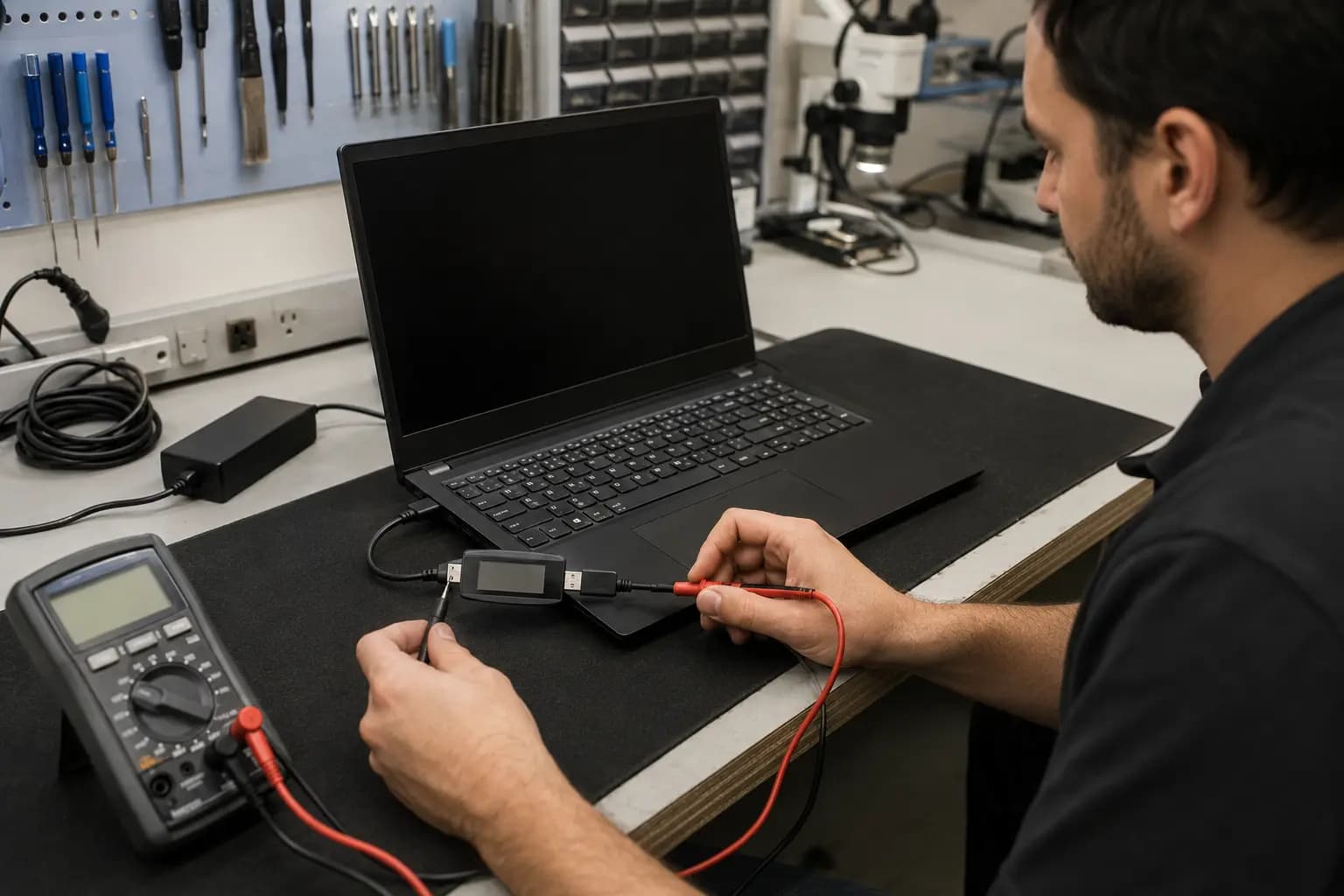
Start With the Exact Symptom
A laptop that shows no lights, sound or fan activity has a different problem from one that powers on but leaves the screen black. A third laptop may begin to start and then shut down, freeze at a logo or repeat a boot cycle. Those symptoms do not point to the same part.
Before buying a battery, charger or screen, observe exactly what happens when you press the power button. Note any charging light, keyboard light, fan movement, sound, heat or image on an external display. These details can shorten the diagnosis and prevent unnecessary parts replacement.
Nine Safe Checks
Use only the steps that fit your laptop and experience. Stop if the charger, battery or computer is swollen, wet, unusually hot, damaged or smells burned.
Test the wall outlet with another known-working device. Bypass a questionable surge protector or docking station during the check.
Look for cuts, bent pins, looseness or discoloration. Confirm that the adapter wattage and connector are correct for the exact laptop.
Some USB-C ports transfer data but do not accept power. Use the port marked for charging or the one specified by the manufacturer.
With a known-compatible charger, allow 20 to 30 minutes before trying again. Repeatedly pressing the power button will not recharge it faster.
Remove USB drives, hubs, memory cards, external displays and other nonessential accessories in case one is interfering with startup.
Unplug the charger, hold the power button for about 15 to 20 seconds, reconnect power and try once. Do not open the case solely for this step.
Indicator lights, fan movement, startup sounds or keyboard backlight may mean the laptop has power and the fault is display-related.
If the laptop appears to run, connect a known-working monitor and use the model’s display-switch shortcut. This is a clue, not a complete screen diagnosis.
Count repeating LED flashes or beeps and note their colors. Model-specific diagnostic codes can help identify the failing subsystem.
No Power or No Display?
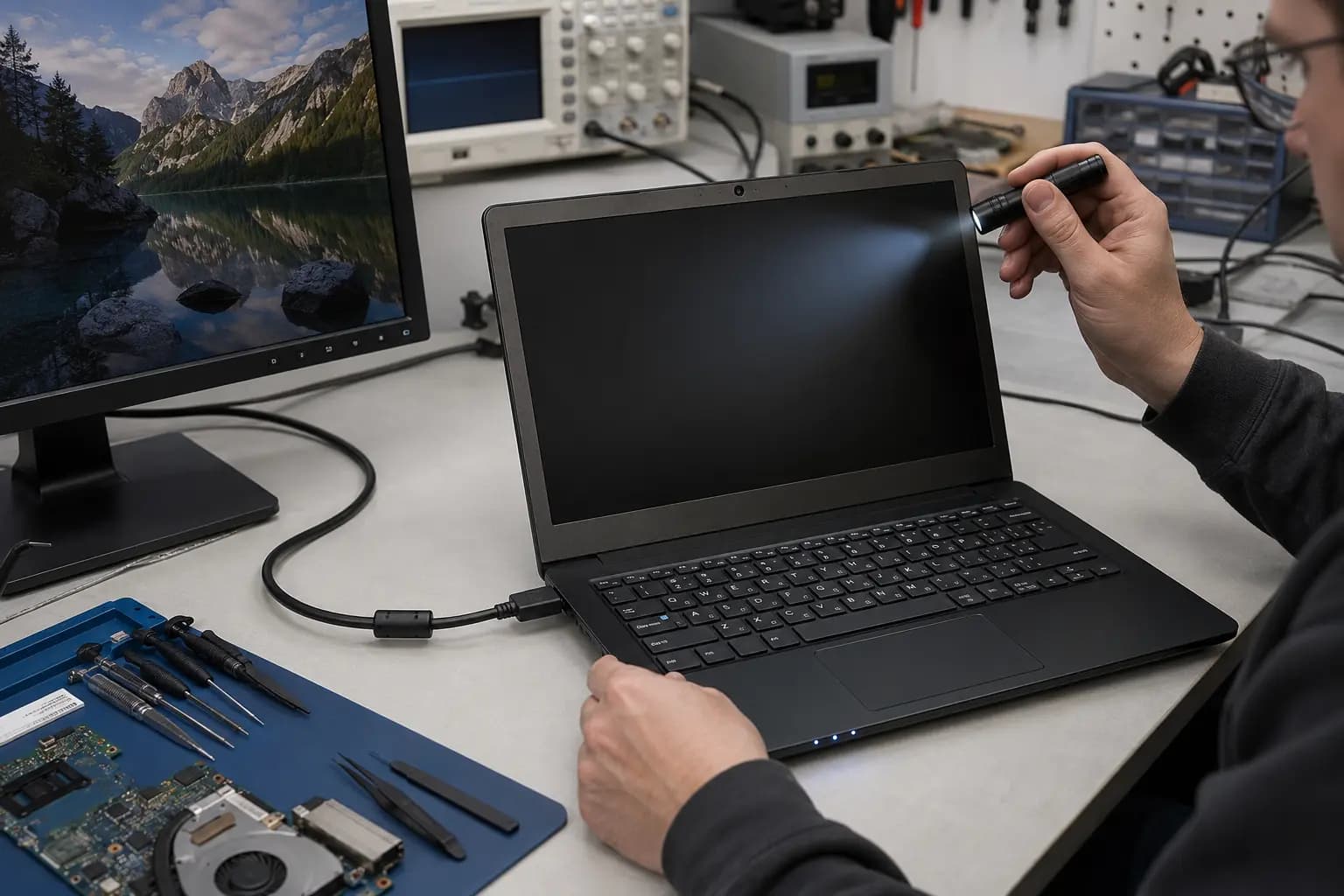
A laptop with fan activity, indicator lights, startup sounds or an image on an external monitor may have a screen, backlight, display-cable, memory, graphics or firmware problem rather than a failed power input.
Shine a flashlight across the screen only as a simple observation; a very faint image can suggest a backlight problem. Do not repeatedly force the laptop off if it may be installing firmware or an operating-system update. Record what you see and let the symptom guide the next test.
Know When to Stop
Disconnect power and stop troubleshooting if the laptop has liquid exposure, a swollen enclosure, smoke, a burned smell, crackling, a hot connector or visible charging-port damage. Continued attempts can worsen board damage or create a battery safety risk.
Do not use a random charger just because its plug fits. Voltage, polarity, wattage and USB-C power negotiation matter. Avoid opening a laptop with an internal lithium battery unless you have the correct procedure and tools for that model.
Professional Diagnosis
Confirm that the power source supplies the correct voltage and, for USB-C, negotiates the expected power profile.
Inspect for mechanical damage, intermittent contact and voltage loss before replacing larger assemblies.
Determine whether a failed or damaged battery is blocking startup and handle swollen batteries safely.
When external power reaches the board but startup does not begin, a technician can trace protection, charging and standby circuits.
If the laptop powers on, diagnosis shifts toward video output, RAM, BIOS or other startup components.
Board-Level Testing
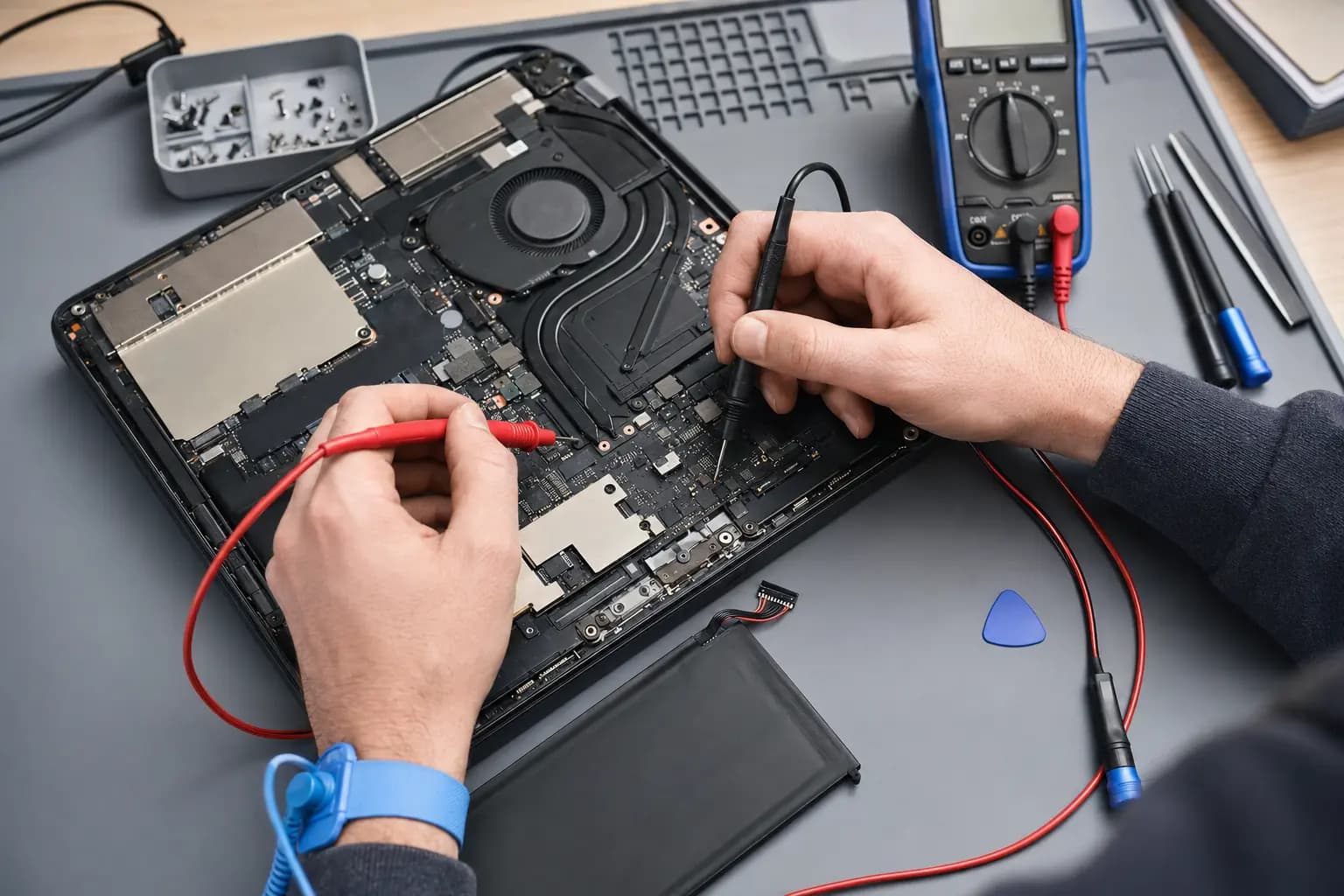
A no-power condition can originate at the charger, cable, DC jack, USB-C controller, battery, power button, motherboard protection circuit or another shorted component. The correct repair depends on where expected voltage stops and what caused it.
Board-level measurements should be performed with model-appropriate documentation, ESD precautions and battery safety procedures. If liquid is involved, inspection and cleaning may be time-sensitive even when the laptop briefly starts again.
Related Repair Services
Complete diagnosis for laptops with no power, black screens, startup failures or intermittent operation.
Learn moreInspection for loose, damaged or intermittent DC and USB-C charging connections.
Learn moreBattery testing and model-specific replacement when battery condition is responsible for the symptom.
Learn moreComponent-level diagnosis when the external power source and input connection are working correctly.
Learn moreFrequently Asked Questions
Possible causes include the outlet, charger, cable, charging port, battery, power button or motherboard power circuit. Testing should begin at the power source and follow the input path.
Yes, on some models a failed battery can interfere with startup. Other laptops can run directly from a compatible adapter. The behavior is model- and fault-dependent.
A charging light confirms only part of the power path. The laptop may still have a battery, power-button, motherboard, memory, firmware or display problem.
Holding the power button with external power disconnected does not normally erase stored files. It does not repair corrupted data or replace a proper backup.
Often the storage can be evaluated separately, but encryption, drive condition and the cause of failure matter. Avoid repeated power attempts after liquid or electrical damage.
Still No Power?
Tell Trueonefix what happened before the failure and describe every light, sound or fan response you observed. We will identify whether the problem is power input, battery, display, startup hardware or motherboard related and explain the repair options before approved work begins.
One local Tampa storefront
104 E Fletcher Ave, Tampa, FL 33612 · Walk-ins welcome during business hours.