
One or two keys fail
Debris, a damaged keycap or scissor mechanism, worn contacts or local liquid damage is more likely than a Windows-wide problem.
Repair Advice
Learn why a laptop keyboard stops working, which safe checks separate settings and drivers from liquid, cable and keyboard hardware damage, and when repair is needed.
Start With the Symptom
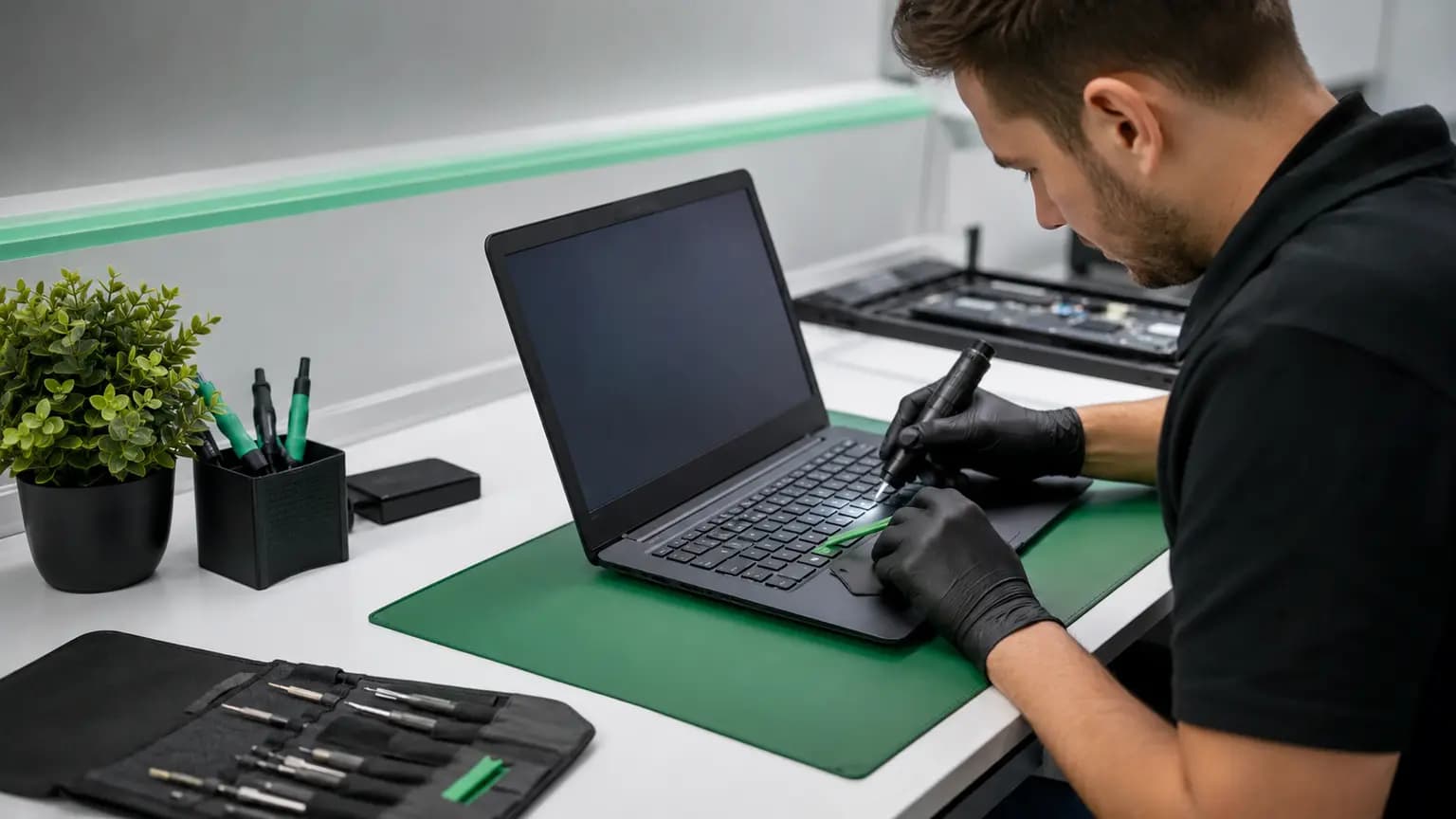
A keyboard that misses one letter is a different problem from a keyboard that stops completely. Some laptops type the wrong characters, repeat keys, respond only after several presses or work at the sign-in screen but not inside one program. The exact pattern helps separate a damaged key mechanism from settings, software, a loose internal connection or liquid damage.
Before removing keys or installing utilities, note when the problem began. Record whether the laptop was dropped, opened for another repair, exposed to liquid or recently updated. Test several keys in a plain text field, including letters, numbers, Shift, Enter and the function row. Do not type a password into an untrusted keyboard-test website.
Read the Clues
Debris, a damaged keycap or scissor mechanism, worn contacts or local liquid damage is more likely than a Windows-wide problem.
Keys often share matrix circuits. A failed group can indicate keyboard membrane, ribbon cable, connector or corrosion damage.
Settings, driver state, a disconnected cable, keyboard power or controller problems should be separated before the keyboard is replaced.
First verify the Windows keyboard language and layout. If keys still map incorrectly before Windows starts, hardware becomes more likely.
A worn mechanism, contamination or past liquid exposure can create repeated or delayed input. Do not spray cleaner under the keys.
Changes with palm pressure, lid movement, heat or recent disassembly can point to an intermittent cable, connector or board-level issue.
Eight Common Causes
Crumbs, residue, a broken keycap or damaged scissor clip can prevent an individual key from moving or registering correctly.
Num Lock, Filter Keys, Sticky Keys or a manufacturer function mode can change how keys behave without a physical failure.
An accidental layout change can make symbols and letters appear in unexpected places even though the keyboard hardware is working.
A damaged input driver, incomplete update or software conflict may stop the built-in keyboard after Windows loads.
The thin internal cable can be left partially seated after service, damaged by impact or lose contact at its locking connector.
Even a small spill can bridge keyboard circuits, leave conductive residue and later corrode the keyboard connector or motherboard.
Worn membrane contacts, internal traces or an integrated top-case keyboard can fail and require assembly replacement.
If a known-good keyboard and cable path do not restore input, the keyboard power, connector or controller circuitry may need board-level diagnosis.
Safe First Checks
A complete restart can clear a temporary input-service or power-state problem. Avoid repeated forced shutdowns.
If the keyboard works reliably in BIOS/UEFI or a startup menu, its basic hardware path is responding and Windows deserves closer review.
Confirm the intended language and disable Filter Keys or other features only if they were enabled accidentally.
A trusted USB keyboard can provide temporary access and help show whether Windows accepts normal input from another device.
Look for a tilted keycap, residue, swelling or impact damage. Do not pull a key unless its exact attachment method is known.
If liquid, corrosion or intermittent board behavior is possible, protect important data before the condition becomes worse.
Software or Built-In Hardware
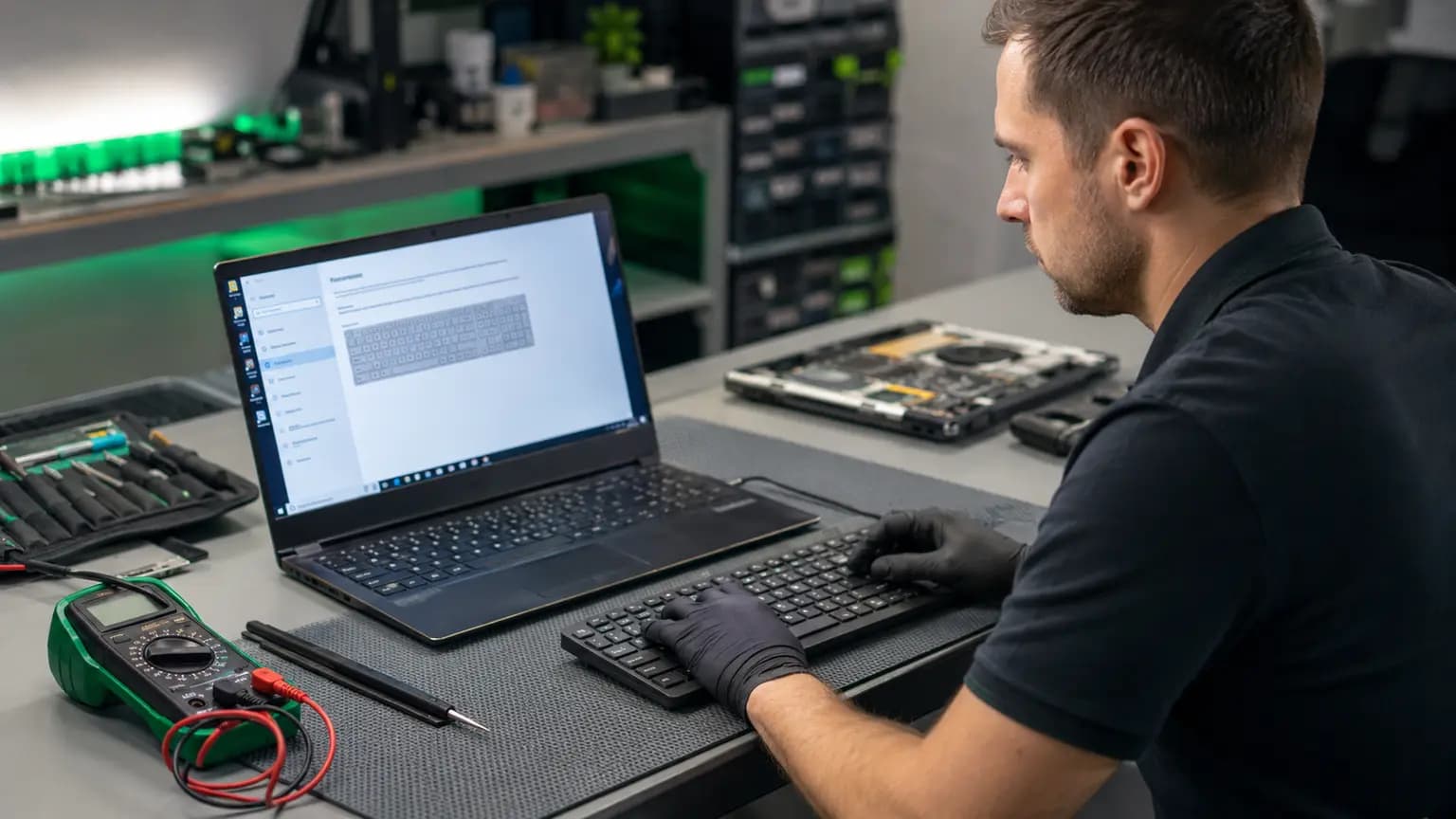
If a USB keyboard works while the built-in keyboard does not, Windows can process keyboard input and the problem is narrowed toward the internal keyboard, cable, connector or device-specific driver. If neither works after Windows loads but the built-in keyboard works in BIOS, Windows settings, drivers or software deserve attention.
An external keyboard does not prove which internal part failed. It also should not be used to ignore active liquid damage or a swollen battery pushing against the palmrest. Record the result, disconnect unnecessary accessories and keep the test controlled.
Liquid Changes the Priority
Keys may continue working immediately after a spill and fail hours or days later as residue moves and corrosion develops. Powering the laptop repeatedly to check the keyboard can energize contaminated circuits and increase damage. Shut the computer down, disconnect external power when safe and do not use a hair dryer, heat gun or rice.
Do not spray alcohol, contact cleaner or water through the key openings. The keyboard may sit above the motherboard, and added liquid can carry contamination deeper. A professional internal inspection can determine whether only the keyboard was affected or whether the connector, battery area and motherboard also need cleaning or repair.
Internal Connection
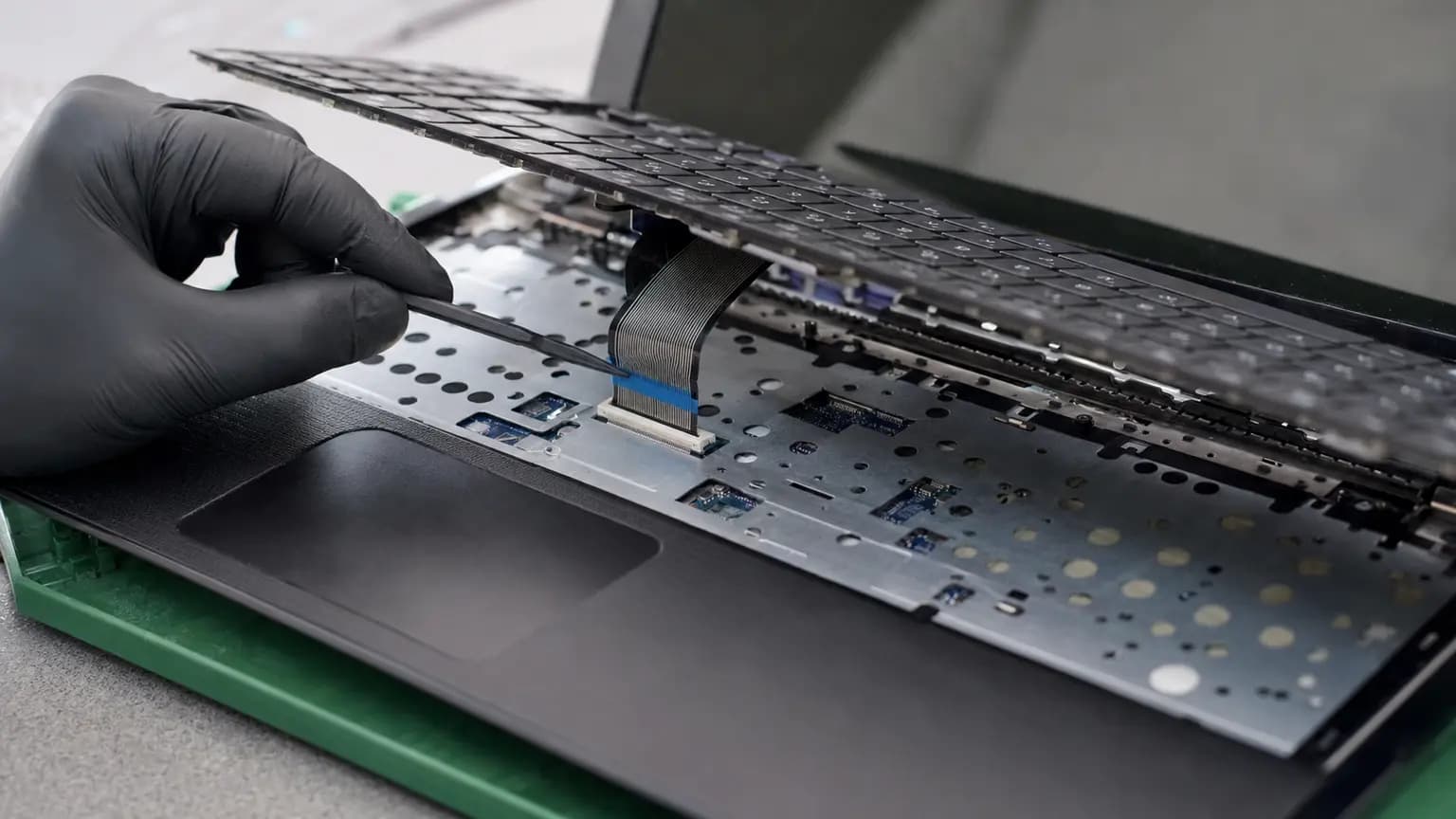
Laptop keyboards commonly connect through a thin flexible cable secured by a small locking connector. The connector style varies, and its latch can break if it is lifted or pulled in the wrong direction. Some keyboards are removable modules; others are permanently attached to the palmrest with plastic rivets or adhesive.
A technician can isolate battery power, inspect the cable for folds or damaged contacts, check the connector lock and look for corrosion. If a cable reseat restores input, the repair should still be verified through repeated startup, sleep and typing tests. If it does not, the keyboard assembly and board-side signals can be evaluated without guessing.
Avoid Costly Mistakes
Keycap clips differ by model and are easy to break. A replacement cap also cannot repair a failed membrane contact beneath it. Generic driver-updater programs may install the wrong software, while a BIOS update is unnecessary risk on a laptop with uncertain power, liquid damage or intermittent input.
Do not order a keyboard from appearance alone. The exact model, language layout, backlight, connector and palmrest construction matter. On many modern laptops, keyboard replacement requires substantial disassembly or a complete top-case assembly. Confirm the part and cause before committing to the repair.
Related Repair Help
Diagnosis and replacement for missing keys, failed rows, liquid-damaged keyboards and complete keyboard failures.
Learn moreComplete laptop diagnosis when keyboard symptoms overlap with startup, battery, charging or motherboard problems.
Learn moreImmediate safety steps when keyboard trouble began after water, coffee or another liquid.
Learn moreBoard-level diagnosis when the keyboard connector, power path or embedded controller is suspected.
Learn moreFrequently Asked Questions
Possible causes include a temporary Windows or driver problem, accessibility settings, a loose ribbon cable, liquid damage, keyboard failure or a motherboard controller fault.
A failed group can result from debris, worn keyboard matrix contacts, liquid residue or damage to the ribbon cable and connector.
Usually yes, if there is no spill, swelling, burning smell or unusual heat. It can also help separate a built-in keyboard problem from broader Windows input trouble.
Yes, a driver or software issue can appear after an update. Testing in BIOS or a startup menu helps show whether the keyboard responds outside Windows.
Not unless the exact key mechanism and removal method are known. Clips break easily, and cleaning a keycap cannot repair damaged circuitry underneath.
It needs prompt safe inspection. Shut the laptop down and disconnect power when safe; continued use can worsen corrosion and motherboard damage.
It depends on the model. Some are separate modules, while others are integrated into the palmrest and require a top-case assembly or extensive disassembly.
Yes. Bring the laptop and its normal charger. We can compare software and hardware behavior, inspect the internal connection and confirm the repair path before recommending parts.
Get the Cause Confirmed
Bring the laptop and its normal charger to Trueonefix in Tampa. We can test the keyboard inside and outside Windows, inspect the cable and connector, check for liquid damage and explain whether settings, cleaning, a keyboard assembly or board-level repair is appropriate.
One local Tampa storefront
104 E Fletcher Ave, Tampa, FL 33612 · Walk-ins welcome during business hours.